Participant
August 14, 2018
Answered

Extra-Huge Space Around Facing Pages

  • August 14, 2018
  • 2 replies
  • 397 views

I want to start by apologizing in advance. I'm far from an InDesign pro; I simply use it out of necessity at the small non-profit where I work. I've just "figured it out" as I've gone thanks to tutorials + youtube.

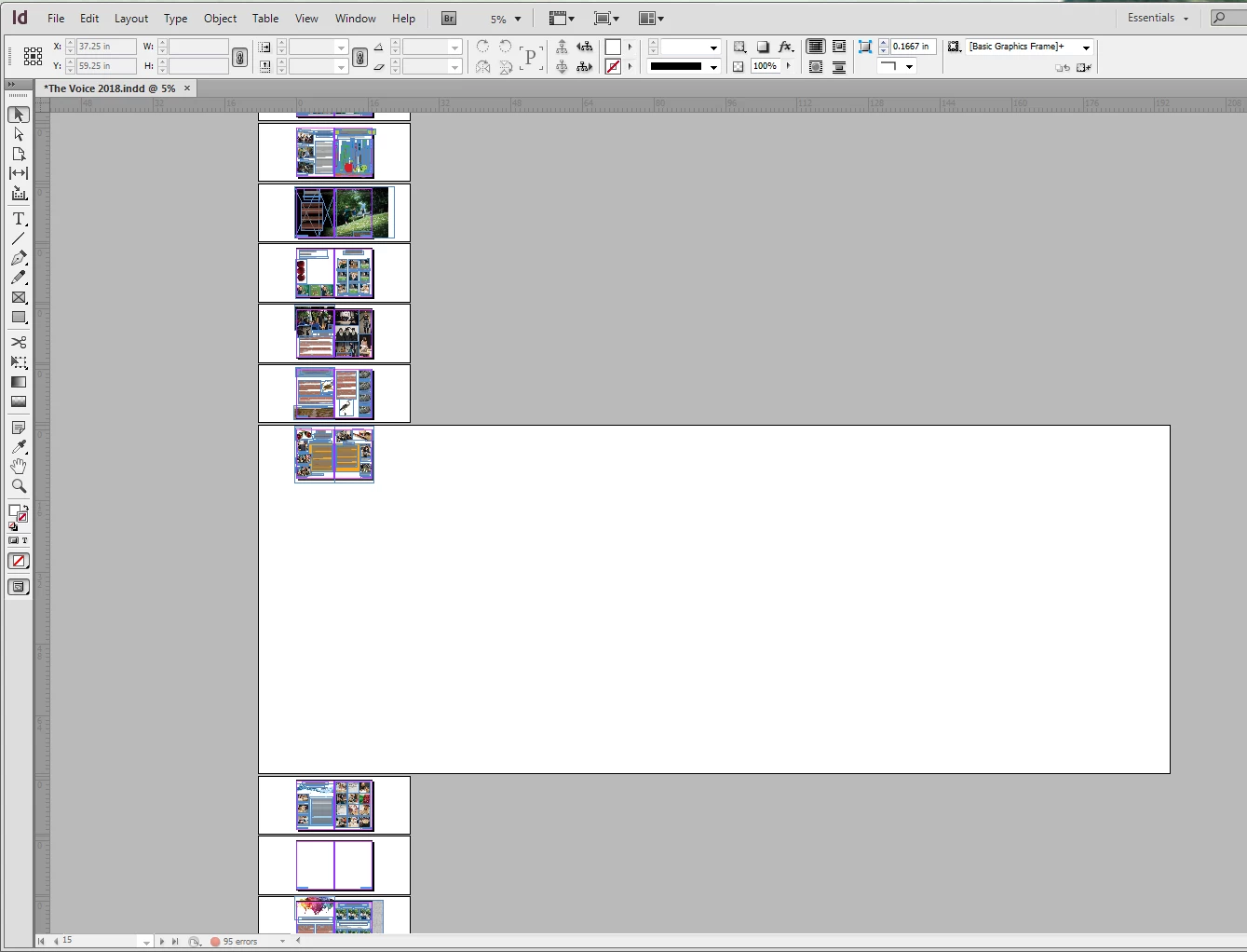
I can't figure out what I've done to create all this extra space around pages (screenshot included). I know I don't need to be concerned when this document exports, but it is cumbersome when working to scroll through so much empty space.

Thanks for any solutions and also for any insights into what my mistake was

This topic has been closed for replies.
Correct answer Laubender

Or:
Add a new spread after or before the one with the gigantic pasteboard.

Move all objects on the old spread to the new one by first surrounding the two pages with a selection marquee.

Do not use Select All for this. Then do Copy/Paste in Place to the new spread or move the selected elements accross the spread borders to the new spread. After that remove the odd spread.

Regards,
Uwe

2 replies

JonathanArias
Legend
August 14, 2018

that has happened to me too. on top of what Bob suggested, try applying the master on that page again.

LaubenderCommunity ExpertCorrect answer
Community Expert
August 14, 2018

Or:
Add a new spread after or before the one with the gigantic pasteboard.

Move all objects on the old spread to the new one by first surrounding the two pages with a selection marquee.

Do not use Select All for this. Then do Copy/Paste in Place to the new spread or move the selected elements accross the spread borders to the new spread. After that remove the odd spread.

Regards,
Uwe

BobLevine
Community Expert
Community Expert
August 14, 2018

Could be you used the page tool at some point and blew up the pasteboard. If that's not it, it's generally a sign of some corruption in the document. Try exporting it to IDML and then opening that to get rid of it.