
Inspiring
July 10, 2017
Answered

Find and replace double spaces with tab

  • July 10, 2017
  • 4 replies
  • 8419 views

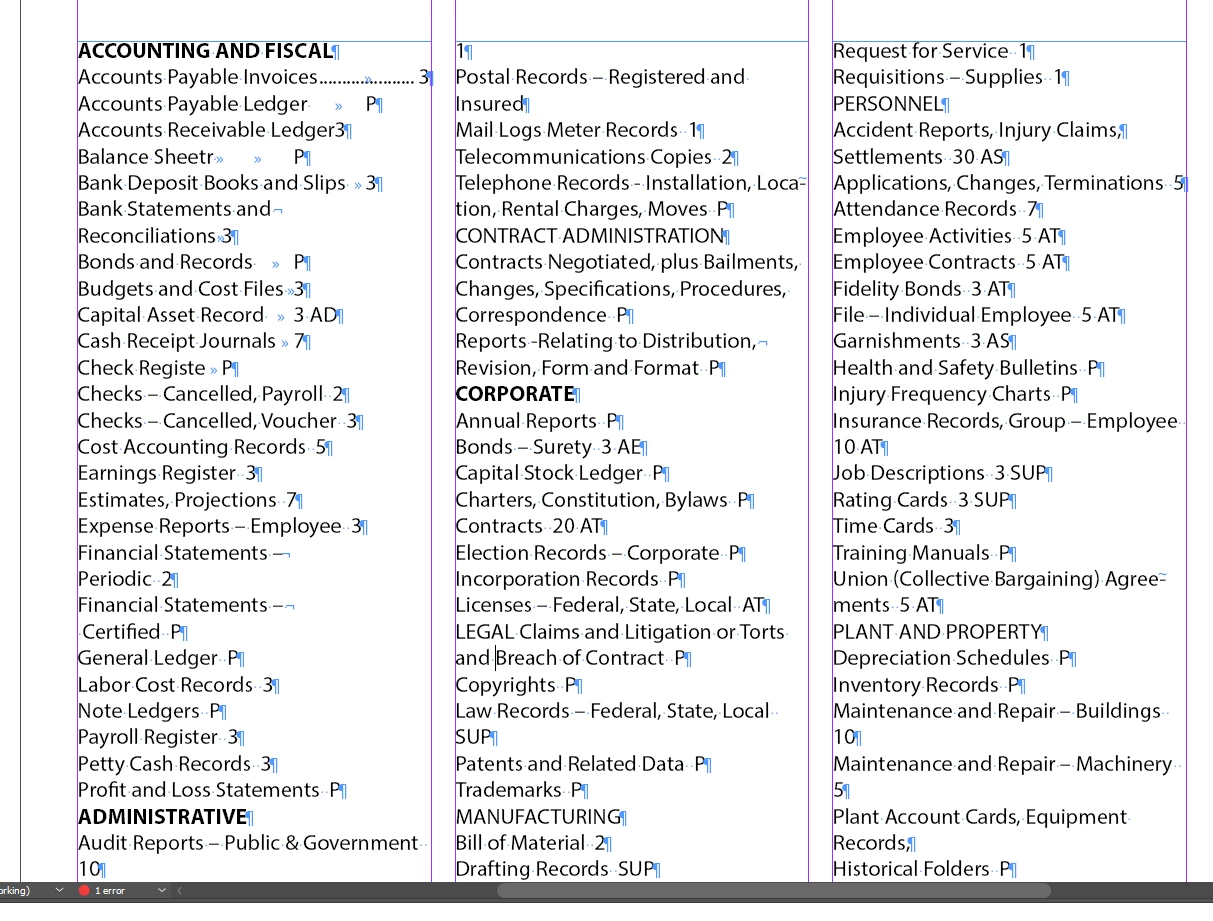
I have a document in which I want to do dot leaders. The text is all set (a couple of pages) and there are two spaces at the end of on each line where I want to have a tab so I can do dot leaders. Is there a way I can replace a double space with a tab using find and replace?
Thanks to those who know more than me,

Joe

This topic has been closed for replies.
Correct answer Jongware

Well ... type two spaces in the Find Text field and enter a Tab code in the Replace With field (which is "^t"). That ought to do it, unless you are not sure if all of your double spaces should be replaced?

4 replies

Inspiring
July 10, 2017

Thanks to all, I used Jongware's solution because it was the first.

Thanks,

Joe

Randy Hagan
Community Expert
Community Expert
July 10, 2017

This is where your good friend the Edit>Find/Change... menu command comes in ...

  • Highlight all your index text where you want to make the substitution. This precludes InDesign from making changes where you don't want them made.
  • Select the Edit>Find/Change... menu command.

This opens the Find/Change dialog box. From here, it's as simple as 1-2-3:

  • Go to the Search: options box and choose Selection.

  • In the Find What: edit box, type two spaces. Go to the @ button to the right of the Change To: edit box and select Tab. You'll see that it automatically puts the characters ^t in the edit box. That's InDesign data-speak for Tab.

  • Click the Change All button and it will change all the double-spaces to tabs and your dot leaders will shine through and align the page numbers with the tab you've got set up in your index. Then click the Done button to get back to your updated InDesign document.

1-2-3. Done Deal.

Michela Di Stefano
Inspiring
July 10, 2017

Yes, you can use FIND/Replace to replace a double space with a tab. It's very easy and very useful.  :-)

Jongware
Community Expert
JongwareCommunity ExpertCorrect answer
Community Expert
July 10, 2017

Well ... type two spaces in the Find Text field and enter a Tab code in the Replace With field (which is "^t"). That ought to do it, unless you are not sure if all of your double spaces should be replaced?