Find/Change within a table. Change only the second instance
- January 20, 2021
- 2 replies
- 378 views
Hi there, I am new to InDesign
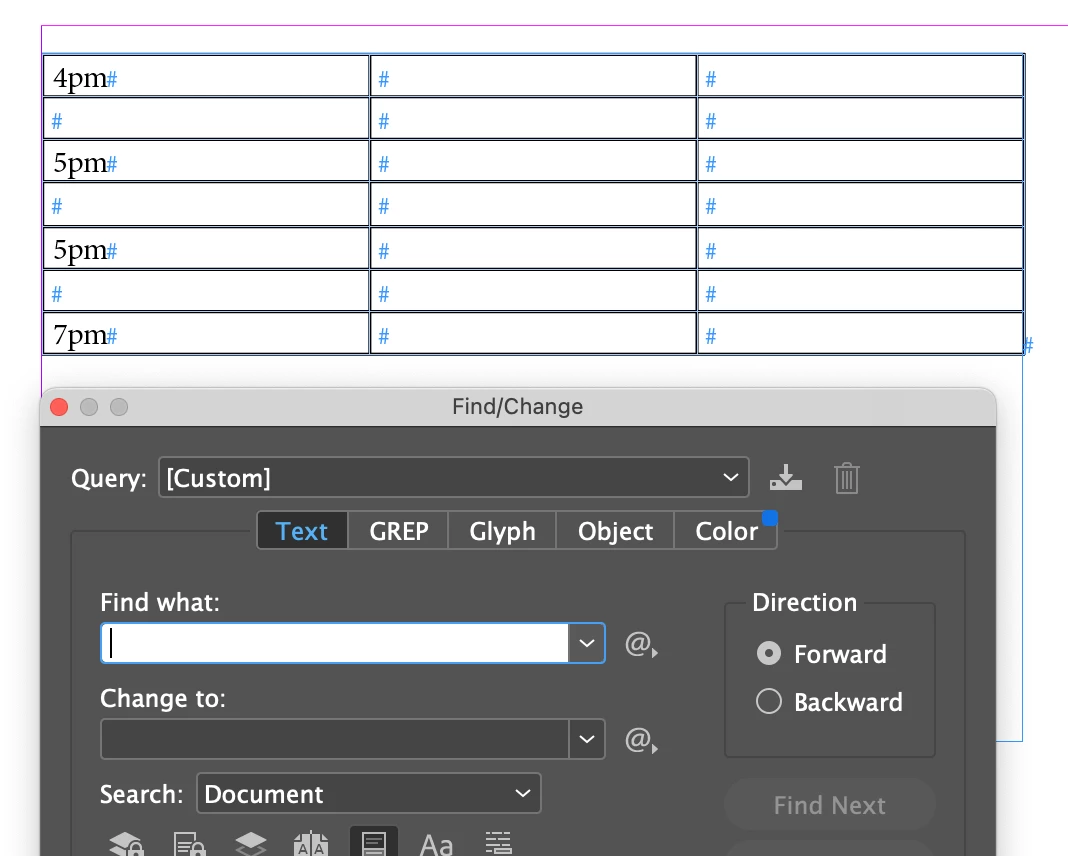
I have made a planner in InDesign and I have made a mistake on the scheduling pages.
I have a table with rows and columns, sometimes three columns, sometimes more. in the first column there are times on every other row.
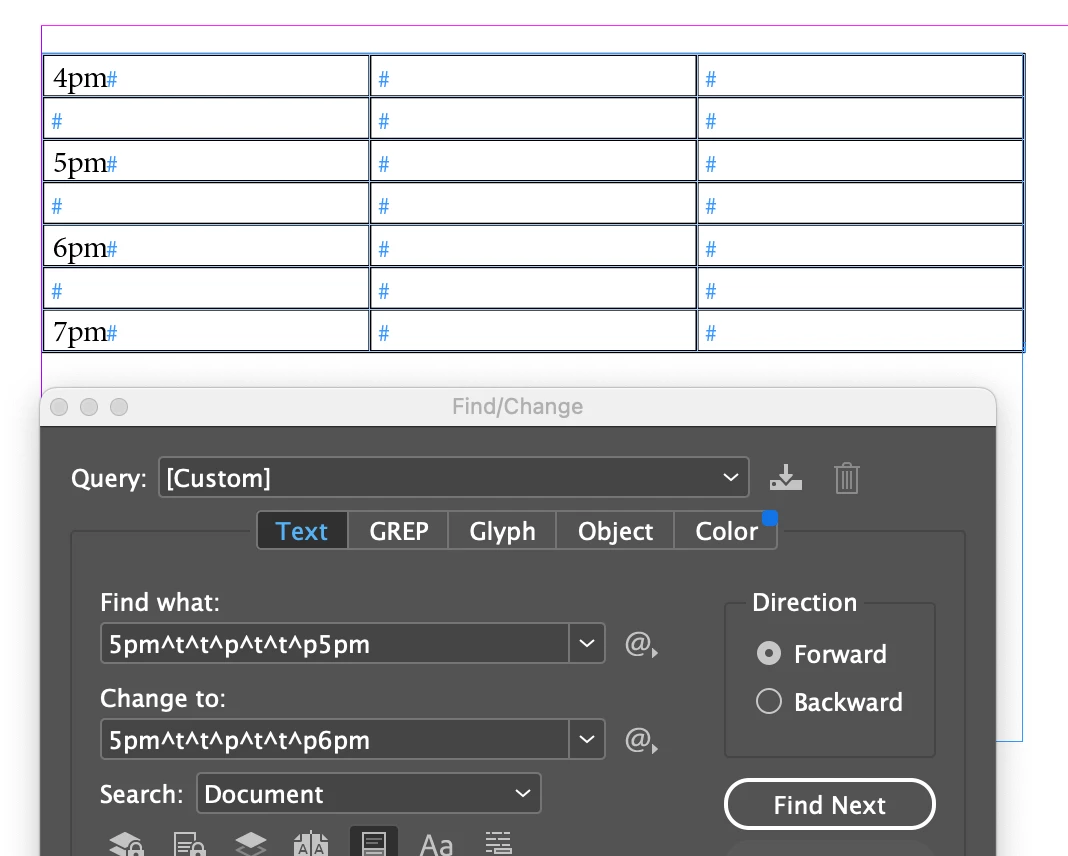
I have repeated 5pm where it should be 6pm so I have duplicate 5pm on over 365 pages in the planner.
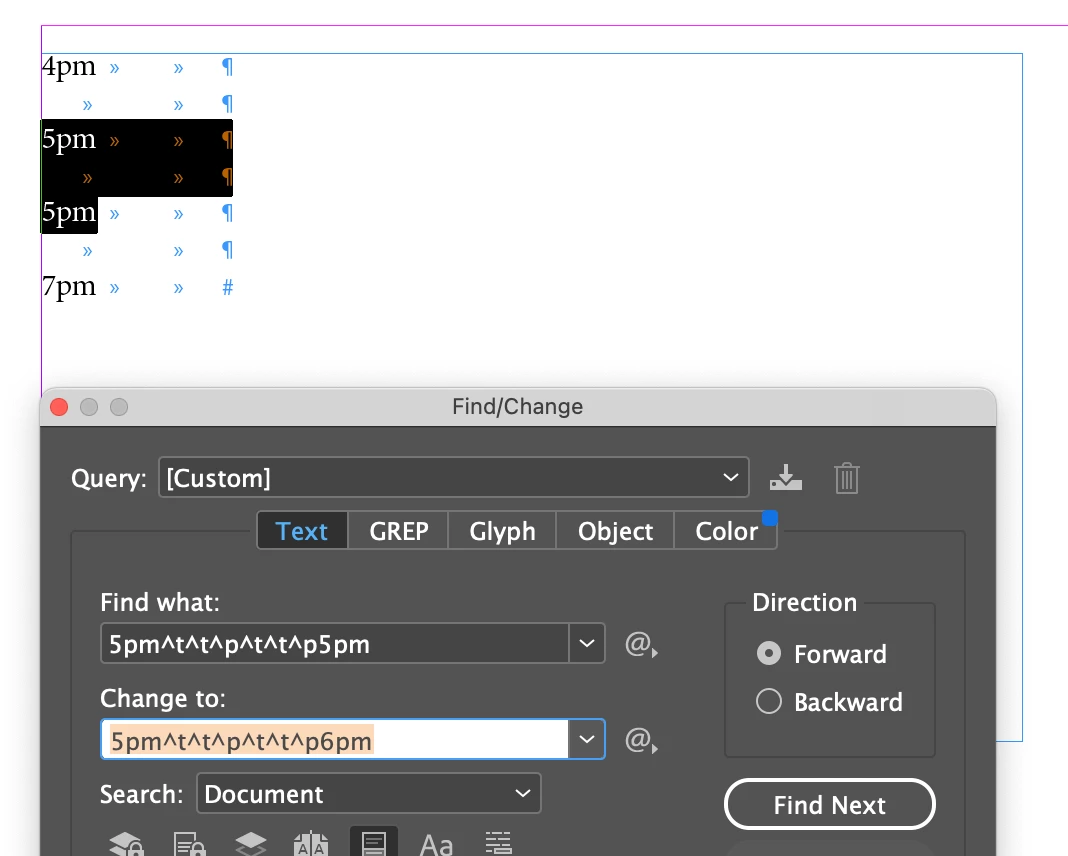
I spent hours on the internet last night trying to find a solution and tried all sorts of find/change options including trying to use tab metacharacters like so: 5pm^t^t^t5pm and the GREP equivalent
I could do it all manually skipping the first 5pm and changing the second, but I don’t relish doing this nearly 400 times, plus I have another 8 versions of the planner with the same problem that i will need to change too. And if I do it manually, there is a great risk of error which will be even harder to detect.
In Microsoft Word, I can just copy the cells and paste them into the find field and replace the offending 5pm that way so I am finding it very frustrating not to be able to do that with InDesign
Has anyone got any idea how I can run a find/change and be able to “change all” in one go of just the second instance per page throughout the entire document/s
Thank you
 AdChoices