Participant
March 1, 2019
Answered

Font Issue

  • March 1, 2019
  • 3 replies
  • 1761 views

How to insert arrow over a font  in indesign ?

    This topic has been closed for replies.
    Correct answer Michael Bullo

    This is a horrible, horrible hack and should only be used if you can't find a suitable character (glyph) which has a built in arrow above it.

    Insert an arrow into your text via the Glyphs panel. Look for fonts with "Pro" extensions such as Minion Pro. These tend to be OpenType fonts and have lots of extra characters such as arrows. Also note that I narrowed the search by typing "arrow" in the Glyphs panel search field.
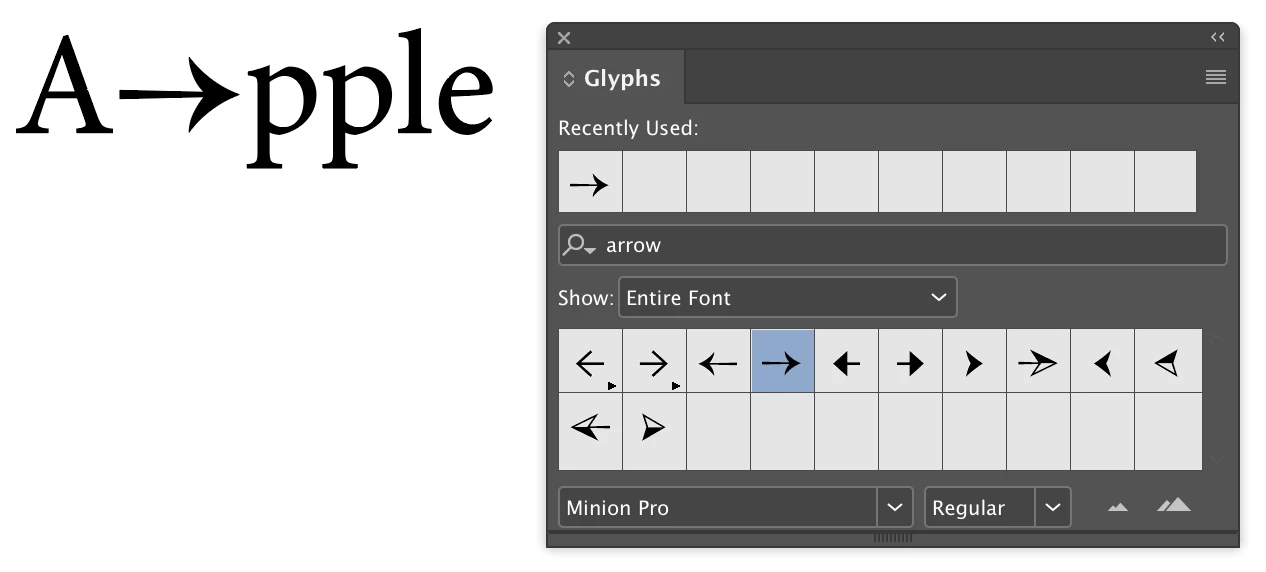
    Select the arrow and from the Character panel…

    - Make the arrow smaller

    - Raise the arrow by adjusting the Baseline Shift
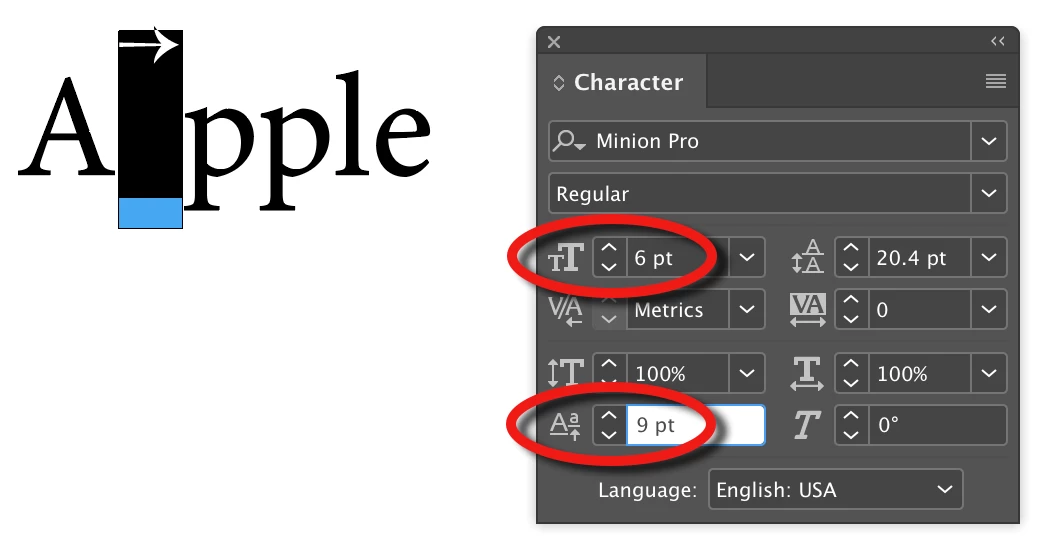
    Position the cursor to the left of the arrow and from the Character panel dramatically reduce the kerning. This will drag the arrow above the character to the left. You may also need to position the cursor to the right of the arrow and slightly adjust the kerning.
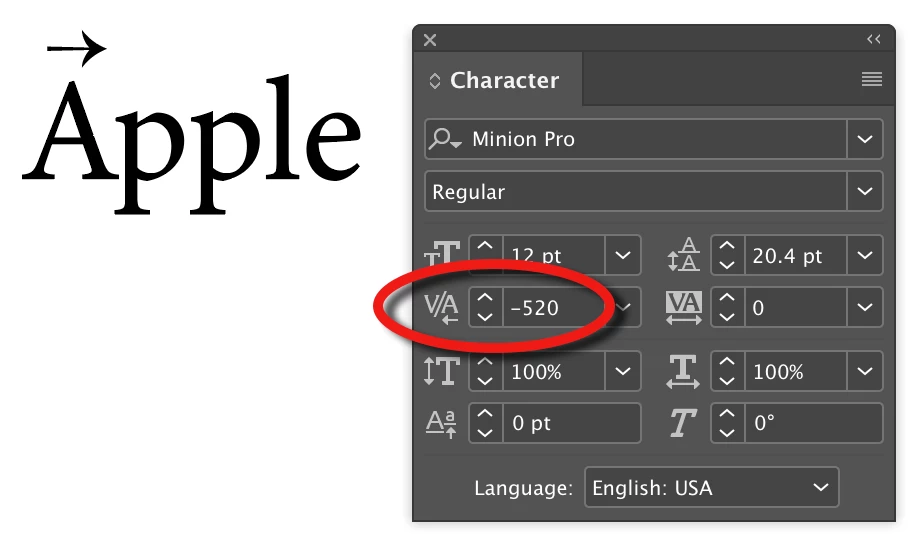
    Technically the arrow is still positioned between the "A" and the "p". If you need to select anything around this wacky setup you might best be using the arrow keys in combination with the shift key.

    3 replies

    Michael Bullo
    Community Expert
    Michael BulloCommunity ExpertCorrect answer
    Community Expert
    March 4, 2019

    This is a horrible, horrible hack and should only be used if you can't find a suitable character (glyph) which has a built in arrow above it.

    Insert an arrow into your text via the Glyphs panel. Look for fonts with "Pro" extensions such as Minion Pro. These tend to be OpenType fonts and have lots of extra characters such as arrows. Also note that I narrowed the search by typing "arrow" in the Glyphs panel search field.

    Select the arrow and from the Character panel…

    - Make the arrow smaller

    - Raise the arrow by adjusting the Baseline Shift

    Position the cursor to the left of the arrow and from the Character panel dramatically reduce the kerning. This will drag the arrow above the character to the left. You may also need to position the cursor to the right of the arrow and slightly adjust the kerning.

    Technically the arrow is still positioned between the "A" and the "p". If you need to select anything around this wacky setup you might best be using the arrow keys in combination with the shift key.

    Participant
    March 5, 2019

    Thank You Sir...

    Michael Bullo
    Community Expert
    Community Expert
    March 5, 2019

    Thank you

    Bill Silbert
    Community Expert
    Community Expert
    March 1, 2019

    If you're talking about adding accents over text the easiest way is to use the Glyphs Panel (Window>Type & Tables>Glyphs). You can find them within the "Entire Font View" or by choosing one of the "Latin" options from the pull-down menu. To apply them into text insert your cursor where you want the character to appear and double-click on it in the Glyphs Panel.

    Participant
    March 4, 2019

    Can I add arrow over characters in Indesign CC 2015 like below image ?

    Bill Silbert
    Community Expert
    Community Expert
    March 4, 2019

    As I responded in the direct contact that you sent me my suggestion is that there might be a custom script that could do this. Try posting (with a screen shot) in the InDesign Scripting Forum InDesign Scripting . Somebody there may have a script that will do this.

    Community Expert
    March 1, 2019

    Do you mean characters with a circumflex? Ê Î Û

    Participant
    March 4, 2019

    No, Sir I mean arrow over characters like this image attached below.

    How to insert arrow over characters in Adobe Indesign CC 2015 ?