Inspiring
December 14, 2020
Answered

Forcing line break of a TOC style

  • December 14, 2020
  • 5 replies
  • 2721 views

Hi

I'm aware this was an issue a couple yrs ago, but may be some new ideas have appeared in the meantime 🙂

I want to break a TOC style into 2 lines based on a header which is a single line. I can't do this by left indenting.

Nothing comes into my mind but do it manually after completing all the book. Is there any other more automatic solutions?


This topic has been closed for replies.
Correct answer Mike_J_001

Hi,


Thanks for your post. I do understand your idea, but I'm not a big fun of manual adjustments even if there is a perfect check list 🙂

So I did it another way:


First I had 2 issues with the TOC being placed in a narrow column:

1/ problem when the header was too close to the page number

2/ problem with balancing the column lenght - I was playing with breaking header lines to have this being equal

this ilustrates the picture:
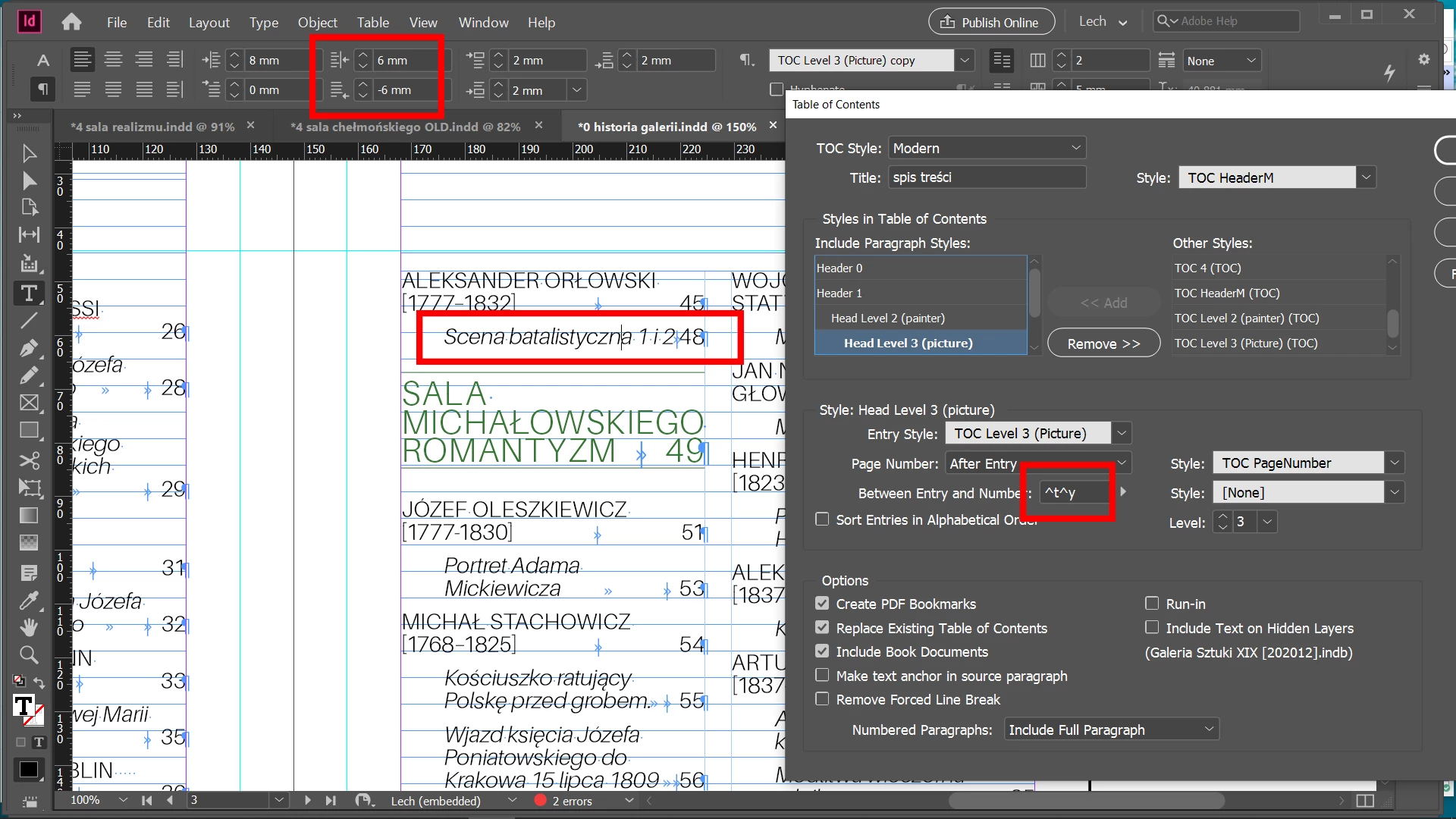


As you see in this case there is almost no space between text and page number. Left indent (set for par style) doesn't work for a single line. So at first I "pushed away" page number from textt by adding tab sign between entry and a number, with an effect as below:
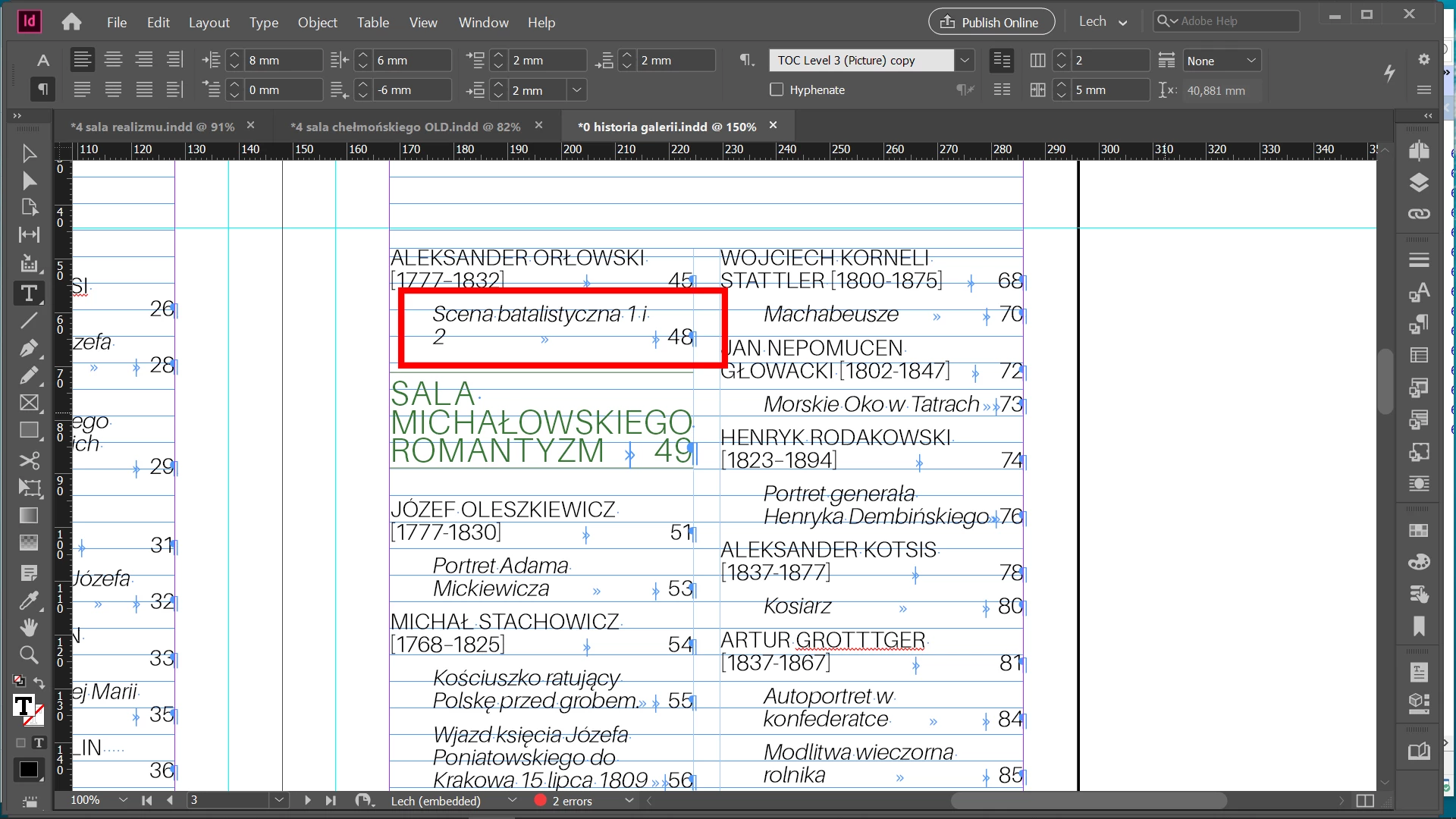


Now I have used the GREP to force break in a certain way by using noBreak 🙂
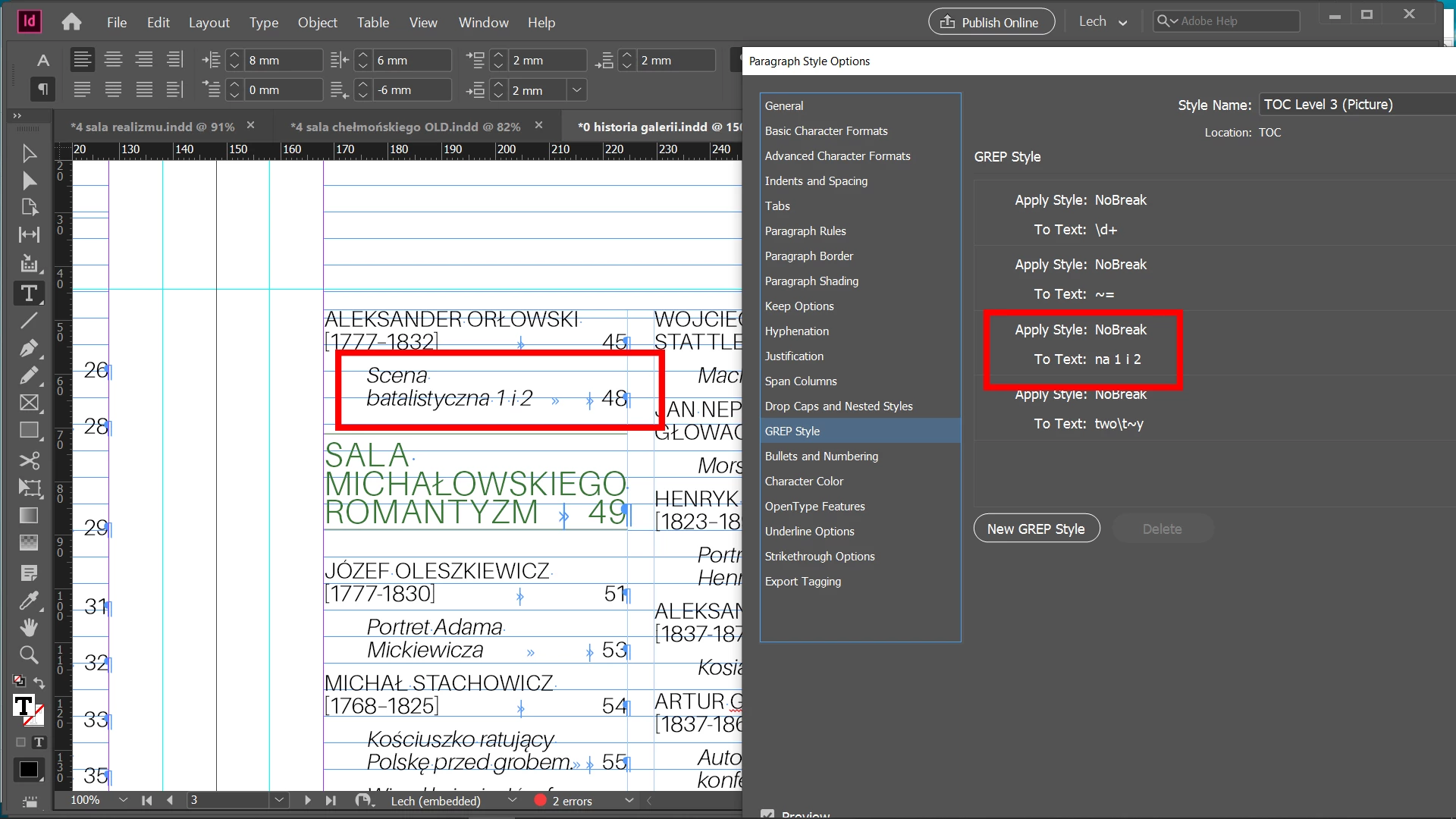


I have used this idea with a couple of cases, when I have the similar issue, or I have to break line to have a balanced column effect.

As you see there are a couple of very specific GREPs, dedicated in fact to one header instance only. But overall I had to create only 5-6 such GREPs to have the nice TOC of around 200 entries.

So in my opinion it was worth to do this job and forget of manual adjustments 🙂

5 replies

Dave Creamer of IDEAS
Community Expert
Community Expert
December 28, 2020

I had a complex job a few years back that required a line break in the TOC heading. I simply did it by doing a Find & Change saved query as part of the proofing process before I generated the PDF--I created a checklist for the process. Not an automated option, but not that difficult. The book (directory) was about 1000 pages long, so I only updated the TOC when I had to. 


The pages:

This was straight text and required the most work due to constant edits by the client.

In the main sections, I couldn't use the headings as displayed because I needed a separate TOC for English and Spanish, so I created a non-printing box with the English and Spanish text at the top of each document as it was displayed in the TOC. (The color coding was simply for my benefit.) 

The TOC:

The line with the line break in the TOC was formatted with a nested style. 

David Creamer: Community Expert (ACI and ACE 1995-2023)
Mike_J_001AuthorCorrect answer
Inspiring
December 29, 2020

Hi,


Thanks for your post. I do understand your idea, but I'm not a big fun of manual adjustments even if there is a perfect check list 🙂

So I did it another way:


First I had 2 issues with the TOC being placed in a narrow column:

1/ problem when the header was too close to the page number

2/ problem with balancing the column lenght - I was playing with breaking header lines to have this being equal

this ilustrates the picture:


As you see in this case there is almost no space between text and page number. Left indent (set for par style) doesn't work for a single line. So at first I "pushed away" page number from textt by adding tab sign between entry and a number, with an effect as below:


Now I have used the GREP to force break in a certain way by using noBreak 🙂


I have used this idea with a couple of cases, when I have the similar issue, or I have to break line to have a balanced column effect.

As you see there are a couple of very specific GREPs, dedicated in fact to one header instance only. But overall I had to create only 5-6 such GREPs to have the nice TOC of around 200 entries.

So in my opinion it was worth to do this job and forget of manual adjustments 🙂

Inspiring
December 29, 2020

I can't edit the post - I certainly meant RIght indent in sentence:  Left indent (set for par style) doesn't work for a single line.

Community Expert
December 15, 2020

You can do a Right indent - and then a negative first-line right indent 

And this can built into the TOC paragraph style.


https://www.rockymountaintraining.com/adobe-indesign-what-is-a-last-line-right-indent/


Barb Binder
Community Expert
Community Expert
December 14, 2020

Hi @Mike_J_001:


Well, you can always add a line break manually—you just have to remember to add it after each update.


Showing us your layout helps us help you... but other options include adding non-breaking spaces to the source paragraph that will carry over to the TOC, or using a no-break character style in a similar manner. Whether or not that will actually work for you remains to be seen, depending on what is happening on the body pages.


~Barb 

~Barb at Rocky Mountain Training
Barb Binder
Community Expert
Community Expert
December 14, 2020

Hi @Mike_J_001:


InDesign has (and had) a last line right indent feature which is used specifically to keep page numbers in a TOC at the right margin, while the earlier lines of a multi-line head break. 


If that is the goal, set a right indent of 3p0 (as a starting point) and a Last-Line Right Indent to -3p0. If that is more or less what you need, you can tweak the values. Or again, show us what you are working with. 


~Barb 

~Barb at Rocky Mountain Training
Inspiring
December 14, 2020

Hi Barb,


Sure I'm aware of right indenting, unfortunetly I can't apply it, as this spoils the rest of TOC records of the same style.

The issue is that TOC is in 2-columns layout and I want this 2 colums be balanced.

Hence what would work for me is applying the break line to this only particular TOC entry.

Randy Hagan
Community Expert
Community Expert
December 15, 2020

You may want to try a Forced Line Break by using the Type>Insert Break Character>Forced Line Break menu command, or the keyboard shortcut Shift+Enter/Return, depending on whether you're using a Windows or a MacOS system.


Inserting the line break gives you a "soft return" to break up the lines for your exception, but doesn't create an additional paragraph so the whole entry would be registered as a single paragraph with the style you're using to generate your ToC. This still allows you to manually determine your "line breaks" in a paragraph while maintaining it as a single paragraph, as far as InDesign (and your ToC) is concerned.


Hope this helps,


Randy

pixxxelschubser
Community Expert
Community Expert
December 14, 2020

Please show something.


Do you mean something like that?

Inspiring
December 14, 2020

I guess I do.