

yhoitink
Known Participant
January 12, 2023
Question

Frame with object style around text and image

  • January 12, 2023
  • 4 replies
  • 763 views

I am a genealogist creating a family book. I have a lot of records that I want to display in vignettes: a white box with inverted corners where a text with a summary of the record is displayed alongside the image. The text can be longer than the image, or vice versa. The longest of the two determines the height of the box. See the image for the desired result. 

I have many of these records, and want the distance between the edge of the box and the text and image to be the same on all of these vignettes. I would like to use object styles to achieve this automatically. However, I have not been able to find out how to do this. I can create an object style for the text frame, to make that white and give it the corners I want, but it will not take into account the height of the image. I have tried anchoring the image to the text, but that has no effect.


Does anybody have any tips on how to achieve this? Or do I have to manually add a rectangle behind the text frame and image like I have done in the example?
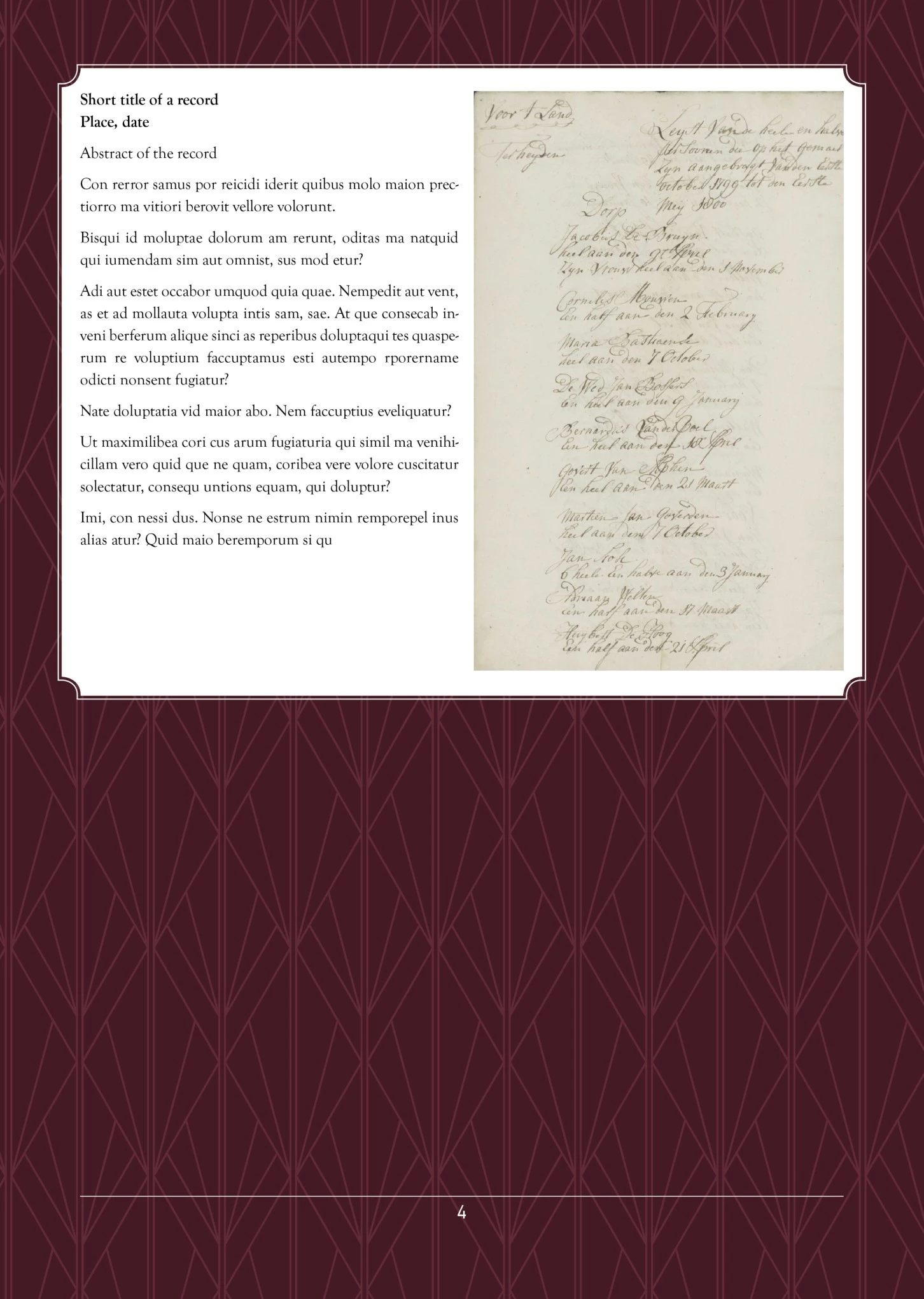
 

This topic has been closed for replies.

4 replies

Barb Binder
Community Expert
Community Expert
January 12, 2023

Simply set the text frame options of Auto Height.

Ha. I started there @Laubender, but was immediately distracted by something early in the workflow. Definitely add that to your style, @yhoitink


Love the table addition. Teamwork! 😊


~Barb

~Barb at Rocky Mountain Training
Community Expert
January 12, 2023

@Barb Binder said: "Double click on the bottom middle handle with the Selection tool to expand or contract the frame as necessary to handle the content."


Hi Barb,

also this part could be automated. Simply set the text frame options of Auto Height.

From my German InDesign 2023 on Windows 10:


I would suggest three different paragraph styles:


One for the first paragraph in the frame to counter the first line indent that is enforced by the text frame insets.

The second one for all text paragraphs that follow.

Finally a third one for the paragraph holding the column break special character followed by the anchored graphic frame for the image. The third one will govern the position of the bottom line of text or the bottom of the graphic frame with a fixed value for leading that could be different than the rest of the text above.


My sample InDesign 2023 document is attached:

LeftColText-RightColGraphicFrame-AutoHeight-2023.indd


Regards,
Uwe Laubender
( Adobe Community Expert )

yhoitink
yhoitinkAuthor
Known Participant
January 12, 2023

Vielen Dank! I had wondered how to get the text to be square and not cut off because of the corners and this is a good solution for that.
I seem to have a problem placing the inline image. When I use Place (Ctrl-D), it adds it outside the text frame if it is too large. 
I am just learning InDesign and appreciate your patience. 

Community Expert
January 12, 2023

Hi @yhoitink ,

place the image on the page. Then cut and paste it to the text insertion point after the column break special character.


Regards,
Uwe Laubender
( Adobe Community Expert )

John Mensinger
Community Expert
Community Expert
January 12, 2023

Another way would be to style the (single-column) text frame as desired, then set it to auto-size, with insets that maintain the desired margins, then anchor a 2-column table in it to house the text and image.

yhoitink
yhoitinkAuthor
Known Participant
January 12, 2023

Thank you, I will give this a try.

Barb Binder
Community Expert
Community Expert
January 12, 2023

Hi @yhoitink:


Here's how I would approach this...

  • Create an object style to do most of the work.
  • Assign it to the text.
  • Drag the bottom middle handle down so that you can see all of the content in a single column.
  • Add a column break and then place the image as an inline graphic.
  • Double click on the bottom middle handle with the Selection tool to expand or contract the frame as necessary to handle the content.


~Barb


~Barb at Rocky Mountain Training
yhoitink
yhoitinkAuthor
Known Participant
January 12, 2023

Thank you for your clear instructions, I will try this!