Alright, I inspected your screenshots again and now I can see that the aspect ratio of the a double page spread is not exactly the one from the page of your original document. And, on the positive side, you already set bleed.
That means:
You will work on a new version of your original document with a new name in several steps like that:
[1] If you are with InDesign CC 2019 and above: Enable Adjust Layout like Derek suggested.
To do that change the width of your pages as if the width of two pages side by side are added.
Do that with File > Layout Adjustment….
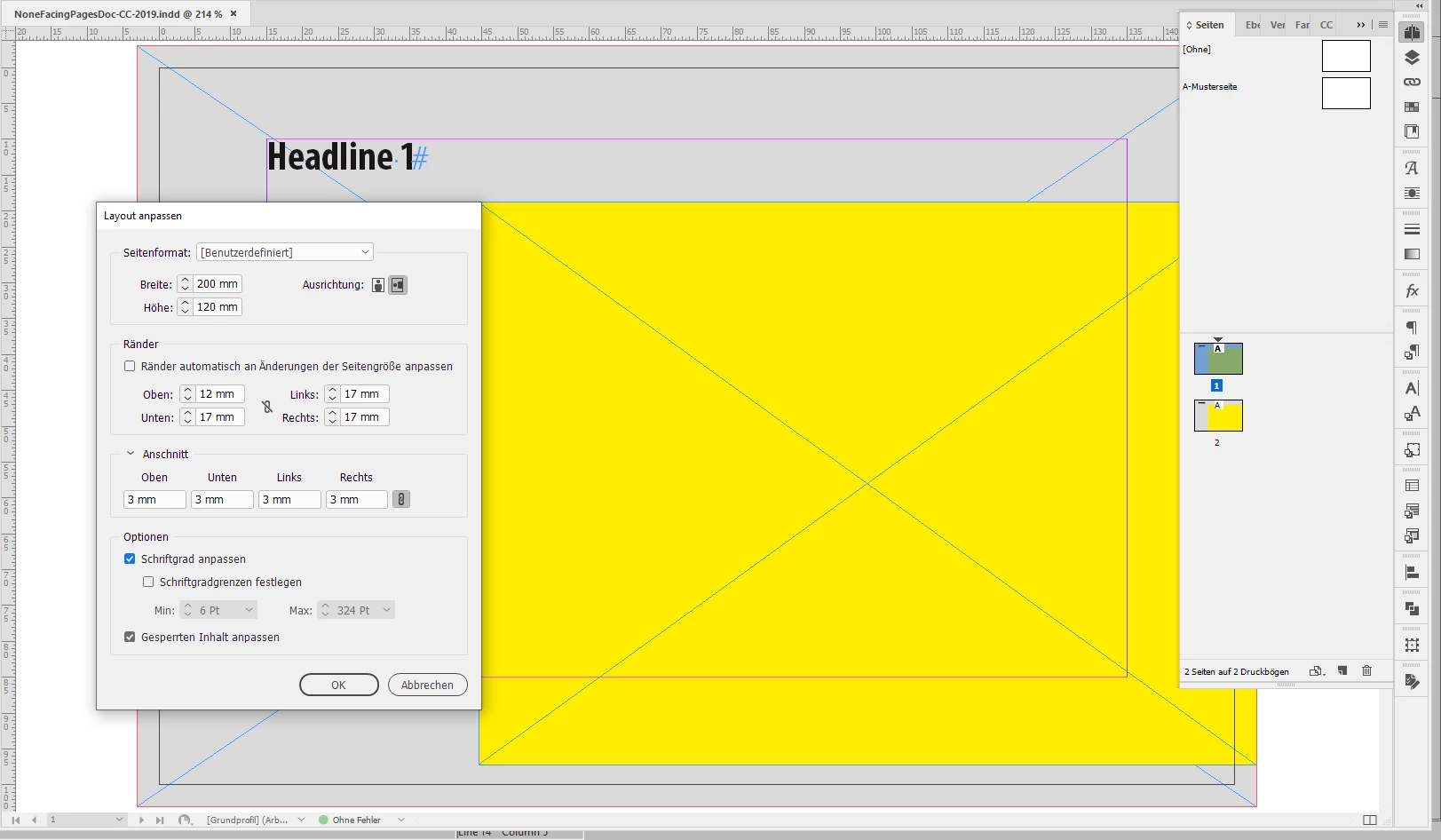
My screenshot is showing a German UI where I changed the width and the height and also gave new values to the margins.
As an option I also enabled the scaling of text:
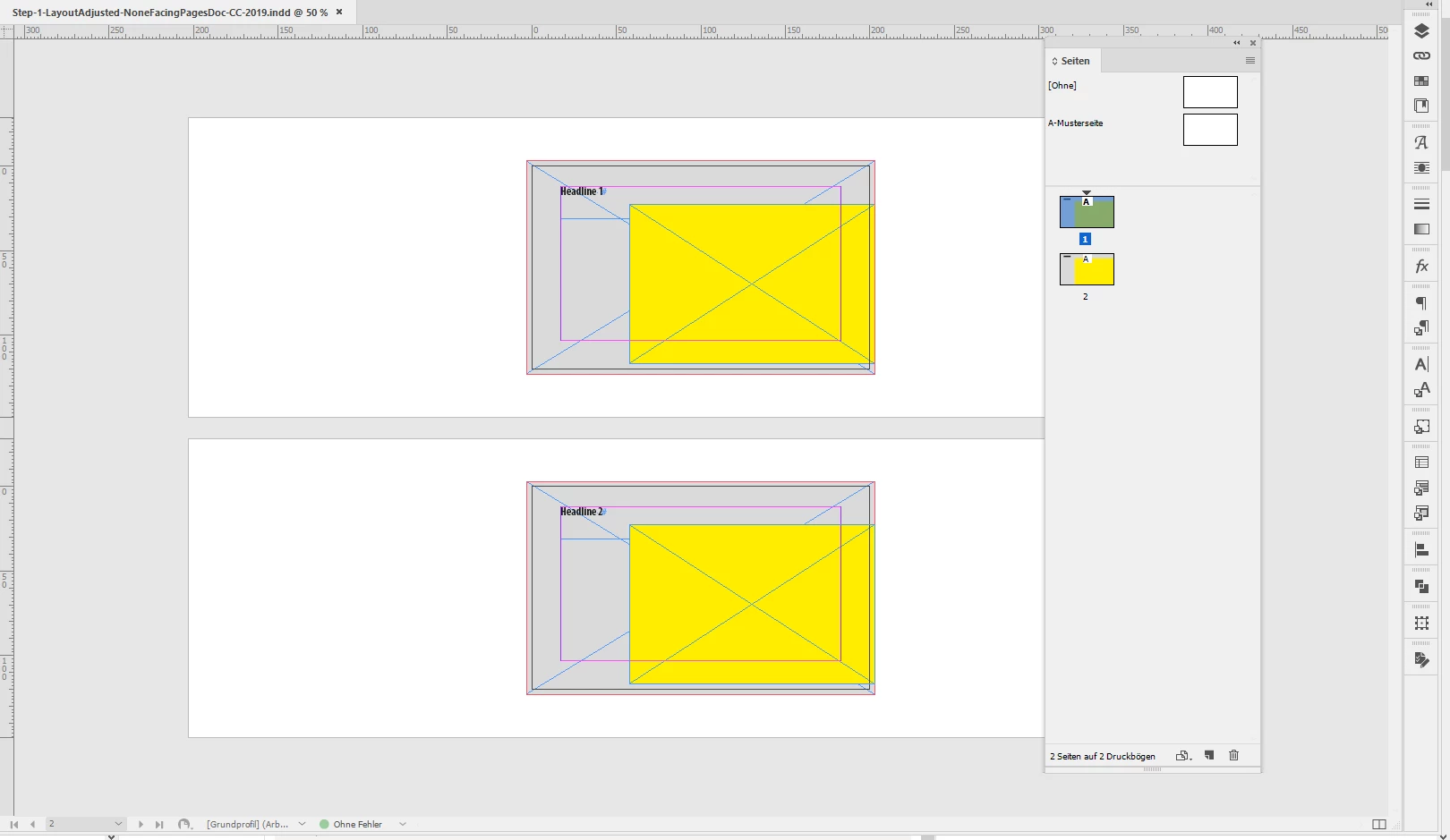
The result was this, the text was scaled, the text frame moved with the margins, also the dimensions of the background frame changes. And the position, width and height of the rectangle that holds the motif, the yellow one:
[2] In preparation of step 3 group every item on every spread with the help of this script code:
// Group every item on a spread:

var doc = app.documents[0];

var spreads = doc.spreads.everyItem().getElements();
var spreadsLength = spreads.length;

for( var n=0; n<spreadsLength; n++ )
{
	var group = spreads[n].groups.add
	(
		spreads[n].pageItems.everyItem().getElements()
	);

};
[2] Now switch to the Page Tool.
Do the keyboard shortcut for Select All so that all pages of your document are selected with the Page Tool.
Then change the width of your pages to half the width like that ( Page Tool is selected ) :
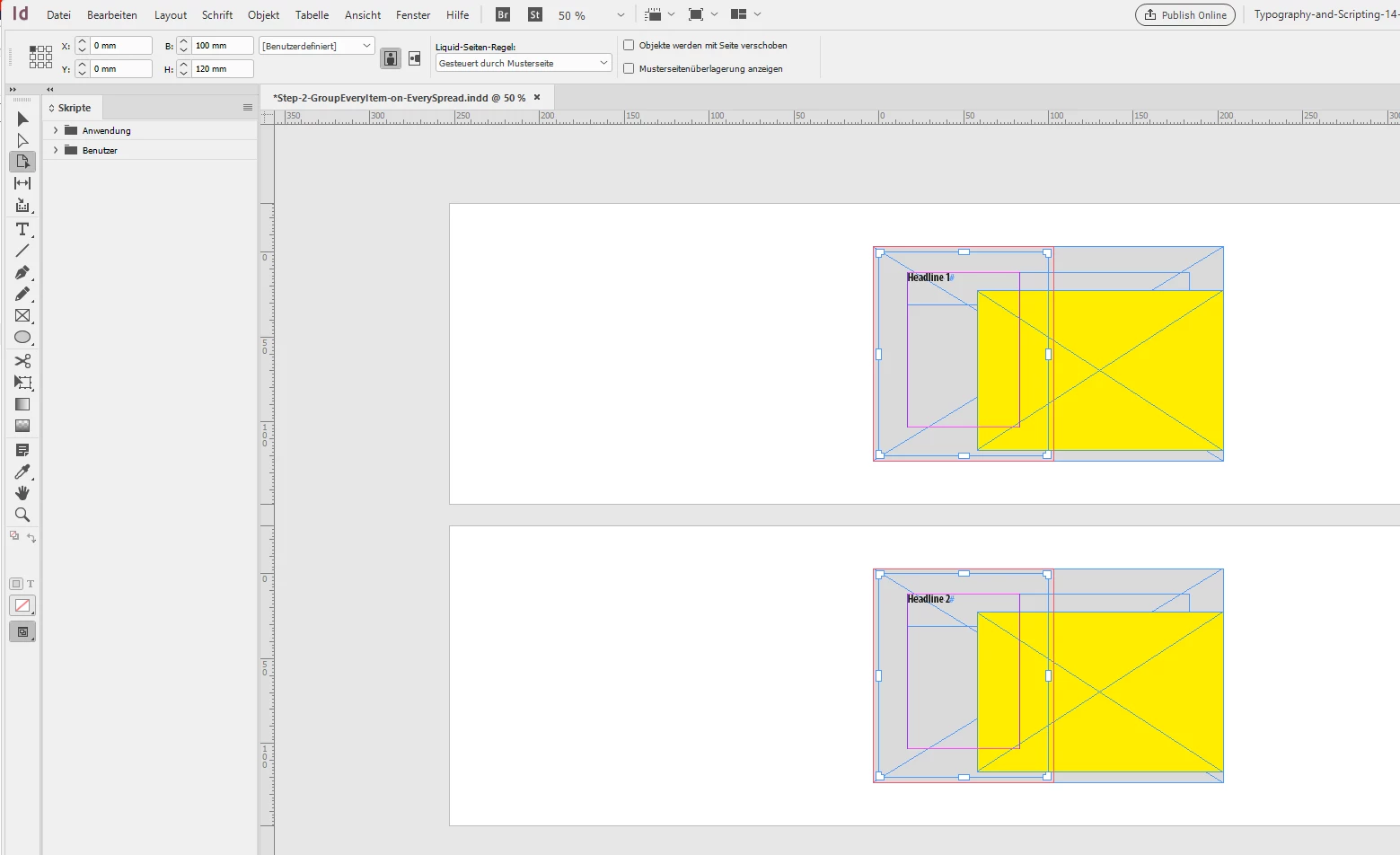
Important note: Set the reference point to the left. In my case I changed the width to 100 mm.
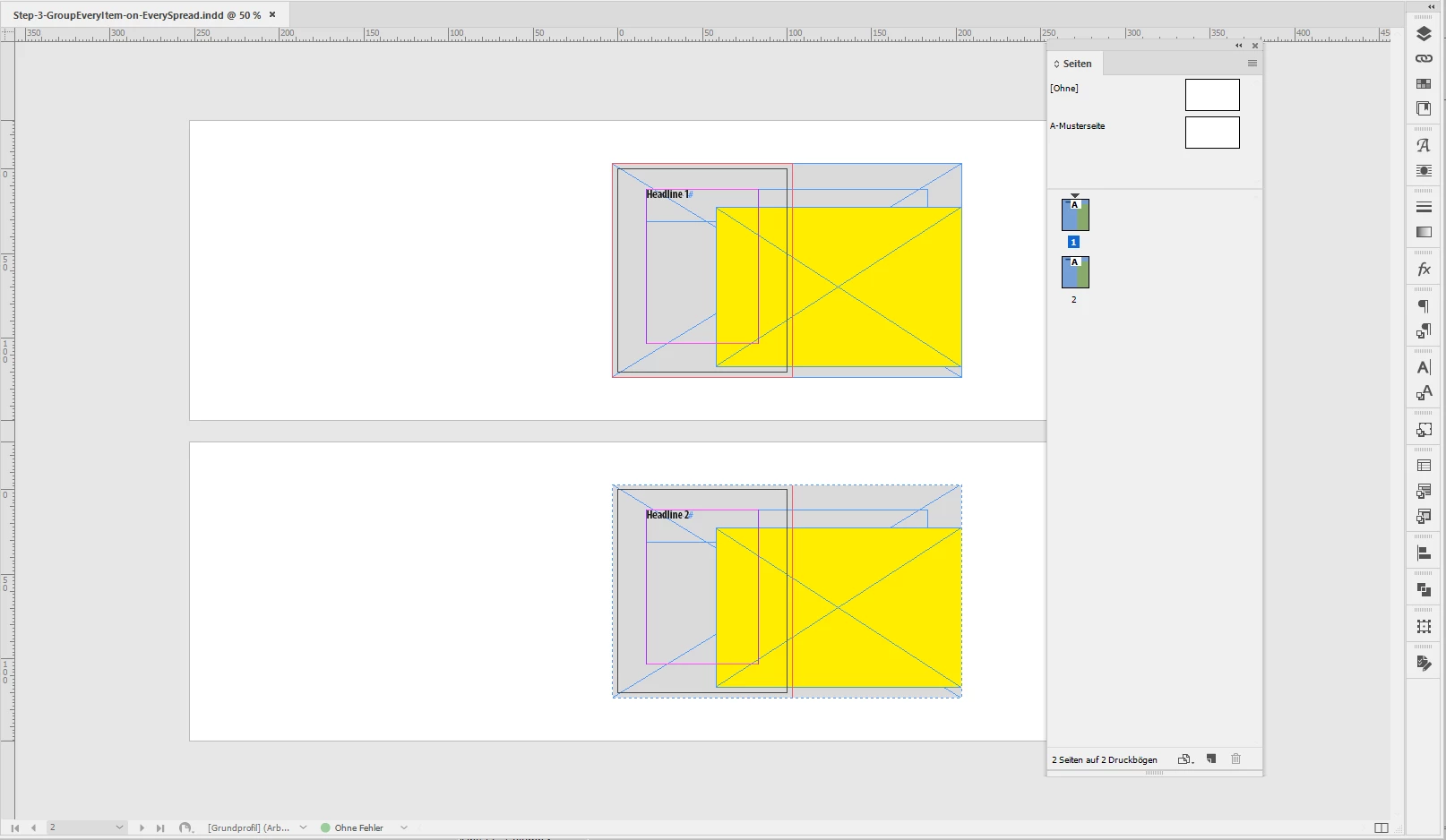
[3] As a next step run the script from my last post to add one page per spread.
Before ruuning the script to add pages:
var doc = app.documents[0];

var spreads = doc.spreads.everyItem().getElements();
var spreadsLength = spreads.length;

doc.documentPreferences.preserveLayoutWhenShuffling = true ;
doc.spreads.everyItem().allowPageShuffle = false ;

for( var n=0; n<spreadsLength; n++ )
{
	spreads[n].pages.add();
};
After running the script to add pages:
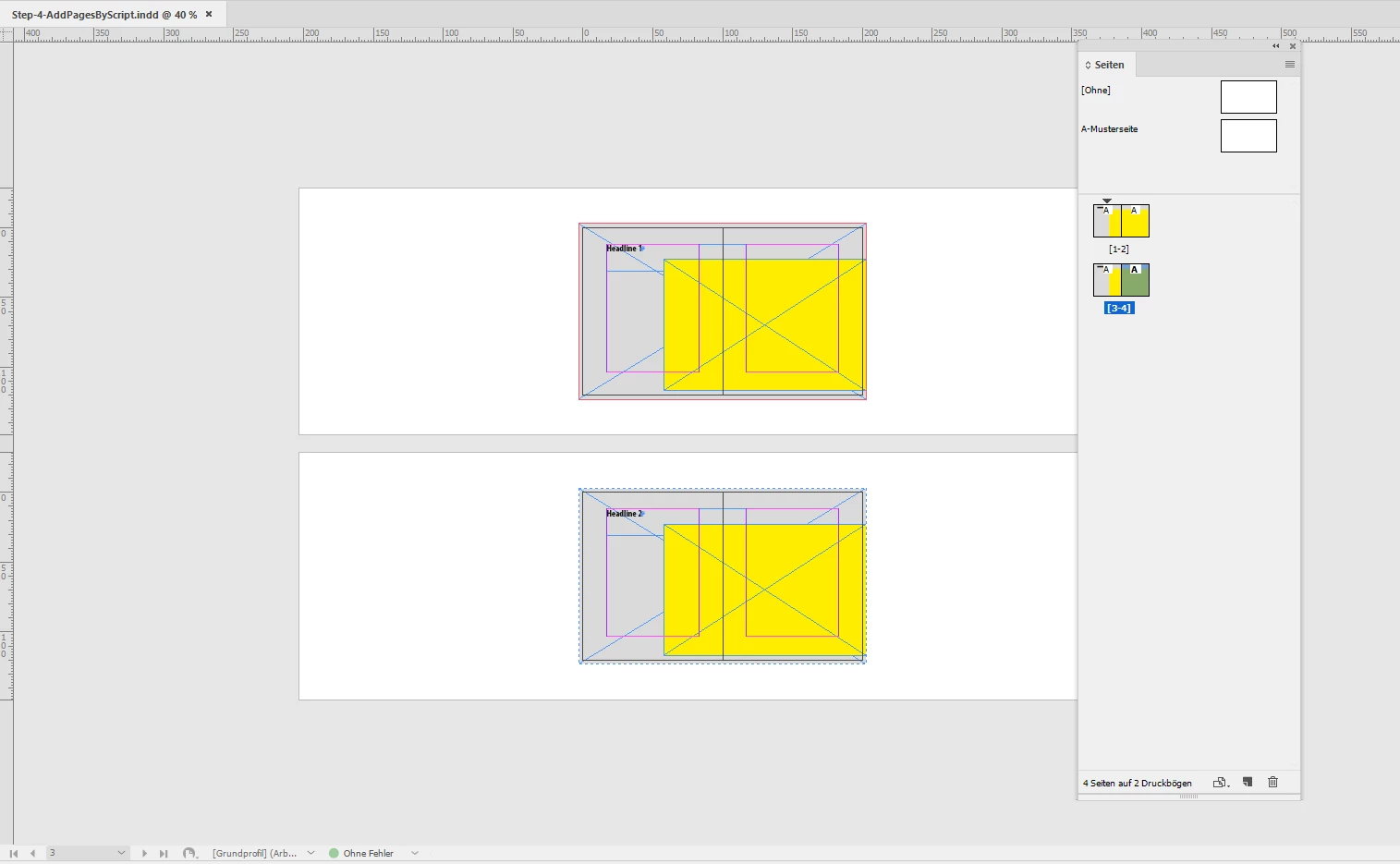
[4] Ungroup all groups you did in step 2 with the following code:
// Ungroup all the groups of step 2:
app.documents[0].spreads.everyItem().groups.everyItem().ungroup();
Ok. This gets you a non-facing pages document with two pages on every spread.
What's left to do?
Change all of the master pages to the new size of your pages.
Set the page number of the first page in the first spread to an even number.
Change the document setup to a facing pages document.
Add one page to every master.
Only then:
Select all pages in the Page Panel and allow pages to shuffle.
Regards,
Uwe Laubender
( ACP )

 AdChoices