cecilej42726091
Participating Frequently
January 7, 2019
Answered

Gradient feather not exporting properly to interactive PDF

  • January 7, 2019
  • 3 replies
  • 7389 views

Hi,

I have an INDD document with a layer that includes a B&W Gradient Feather effect over a Grayscale PSD image.

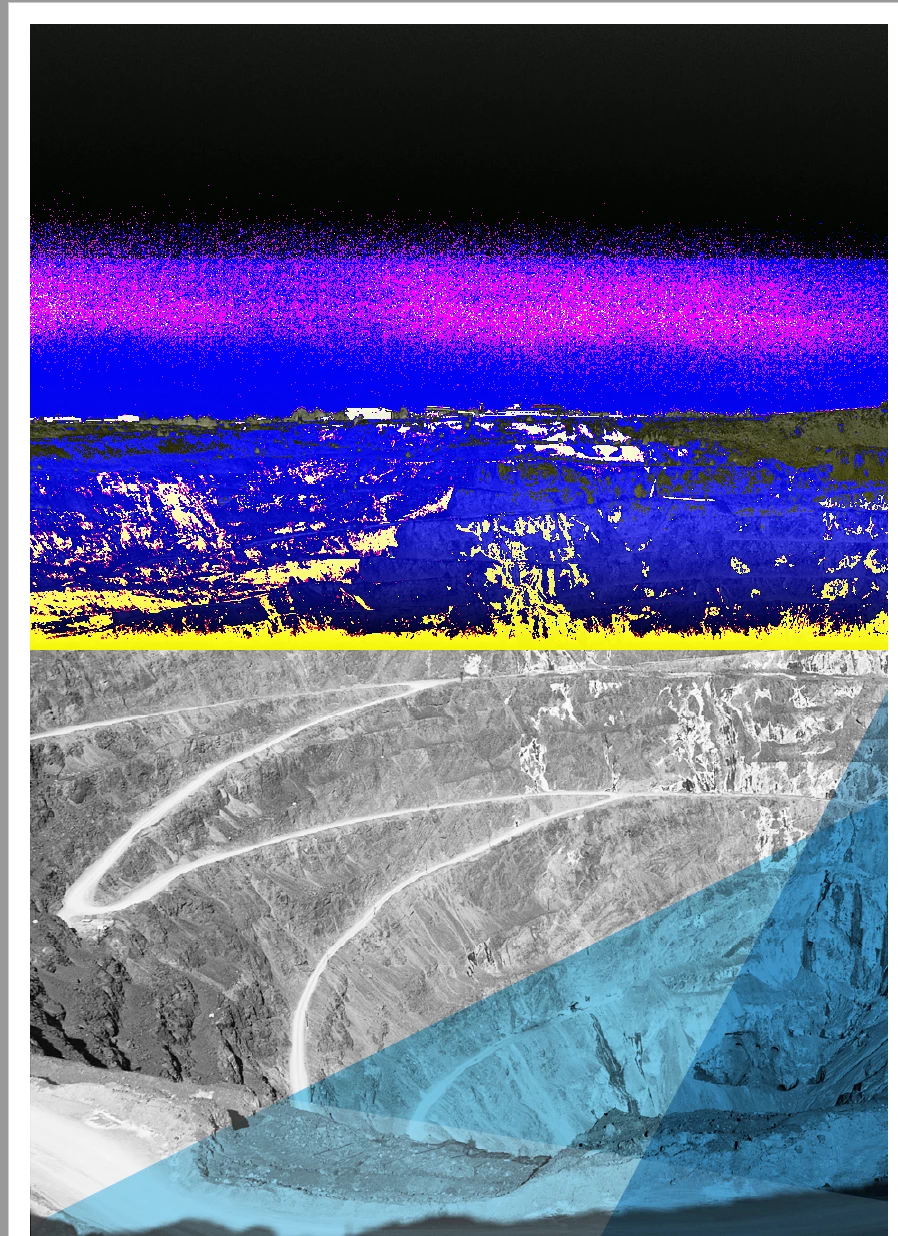
When exported as an interactive PDF, the section of the image where the gradient layer is shows as a weird, colourful and pixelated image.

When I remove this layer, it exports fine.

It exports fine as a print PDF.

I've played with the Transparency flattening and the gradient degree but it doesn't make any difference.

I'd appreciate any help / suggestions.

Thanks
    This topic has been closed for replies.
    Correct answer Laubender

    cecilej42726091  wrote

    Hi marliton 

    I tried that but I didn't make any difference.

    Thanks

    Cecile

    Hi Cecile,

    thank you for sharing the document via personal message.

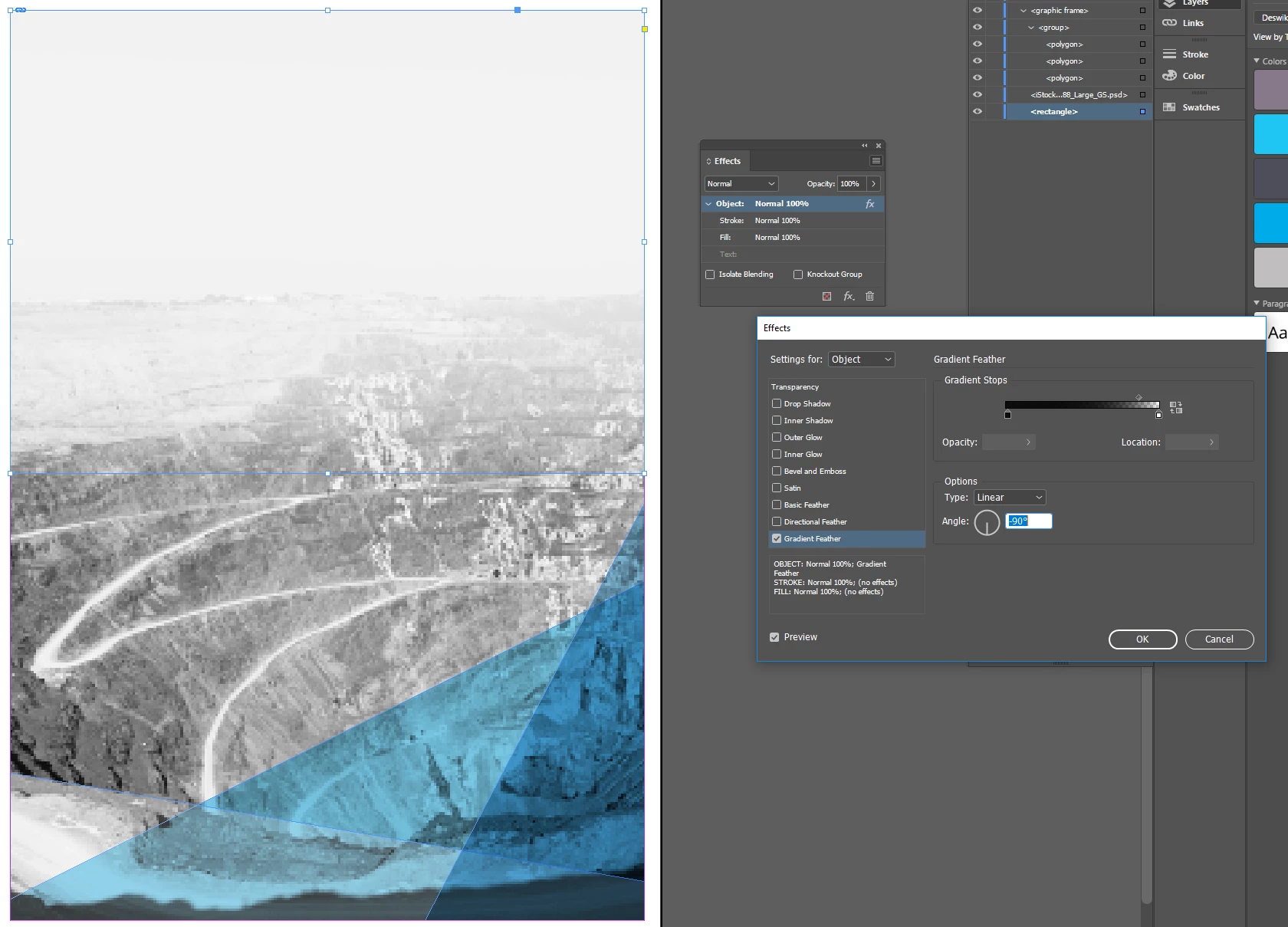
    As I can see there is a transparency effect applied to the image's graphic frame.

    Remove this effect and stack the frame with the gradient feather effect on top of the graphic frame holding the image.

    Export to PDF Interactive should then work as expected.

    I suppose you found a bug with InDesign.

    Regards,
    Uwe

    3 replies

    marliton
    Community Expert
    Community Expert
    January 7, 2019

    If you know that the content of that layer is the problem, try rasterizing that content before export.

    Marlon Ceballos
    cecilej42726091
    Participating Frequently
    January 7, 2019

    Hi marliton

    I tried that but I didn't make any difference.

    Thanks

    Cecile

    marliton
    Community Expert
    Community Expert
    January 7, 2019

    Then, make that effect in Photoshop and import the image in InDesign.

    Marlon Ceballos
    Community Expert
    January 7, 2019

    From your screen capture, there are multiple frames, applied with various transparency. You could try to reduce the number of transparent elements. One possible reduction: remove frame (white gradient) placed on top of image, and instead apply the gradient effect to the image/frame.

    cecilej42726091
    Participating Frequently
    January 7, 2019

    Thanks Jeffrey - it did the trick!

    Community Expert
    January 7, 2019

    cecilej42726091  wrote

    Thanks Jeffrey - it did the trick!

    Good to see!

    Tried to recreate the issue with a placed grayscale PhotoShop file and a rectangle stacked above using gradient feather.

    Could see no problem. Tried transparency blend space RGB or CMYK. Hm. Maybe my grayscale image was not big enough?

    Are there adjustment layers used in that psd file? Or other layers? What's the version of PhotoShop that saved that image file?

    Regards,
    Uwe

    Community Expert
    January 7, 2019

    Hi cecilej42726091 ,

    what is the fill color of the selected rectangle?

    What is the transparency blend space you are using?

    Regards,
    Uwe

    cecilej42726091
    Participating Frequently
    January 7, 2019

    Hi Laubender ,

    Here's the fill colour of the selected rectangle:

    I'm using the Document RGB Transparency Blend space.

    thanks in advance

    Cecile

    rob day
    Community Expert
    Community Expert
    January 8, 2019

    cecilej42726091  wrote

    Hi Laubender  ,

    Here's the fill colour of the selected rectangle:

    I'm using the Document RGB Transparency Blend space.

    thanks in advance

    Cecile

    The color you are picking is CMYK—the Color Picker is showing Add CMYK Swatch not Add RGB Swatch. Put your cursor in one of the RGB fields to make an RGB swatch. What happens if you make sure all of the document swatches and colors are RGB?