Participating Frequently
October 13, 2026
Answered

Gradient to match shape size/location

Hi all,

Im still trying to get ropes with InDesign.

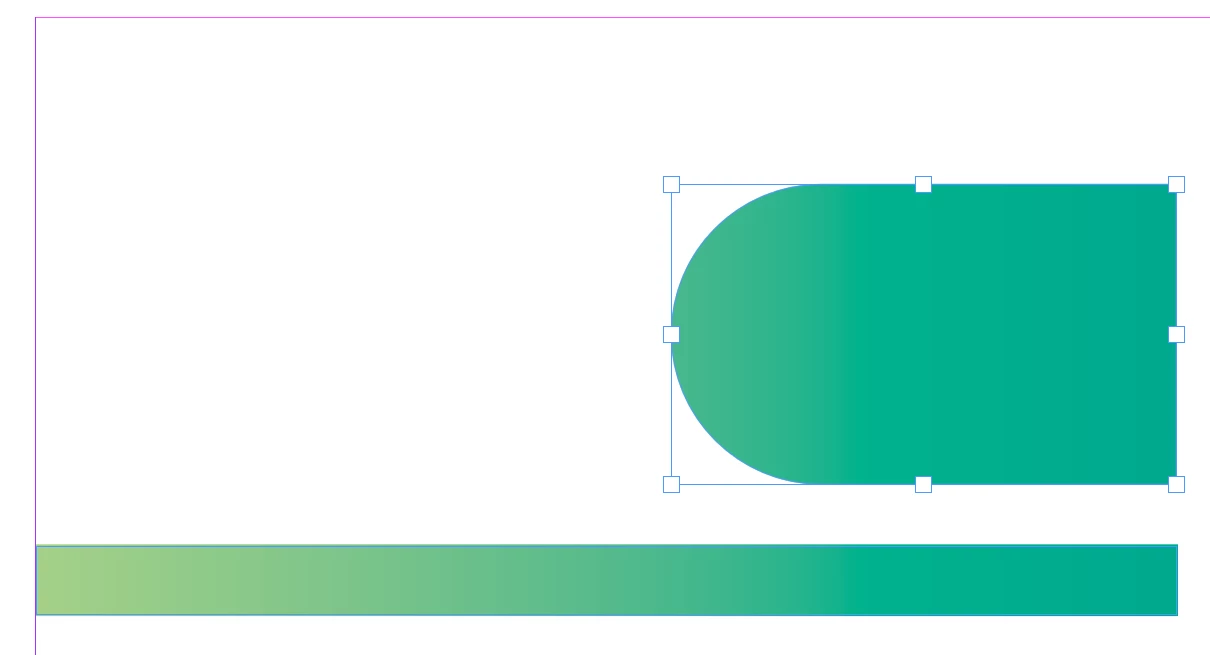
Ive created and added the light green > teal gradient  into the swatches panel and applied it to both the page border and quote box.

Question – I understand the quote box is smaller compared to the page border and therefore it has squashed it within a smaller space.

However, i want this quote box gradient to match the exact gradient location to the page frame. Ive placed a vertical white line just for information purposes. (Screenshot attached)

Ive tried playing around with the gradient slider, but this is very time consuming. Surely there must be an easier way?


Thank you.
    This topic is closed to new replies. Start a new post to keep the conversation going.
    Dave Creamer of IDEAS
    Dave Creamer of IDEASCorrect answer
    Community Expert
    October 13, 2026

    If I understand what you are trying to do, you can try two things:

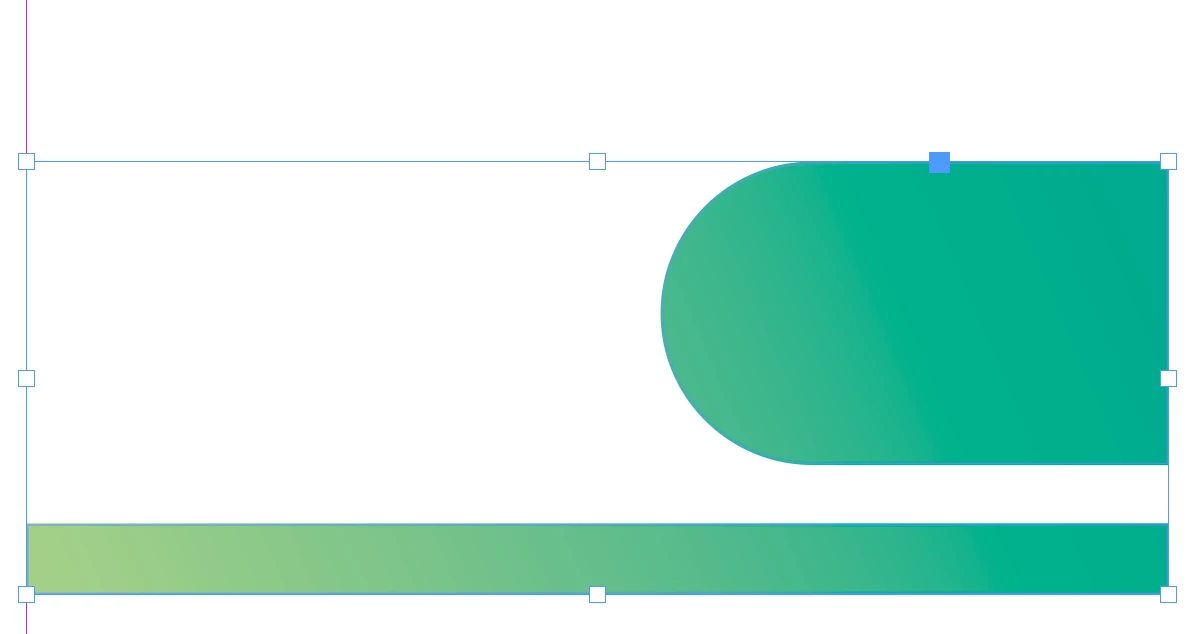
    1. Play with the Gradient tool. Create the border as a rectangle. Select the quote box, start dragging at the start of the border to the end of the border. Hold your shift key after starting your drag to keep it straight. 
    1. Select the two object and create a compound path (Object>Paths>Make Compound Path). Apply the gradient.

    Starting point:

    Gradient Tool:

    Compound path:

    The large shape does have a gradient on it, it’s just hard to see.

    David Creamer: Community Expert (ACI and ACE 1995-2023)

    5 replies

    Participating Frequently
    October 14, 2026

    Fixed! I found a way around.

    Select both the frame and the quote box and apply the desired gradient from the swatches panel. Whilst these two elements are still selected, grab the gradient tool from the quick access panel on the left side of the interface and click and drag the gradient anywhere from one end of the page to the other….and voila! That fixed the issue.

    Translate
    Dave Creamer of IDEAS
    Community Expert
    Community Expert
    October 14, 2026

    That’s exactly what I posted in my first example.

    Translate
    David Creamer: Community Expert (ACI and ACE 1995-2023)
    Participating Frequently
    October 14, 2026

    ​@Dave Creamer of IDEAS Appreciate this. If I understood your instruction correctly, then the compound path subtracts the area where the border and quote box cross paths (highlighted in purple). Screenshot attached.

    Translate
    Dave Creamer of IDEAS
    Community Expert
    Dave Creamer of IDEASCommunity ExpertCorrect answer
    Community Expert
    October 13, 2026

    If I understand what you are trying to do, you can try two things:

    1. Play with the Gradient tool. Create the border as a rectangle. Select the quote box, start dragging at the start of the border to the end of the border. Hold your shift key after starting your drag to keep it straight. 
    1. Select the two object and create a compound path (Object>Paths>Make Compound Path). Apply the gradient.

    Starting point:

    Gradient Tool:

    Compound path:

    The large shape does have a gradient on it, it’s just hard to see.

    Translate
    David Creamer: Community Expert (ACI and ACE 1995-2023)
    leo.r
    Community Expert
    Community Expert
    October 13, 2026

    If I understand you correctly, then I think you need to create two gradient swatches (one for the box and another for the border) and adjust the Location for each of them accordingly.

    Translate