Known Participant
October 13, 2025
Answered

GREP : searching for a specific anchored object

  • October 13, 2025
  • 4 replies
  • 1241 views

Hello, do you know if it is possible to search for a specific anchored object? I have a text in which several icons are inserted, but one of them is higher than the others. I would like to apply a vertical offset to it... but only to that one. Thank you for your help! InDesign2024

Correct answer FRIdNGE

Simplistic Script for a simplistic matter:


Select the icon you want to correct (here, I just want to modify the "Décalage sur Y" (in french) :
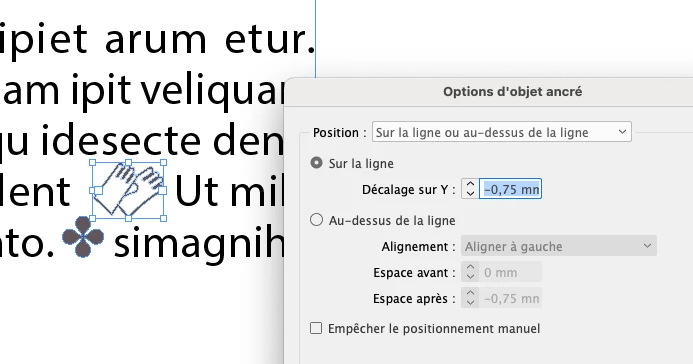


and play this Script:


var myDoc = app.activeDocument;

// Select An Icon With The Right Inline AnchorYoffset You Want:
var mySel = app.selection[0];
// Various Checks:
var mySelInline = mySel.anchoredObjectSettings.anchoredPosition;
var mySelHeight = (mySel.geometricBounds[2]-mySel.geometricBounds[0]).toFixed(10);
var mySelAnchorYOffset = mySel.anchoredObjectSettings.anchorYoffset;
// Loop:
app.findGrepPreferences = app.findChangeGrepOptions = null;
app.findGrepPreferences.findWhat = '~a';
var myFound = myDoc.findGrep();
for ( var i = 0; i < myFound.length; i++ ) if ( (myFound[i].pageItems[0].anchoredObjectSettings.anchoredPosition === mySelInline) && ((myFound[i].pageItems[0].geometricBounds[2]-myFound[i].pageItems[0].geometricBounds[0]).toFixed(10) === mySelHeight) ) myFound[i].pageItems[0].anchoredObjectSettings.anchorYoffset = mySelAnchorYOffset;
app.findGrepPreferences = app.findChangeGrepOptions = null;

alert("Done! …")


(^/)  The Jedi 

4 replies

m1b
Community Expert
Community Expert
October 14, 2025

Hi @99drine, Here is an example script, that matches anchored items to the selected anchored item, and applies a -2 baseline shift to each. You can adjust this to suit your needs. Let me know if it's useful!


@Eugene Tyson, @brian_p_dts  for cases like this—matching an object—I often create my own "stringify" function customized just for that purpose. Here I compare lengths of paths and pathpoints, which in OP's case should be enough.

- Mark


/**
 * @file Adjust Matching Anchored Items.js
 *
 * Usage:
 *   1. Edit script to suit, especially the `adjuster` function.
 *   2. In Indesign, select an anchored item.
 *   3. Run Script.
 *
 * Script will apply the `adjuster` function to each matching anchored item.
 *
 * @author m1b
 * @version 2025-10-14
 * @discussion https://community.adobe.com/t5/indesign-discussions/grep-searching-for-a-specific-anchored-object/m-p/15544328
 */
function main() {

    /**
     * Makes an adjustment to an item.
     * @param {PageItem} item - the item to adjust.
     * @returns {Boolean} - return true if you want to collect this item (optional).
     */
    function adjuster(item) {

        // edit this to suit your needs
        item.baselineShift = -2;

        // this is just for reporting purposes
        counter++;

    };

    var doc = app.activeDocument;
    var anchoredItemCharacter = doc.selection[0];

    if (
        anchoredItemCharacter
        && 'Character' !== anchoredItemCharacter.constructor.name
        && 'Character' === anchoredItemCharacter.parent.constructor.name
    )
        // we want the character, not the item itself
        anchoredItemCharacter = anchoredItemCharacter.parent;

    if (
        !anchoredItemCharacter
        || 'Character' !== anchoredItemCharacter.constructor.name
    )
        return alert('Please select an anchored item and try again.');

    // find all anchored items in document
    app.findGrepPreferences = NothingEnum.NOTHING;
    app.findGrepPreferences.findWhat = '~a';
    var allAnchoredItems = doc.findGrep();

    var counter = 0;

    // perform the matching and adjusting
    matchItems(anchoredItemCharacter, allAnchoredItems, adjuster);

    alert('Adjusted ' + counter + ' anchored items.');

};
app.doScript(main, ScriptLanguage.JAVASCRIPT, undefined, UndoModes.ENTIRE_SCRIPT, 'Adjust Matching Anchored Items');

/**
 * Matches `items` with `matchMe` using a custom stringify function and applies a filter function
 * @author m1b
 * @version 2025-10-14
 * @param {PageItem} matchMe - the item to match.
 * @param {Array<PageItem>} items - the items to search through.
 * @param {Function} [filter] - a filter function (default: no filter).
 * @returns {Array<PageItems>} - the matched (and filtered) items.
 */
function matchItems(matchMe, items, filter) {

    var id = stringify(matchMe);
    var matching = [];

    for (var i = 0; i < items.length; i++) {

        if (
            stringify(items[i]) === id
            && (!filter || filter(items[i]))
        )
            matching.push(items[i]);

    }

    return matching;

};

/**
 * Generate a string just for the purpose
 * of identifying a particular item.
 * @author m1b
 * @version 2025-10-14
 * @param {*} thing - an Indesign DOM thing.
 * @returns {String}
 */
function stringify(thing) {

    var str = '';

    addStringFor('contents', undefined, 40);
    addStringFor('length');
    addStringFor('itemLink|filePath');
    addChildrenOf('allPageItems');
    addChildrenOf('paths');
    addChildrenOf('pathPoints');
    addChildrenOf('graphics');

    return str;

    /** Stringifies `key` property. */
    function addStringFor(key, otherThing, len) {

        var _str;
        var target = otherThing || thing;
        var keys = key.split('|');
        key = keys.shift();

        if (
            target.hasOwnProperty(key)
            && 'undefined' !== typeof target[key]
        ) {
            _str = String(target[key]);

            if (len)
                _str = _str.slice(0, len);

            str += _str;

            if (keys.length)
                addStringFor(keys.join('|'), target[key]);

        }

    };

    /** Stringifies each element of `key` property. */
    function addChildrenOf(key) {

        if (
            !thing.hasOwnProperty(key)
            || 0 === thing[key].length
        )
            return;

        str += key + thing[key].length;

        for (var i = 0; i < thing[key].length; i++)
            str += stringify(thing[key][i]);

    };

};


m1b
Community Expert
Community Expert
October 14, 2025

By the way, this will do the same thing, but instead of baseline shift, it uses anchored object settings. This might be a cleaner approach depending on whether you prefer to break your text style or your object style, if any. 🙂

function adjuster(item) {

    // edit this to suit your needs
    item.allPageItems[0].anchoredObjectSettings.anchorYoffset = '-2pts';

    // this is just for reporting purposes
    counter++;

};
Community Expert
October 14, 2025

That's incredible, I'm gonna save this one. Never knew you could do this... interesting.

brian_p_dts
Community Expert
Community Expert
October 13, 2025

Are the icons placed graphics, or built natively in InDesign (or other CC app)?

99drineAuthor
Known Participant
October 13, 2025

Thank you for your help! English is not my native language, so I'm not sure I fully understand your question or know the correct terms, but I've attached a screenshot that might answer your question. The block does not contain an imported image; I think these are lines created in InDesign or Illustrator...

Community Expert
October 13, 2025

As they're drawn in InDesign with a Path and not linked, I can't see a way to find them. 


If they were linked through the Links panel it might be possible. 


Where the gloves are - are there any common text that would be searchable to find before or after the gloves - if there's common text it can probably be found. 


Community Expert
October 13, 2025

@Scott Falkner is correct


If you give us a sample of your document with what you're trying to do and see if a script can work for you. 

99drineAuthor
Known Participant
October 13, 2025

Thank you very much for your prompt reply and your help! Do you mean an idml file ?

Community Expert
October 13, 2025

Literally just occured to me - the anchored objects are just text like anything else, which can be found with ~a


So if you need to find the gloves, the 3rd item in - then you can 
(~a.*?){2}\K~a


Considering if all the icons are the 3rd one in the paragraph and all need the same offset


You can then change the Change settings to offset the baseline and move it down. 


Scott Falkner
Community Expert
Community Expert
October 13, 2025

Perhaps this can be scripted but you can’t do that with GREP. You can search for an anchored object using ~a but that will fint any anchored object. There is no way using GREP to speciy a specific object.


Perhaps you can apply an object style to each instance then modify the object style.

99drineAuthor
Known Participant
October 13, 2025

Thank you very much for your prompt reply! Knowing that this option is not possible will save me a lot of time! I have attached an illustrated example. If you can see a possible solution to my problem, I would be delighted to hear it! Thank you again!