
danielw42205661
Known Participant
February 7, 2024
Question

GREP to remove a space after tab

  • February 7, 2024
  • 1 reply
  • 440 views

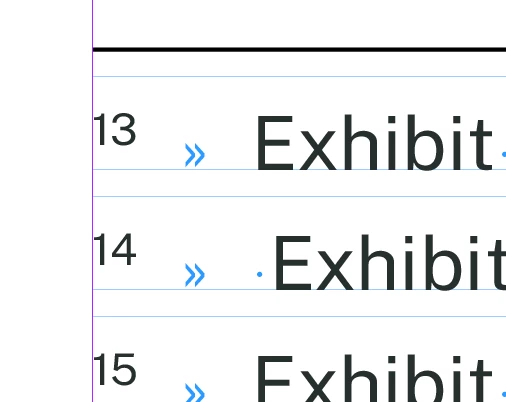
I have a long document imported from a word doc. In the footer, sometimes there is a space character after the tab (shown in screenshot below).

Is there a way to add aGREP expression to the footnote paragraph style so it automatically deletes those, or would I have to do a find/change right at the end to get rid of them?


This topic has been closed for replies.

1 reply

Community Expert
February 7, 2024

A GREP expression in the footnote would only serve to 'compress' the space but the space would still remain - as GREP expressions in styles cannot replace text. 


A find/change to tidy things up at the end is normal. 


You can find it by using 

\t\K\h


\t is a tab

\K is to ignore this

\h is any horizontal space character


instead of \h you could use a normal spacebar press instead


You can refine it more by only searching footnotes


You could add a ^ to target start of a sentence if the sentences are autonumbered

^\t\K\h


if not autonumbered and manully inserted numbers then

^\d+?\.\t\K\h 


You could set the Find Paragraph style to 'Footnotes' if you're using a Paragraph Styles for your footnotes.


Ultimately - you can do a blanket search like mentioned first - but might target areas where you have 2 tabs in a row.


I'd be ultra-careful and check a bunch before doing a Replace All

or just go through 1 at a time to ensure you're getting them all.


------------------

If you're happy to just compress the space and use a GREP expression in the Footnote Style

Then set your space after the tab to a Negative Tracking or a Horizontal Scale - select the space and create a new Character style and call it's 'compress tab space' or something familiar for yourself.


Then in the footnote Paragraph Sytle go to the GREP expression


Character Style (the one you just created)

\t\K\h


(or instead of \h a normal space)


And then the space will compress like you setup for the style - and can be controlled via the Character Style. 


This of course means if copy and pasted to another document the space would still be there.

For example, copying from PDF to Word, maybe, or copying from InDesign to another application or text editor.


------------

I usually do a comprehensive GREP search at the end of most documents to remove unwanted things etc.