
Participating Frequently
January 29, 2020
Answered

Half-Page Booklet: Double up page
  • January 29, 2020
  • 3 replies
  • 5515 views

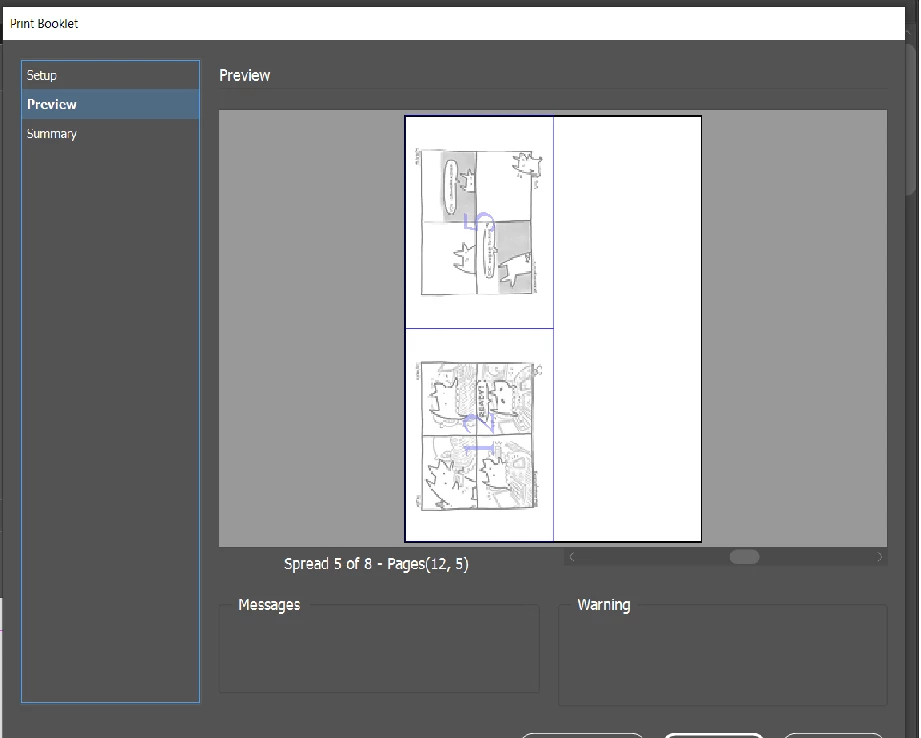
I made my booklet perfectly fine and this is printing correctly in terms of how it flips when printed double-sided, etc. My problem is I want to double up as I made it half a page size. How can I print that way without having to manually flip the paper after one print?


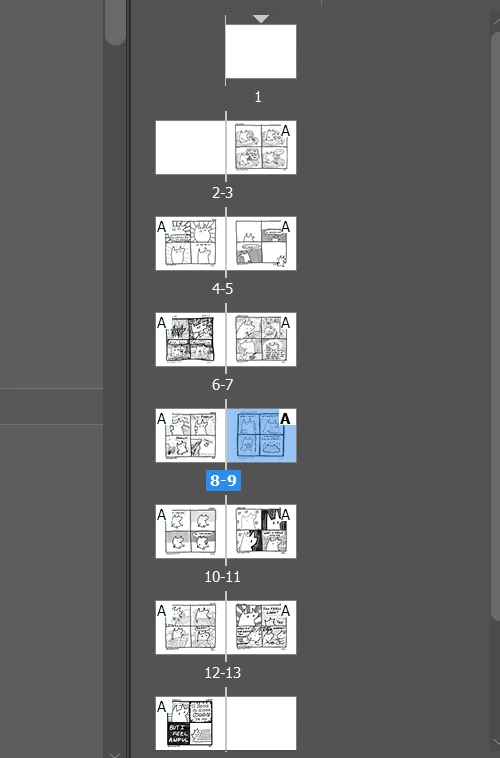
Here is the layout for reference. Each page is 1/4 of an 8.5 x 11 page (4.25 x 5.5).
 

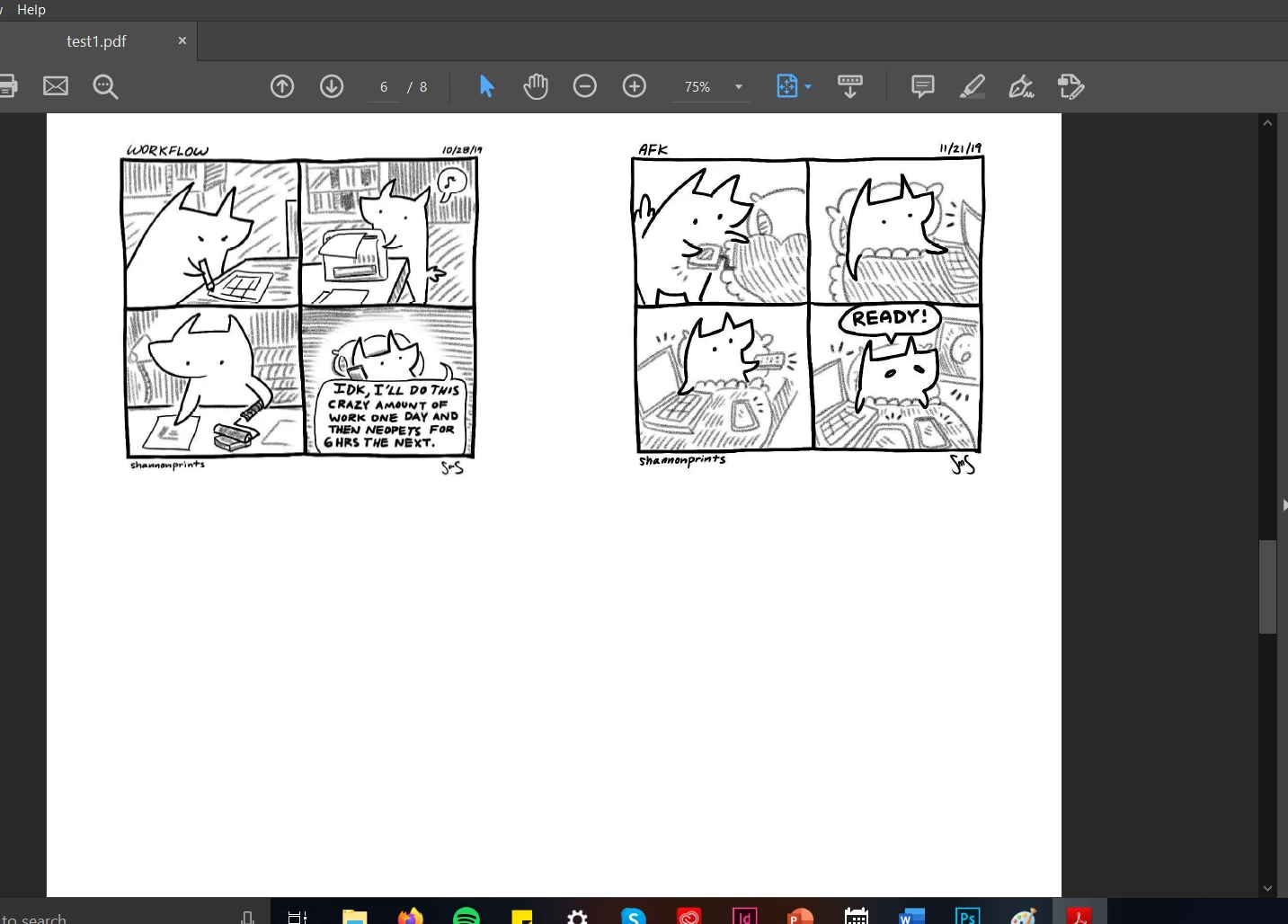
Edit: To clarify, the booklet format is correct. I just want to optimize the exported PDF so that I get two of my booklets each time I print this layout. Here is what the PDF looks like when I export it now with the current settings and page size:
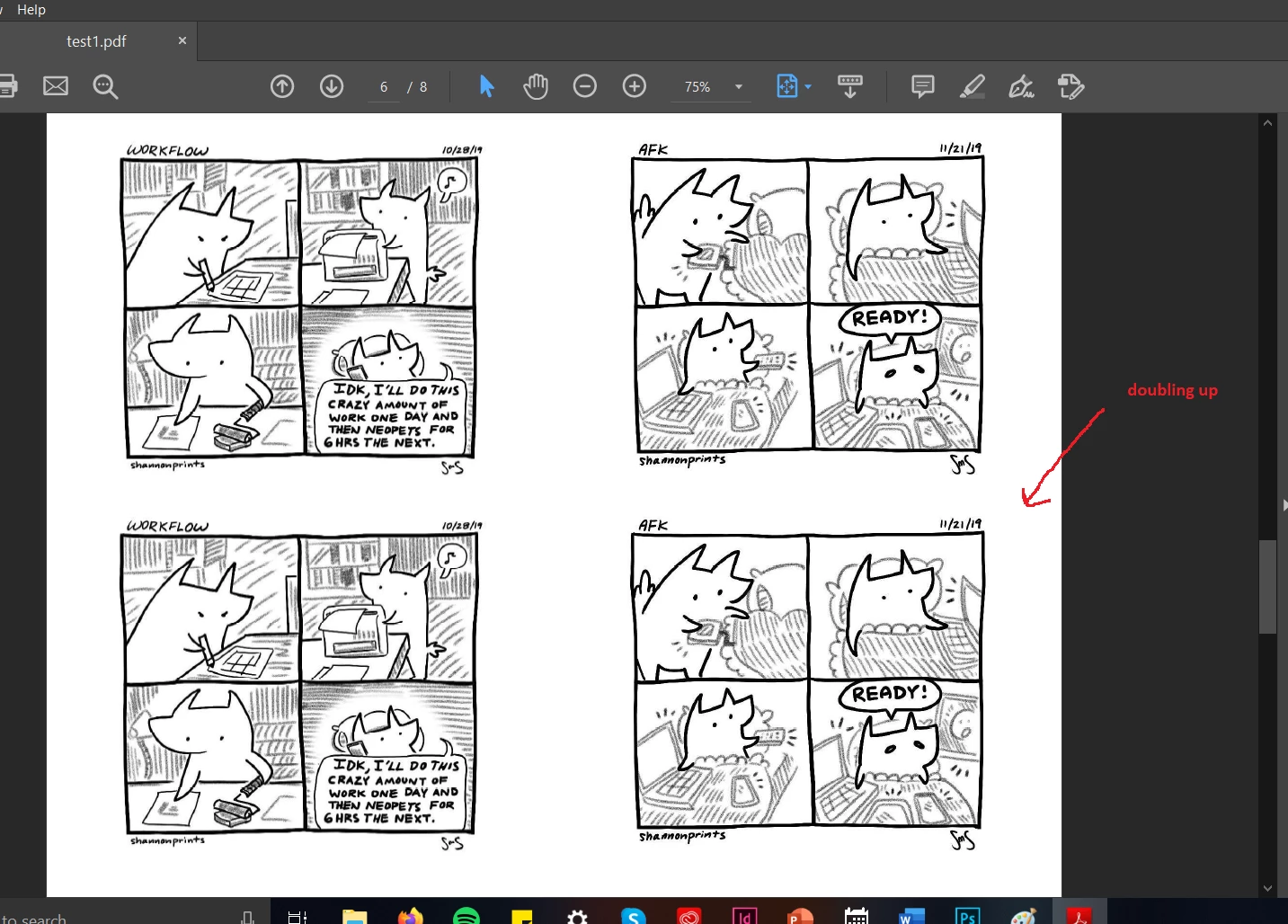
And this is what I want it to look like:
Here are my current "Print Booklet" settings on InDesign:

Print Preset: [Custom]
Printer: Microsoft Print to PDF
PPD: N/A
PPD File: N/A

Print Booklet
Booklet Type: 2-up Saddle Stitch
Auto Adjust Margins: On
Top Margin: 0 in
Bottom Margin: 0 in
Left Margin: 0 in
Right Margin: 0 in
Space Between Pages: N/A
Creep: 0 in
Bleed Between Pages: N/A
Signature Size: N/A
Print Blank Printer Spreads: On

General
Copies: 1
Collate: Off
Reverse Order: Off
Pages: All
Sequence: All Pages
Spreads: Off
Print Master Pages: Off
Print Layers: Visible & Printable Layers
Print Non-printing Objects: Off
Print Blank Pages: On
Print Visible Guides and Baseline Grids: Off

Setup
Paper Size: Letter
Paper Width: 8.5 in
Paper Height: 11 in
Page Orientation: Landscape
Paper Offset: 0 in
Paper Gap: 0 in
Transverse: Off
Scaling: 100%
Constrain Proportions: On
Page Position: Upper Left
Thumbnails: Off
Tiling: Off

Marks and Bleed
Crop Marks: Off
Bleed Marks: Off
Registration Marks: Off
Color Bars: Off
Page Information: Off
Printer Mark Type: Default
Crop Mark Weight: 0.25 pt
Mark Offset from Page: 0.0833 in
Use Document Bleed Settings: On
Bleed Top: 0 in
Bleed Bottom: 0 in
Bleed Inside: 0 in
Bleed Outside: 0 in
Include Slug Area: Off

Output
Color: Composite RGB
Text As Black: Off
Trapping: Off
Flip: None
Negative: Off
Screening: Default
Simulate Overprint: Off
Frequency: 70
Angle: 45

Graphics
Send Data: Optimized Subsampling
Download: Subset
Download PPD Fonts: On
PostScript®: Level 2
Data Format: Binary

Color Management
Document Profile: sRGB IEC61966-2.1
Color Handling: Let InDesign Determine Colors
Printer Profile: Document RGB - sRGB IEC61966-2.1
Preserve RGB Numbers: Off
Proof Profile: Document CMYK
Simulate Paper Color: On

Advanced
Print &as Bitmap: Off
Bitmap Resolution: 300
OPI Image Replacement: Off
EPS: Off
PDF: Off
Bitmap Images: Off
Transparency Flattener Preset: [Medium Resolution]
Ignore Spread Overrides: Off


This topic has been closed for replies.
Correct answer Rioy
Now I get it. No, mine is not the answer for you.

One way I think you could do this is to increase your layout master pages
to create a layout page that corresponds to the sheet you will print. Then
you would have to copy each text frame on each page. Not an appealing
solution.

Or, why could you not expand your master pages as described in the
preceding paragraph, but be sure that the text frames remained at the top
or bottom sheet boundary? On the first pass through the printer, you'd
print half the available paper. Then rotate the paper in the feed tray and
print on the remaining half?

Are you going to print on a laser or inkjet? On inkjet, it would be easy.
On laser, the paper may curl after the first pass through the hot printer.
You would need a good paper cutter to cut the paper in half. If you had a
booklet of fewer than 20 pages, the cutting would be done without making a
career of it. If you have a hundred pages, for example, it may be too much
of a chore.

Thanks for explaining more about this.

Good luck

3 replies

Participant
January 29, 2020

I just had a very similar problem, I think.  I had a page layout like yours with landscape-oriented pages.  Looked fine on the screen as InDesign.


I exported the ID page layout to a PDF file so I could take it to print on a laser printer.  The PDF was printed as single pages, not as a layout (with side by side pages with binding margins abutting.)

The printed result was that every even-numbered page of the PEF file was upside down on the reverse side of the odd-numbered pages, and I think the binding margin was on the outside.  Every odd page was OK.  


This is how I fixed it:  I used adobe acrobat pro to rotate every even page 180 degrees in the PDF file.  Then, printing from the PDF file on a thumb drive, all pages came out with the binding (inside) margin correctly positioned and the text on all pages was oriented properly when the front to back pages were collated.

A few more details:

1. Depending on the copier, it might be possible to make prints of all pages and manually rotate the pages while copying manually. This did not work on the copier I used.  It was still putting the binding margin on the wrong side.  No, I can't explain why the binding margin did not reverse, too.

2. I called the copy center at OfficeDepot to ask if they could use program settings on their more sophisticated copying machines. The response was equivocal:  "Bring it over to us and we'll see." I was a bit short of time that day and luckily blundered into the solution using Acrobat.

3. If you use Acrobat, you rotate the pages in the left panel that shows the stacked pages.  I don't think you can rotate a single page in the main page window. You can select multiple pages in the left panel using the mouse. It will pay, probably to a test print on 2 pages to ensure this solution works on your equipment.

3. If you have access to a printer that does a layout print across 2 landscape orientation pages, that may be the path of least resistance.  I did not have such access and had to print one landscape 11 x 8.5 page and bind on the short edge.


I hope this procedure works for you.

spencesmAuthor
Participating Frequently
January 29, 2020

I appreciate your reply. I don't think your problem is exactly what mine exports as? Here is what my PDF export looks like when I export the booklet from InDesign:

And this is what I WANT it to look like when I export:


So the booklet layout stays the same (because it works fine and all the sides are correct when it is assembled), I just want to double up so that I'm getting 2 booklets each time I print my layout.

Derek Cross
Community Expert
Community Expert
January 29, 2020

Is this for printing on your own desktop printer or are you putting it out to a commercial printer? 

spencesmAuthor
Participating Frequently
January 29, 2020

A printer capable of printed double-sided. I just want it to register as half a page so that I can print twice as many booklets on the same letter.

Inspiring
January 29, 2020

You can place Indesign documents in Indesign. Create one in the desired size and place your document the way you need it. This way you keep the original synched and in the size and rotation you need it for printing.


Edit: ah sorry I think I got your question wrong. Did I?

spencesmAuthor
Participating Frequently
January 29, 2020

Yeah, I don't think this is my question. I have pages that are 4.25 x 5.5 inches and so the booklet layout is landscape and fills half of a letter. I designed it this way so I could optimize my printing and get twice as many books per page. But the problem is when InDesign exports the booklet to PDF it won't let me do twice as many, so I would have to physically flip the paper after printing if I want twice as many.


I could manually edit them using photoshop but I'm hoping there is an easy fix to allow for booklets this size in the future to be expected as multiples per sheet.


To clarify, I don't want to booklet to span less sheets by doubling up, but I want two of the exact same booklet per print.

Here is an example of what one side would look like when I go to export it as a pdf:

RioyCorrect answer
Participant
January 29, 2020
Now I get it. No, mine is not the answer for you.

One way I think you could do this is to increase your layout master pages
to create a layout page that corresponds to the sheet you will print. Then
you would have to copy each text frame on each page. Not an appealing
solution.

Or, why could you not expand your master pages as described in the
preceding paragraph, but be sure that the text frames remained at the top
or bottom sheet boundary? On the first pass through the printer, you'd
print half the available paper. Then rotate the paper in the feed tray and
print on the remaining half?

Are you going to print on a laser or inkjet? On inkjet, it would be easy.
On laser, the paper may curl after the first pass through the hot printer.
You would need a good paper cutter to cut the paper in half. If you had a
booklet of fewer than 20 pages, the cutting would be done without making a
career of it. If you have a hundred pages, for example, it may be too much
of a chore.

Thanks for explaining more about this.

Good luck