
Known Participant
March 30, 2023
Answered

Have Images Fill EPUB Column?

  • March 30, 2023
  • 2 replies
  • 634 views

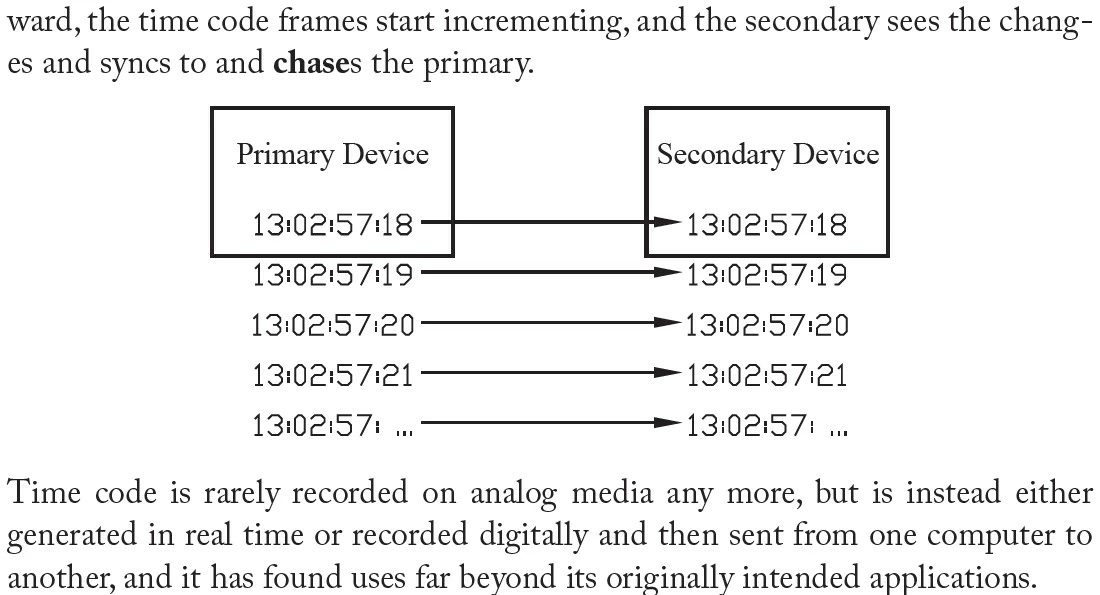
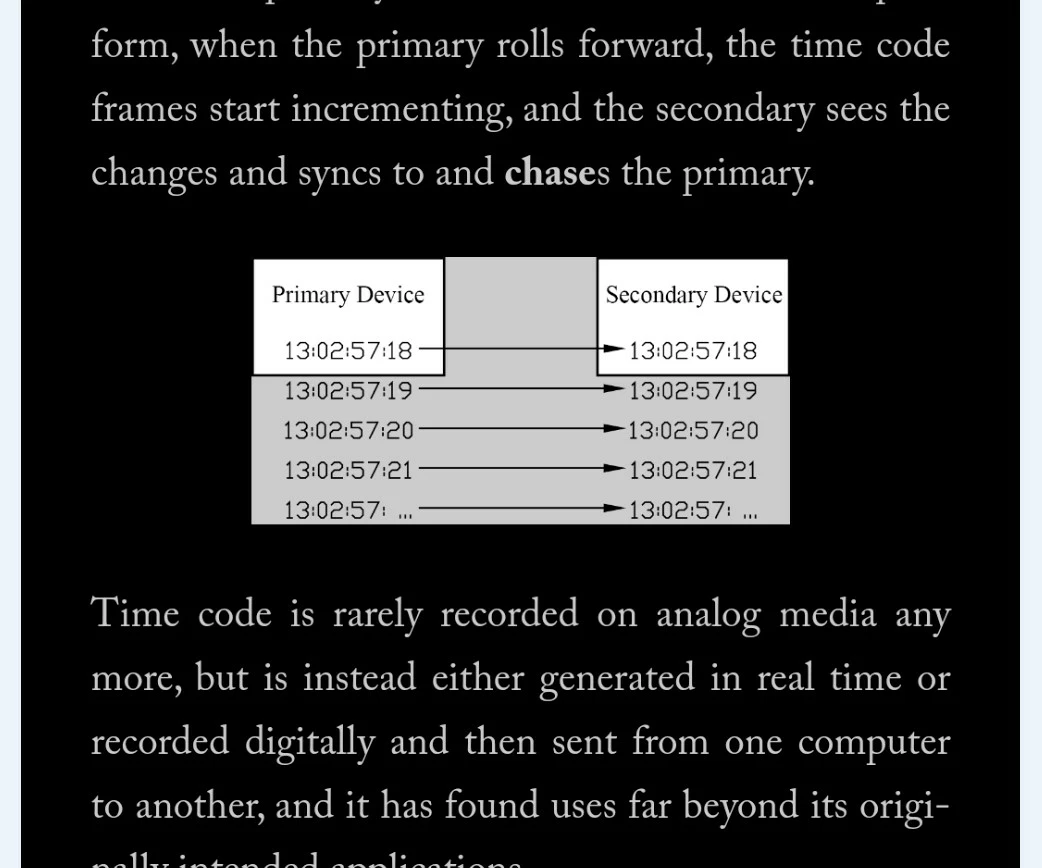
I have a book that is being released in print and EPUB via Google Books. Graphics that fill the whole column width in print also fill the column in the EBook, which is great. However, there are some small graphics that are not the full page width in the book, but, ideally, I'd like them to fill the width of the EBook column to make them more legible. Is there any way in the export settings to make all graphics fill the EPUB column width? Since this book gets updated I don't want to fork the InDesign files. I experimented with the export settings but couldn't find anything. It's not a huge deal because pinch zoom works on phones and tablets but it would make it more readable in the e-version.  Thanks for any suggestions!


Here's the print layout:
Here's a screen shot from my phone in Google Books.  Here's where I'd love to have the graphic fill the width of the column:


Thanks!

John
www.controlgeek.net

This topic has been closed for replies.
Correct answer James Gifford—NitroPress

You can control the behavior of graphics in EPUB either with the global export option in the Export menu, or individually by overriding that setting for one or more of the images themselves.


The basic technique is to find the global export option that works for most, or at least some majority of the images. Then, on each image that isn't displaying the way you want, right click on the image and select Object Export Options. There, you can set other export options, a much wider range than from the global ones. (I have a standard post about the export variations and how they end up in most EPUB readers, but can't find the link... I will search and attach it here after I finish this post.)


And after that, you can use CSS to extend and tweak EPUB export, from a few small fixes to completely remapping the document from a print layout. This is extremely useful — key, even — to maintaining one document and exporting for both print and ebook, without having to maintain two versions.


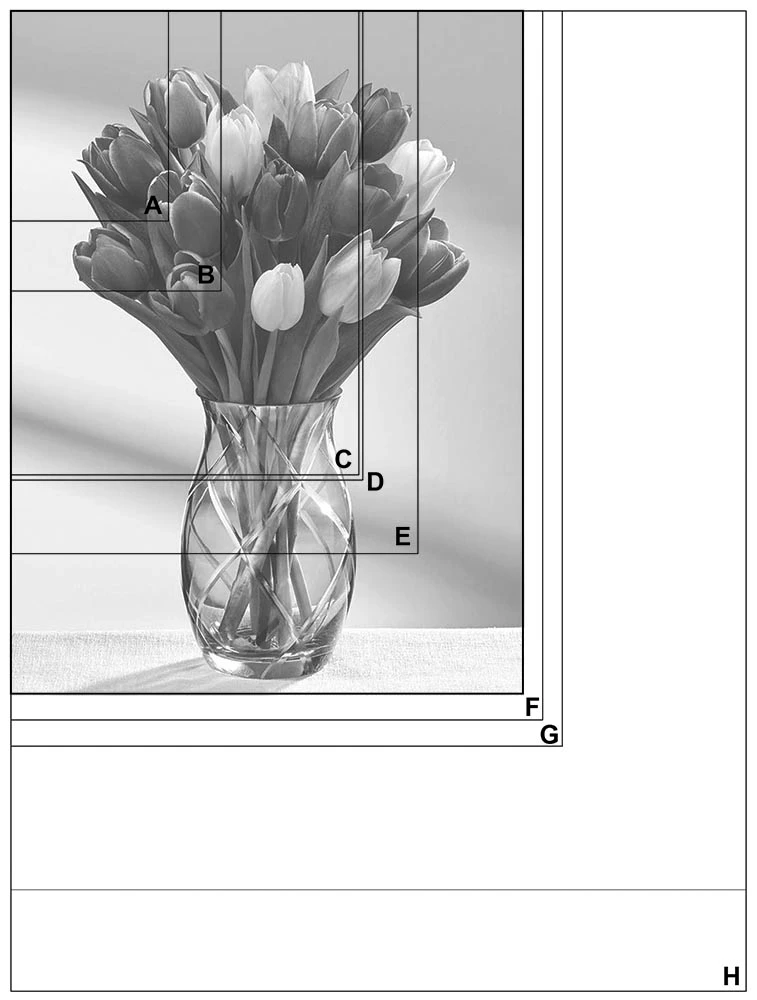
Looking for that image options post now... and frap, I can't find it. Here's an image that shows the relative sizes each option will produce:


Start by making that image a full margin-to-margin image in the layout, if you can, and/or use Width:100%. Ask away if you need any further pointers.


2 replies

James Gifford—NitroPress
Legend
April 5, 2023

To follow up, I just published a long article on managing images from ID to EPUB. It's here if you need more detail: https://nitrosyncretic.com/DPR/dpr_indesign_epub_image_mgmt.php


James Gifford—NitroPress
Legend
March 30, 2023

You can control the behavior of graphics in EPUB either with the global export option in the Export menu, or individually by overriding that setting for one or more of the images themselves.


The basic technique is to find the global export option that works for most, or at least some majority of the images. Then, on each image that isn't displaying the way you want, right click on the image and select Object Export Options. There, you can set other export options, a much wider range than from the global ones. (I have a standard post about the export variations and how they end up in most EPUB readers, but can't find the link... I will search and attach it here after I finish this post.)


And after that, you can use CSS to extend and tweak EPUB export, from a few small fixes to completely remapping the document from a print layout. This is extremely useful — key, even — to maintaining one document and exporting for both print and ebook, without having to maintain two versions.


Looking for that image options post now... and frap, I can't find it. Here's an image that shows the relative sizes each option will produce:


Start by making that image a full margin-to-margin image in the layout, if you can, and/or use Width:100%. Ask away if you need any further pointers.


Known Participant
March 30, 2023

Thanks so much for this detailed response!  I didn't even know those options were even there for individual images. I have some experimenting to do.


John

James Gifford—NitroPress
Legend
March 30, 2023

Yep, there's a ton of power hidden in that menu option. Much more than in the global options, including things like float-left and -right.
