
peter-g
Participating Frequently
February 27, 2020
Answered

Having trouble extracting the pixel dimensions of an image link in Indesign

  • February 27, 2020
  • 4 replies
  • 6343 views

I'm trying to write a script that, given an InDesign file, is able to compute the image dimensions of every image in the document. I need the original image dimensions, so the image link I believe. The problem is when I try to pull out tiff:ImageHeight and tiff:ImageWeight from the linkXmp, it never returns a value. Is there some easier way to do this without having to look into the image metadata?
This topic has been closed for replies.
Correct answer rob day

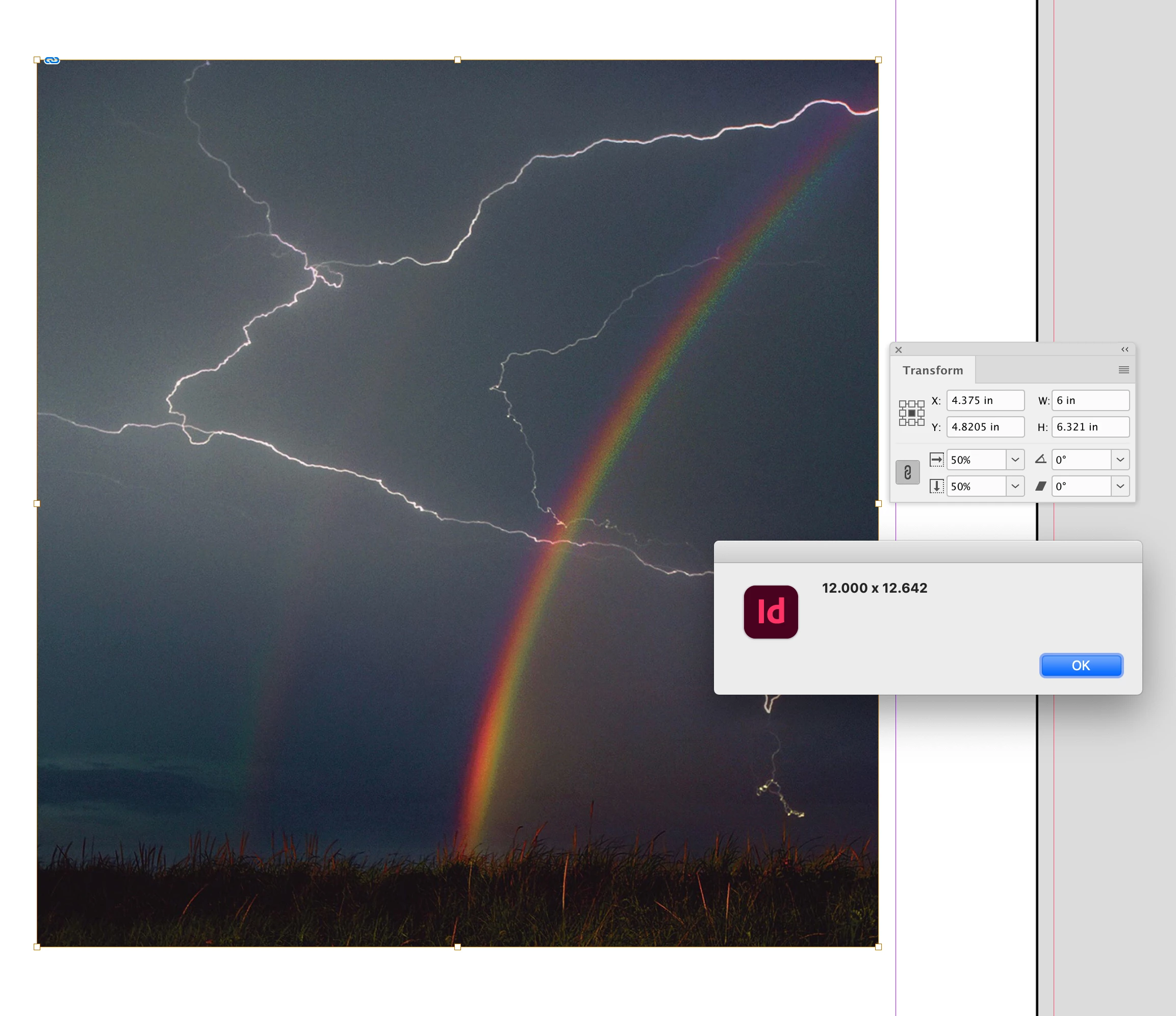
Thankyou, ill have a look through this but it's the size of the link im trying to put in a box. For instance i have a link thats 12x12 and i place it in InDesign at 50%, my understanding is that your script will return 6x6 and i need it to be 12x12.


You can get the scale by dividing the Effective by Actual Res. Direct select an image and try this:


var s = app.activeDocument.selection[0]
//width and height as na array
var d = getWidthHeight(s);

if (s.constructor.name == "Image") {
   var ep = s.effectivePpi
   var ap = s.actualPpi
   var w = (ep[0]/ap[0]) * d[0];
   var h = (ep[1]/ap[1]) * d[1]

   alert(w.toFixed (3) + " x " + h.toFixed (3))

} else {alert("Select an Image")}


/**
* Get a page item’s width and height 
* @ param the page item 
* @ return an array [width, height] 
* 
*/
function getWidthHeight(pi){
    var wh = []
    var gb = pi.geometricBounds
    wh[0] = gb[3]-gb[1];
    wh[1] = gb[2]-gb[0]
    return wh
}


4 replies

willcampbell7
Legend
April 27, 2021


// Select an image (NOT its frame) then run script.
var image = app.activeDocument.selection[0];
var hs = image.horizontalScale;
var vs = image.verticalScale;
var ppi = image.actualPpi;
var gb = image.geometricBounds;
var pixelsWide = Math.round((gb[3] - gb[1]) / (hs / 100) * ppi[0]);
var pixelsHigh = Math.round((gb[2] - gb[0]) / (vs / 100) * ppi[1]);
alert([pixelsWide, pixelsHigh]);


Some notes: flopped images will give negative results. Use Math.abs() on the results.

Also doesn't work for rotated images. For that, duplicate and clear rotation, take the measurment, then remove the duplicate.


I ran into this when wanting to add "pixel dimensions" to my script "Links Report." (https://www.marspremedia.com/software/indesign/links-report)

Not only rotated, but sheared throws it off, too, of course. I'll post here the function I came up with to handle both. For these cases I opted to make a new temp doc instead of duplicate the image in the current doc. I did this because I didn't want the dupe and clear showing in the undo menu of the target document. Here's my function...


function getPixelDimensions(image) {
    var gb; //  geometricBounds
    var h; //   height
    var hs; //  horizontalScale
    var ppi; // pixels per inch
    var td; //  temp document
    var tr; //  temp rectangle
    var tg; //  temp graphic
    var vs; //  verticalScale
    var w; //   width

    ppi = image.actualPpi;
    hs = image.horizontalScale;
    vs = image.verticalScale;
    if (image.rotationAngle !== 0 || image.shearAngle !== 0) {
        // Won't be correct if rotated or sheared.
        // Copy to a temp doc and clear rotation and shear.
        // Then measure, and dump the temp doc.
        td = app.documents.add();
        tr = image.parent.duplicate(td.pages[0]);
        tg = tr.graphics[0];
        tg.rotationAngle = 0;
        tg.shearAngle = 0;
        gb = tg.geometricBounds;
        td.close(SaveOptions.NO);
    } else {
        gb = image.geometricBounds;
    }
    w = Math.abs(Math.round((gb[3] - gb[1]) / (hs / 100) * ppi[0]));
    h = Math.abs(Math.round((gb[2] - gb[0]) / (vs / 100) * ppi[1]));
    return [w, h];
    // Returns array of two numbers, width and height.
    // Width = array[0], height = array[1]
}


William Campbell
Known Participant
September 7, 2022

Hello.

Is there any way to put the unscaled dimensions of a link into a text box uner the image using these methods?

willcampbell7
Legend
September 7, 2022

With some work, sure. Use the functions posted to get the array of pixels wide x tall, then make a text box under the graphic and update the contents with the values. I have a script that puts the name of graphics on them. It could be modified to add this information instead. Download here. It's open source, fully editable.

http://www.marspremedia.com/software/indesign/label-graphic-links

In the function 'processGraphic' at some point early in the function call the other code to get the pixel dimensions. Store it in a variable, or variables. Then replace the line

textFrame.contents = name;

with (for example)

textFrame.contents = width + "px  X  " + height + " px";

That sort of thing, or something similar. Whatever you like. Then to put it below the graphic, instead of on top of it, modify the code that positions the text frame at the end of the function. There are two vars gb1 and gb2. 1 is the graphic bounds. 2 is the text frame bounds. Adjust the text frame bounds so its top is at the bottom of the graphic frame.

You can see a video of the original script in action here: https://youtu.be/eluuL8PX6I8


William Campbell
Community Expert
February 29, 2020

Hi Peter,


If the result is needed in pixels you can easily set the mesurementunits of scriptpreferences to the desired unit. See the modified script that will get the height and width in pixels

app.scriptPreferences.measurementUnit = MeasurementUnits.PIXELS
var image = app.documents[0].links[0].parent
image.clearTransformations()
var width = image.visibleBounds[3] - image.visibleBounds[1]
var height = image.visibleBounds[2] - image.visibleBounds[0]
app.documents[0].undo()


-Manan

-Manan
rob day
Community Expert
Community Expert
February 29, 2020

Hi Manan, I think Peter is looking for the image’s real or actual pixel dimensions.


InDesign’s Pixel ruler unit will measure an object in pixels, but InDesign defines the Pixel unit as a static 1/72". So here the Link panel shows the image’s actual pixel dimensions as 1920 x 1280, but InDesign’s transform panel measures the placed image as 345.6px x 230.4px:


When the rulers are set as inches the image’s width is 4.8", and 4.8*72=345.6.

Community Expert
March 2, 2020

Hi Rob,


Yes i also was working to get the actual dimension of the image which you highlighted in your screenshot. While i have used an algorithm similiar to the one you posted in one of my projects but the new algo that i wrote also seems to work correctly. See the video below, looking at your screenshot i am not sure why it is not working for you. Can you see anything that i am doing wrong?

https://www.dropbox.com/s/1x14m4yad17684d/screen%20recording%202020-03-02%20at%2010.57.38%20am.mov?dl=0


-Manan

-Manan
rob day
Community Expert
Community Expert
February 28, 2020

Are you trying to get the actual (unscaled) pixel dimensions? An image has the effective ppi resolution property, so if the document units are set to inches, you can get the pixel dimensions. This gets the actual pixel (or inch) dimensions of a selected image:


var doc = app.activeDocument;
doc.viewPreferences.properties = {horizontalMeasurementUnits:MeasurementUnits.INCHES, verticalMeasurementUnits:MeasurementUnits.INCHES}

//a selected image
var sel = doc.selection[0];

//the actual pixel dimensions
$.writeln("Pixel Dimensions: " + getPixels(sel))
//returns Pixel Dimensions: 1920,1280

//the actual dimension in inches
var appi = sel.actualPpi
var aw = getPixels(sel)[0]/appi[0];
var ah = getPixels(sel)[1]/appi[1];
$.writeln("Actual Inch Dimensions: " + aw + " x " + ah)

/**
* returns the pixel dimensions of an image
* @param i an image 
*/
function getPixels(i){

    var r = i.effectivePpi;
    var w = i.geometricBounds[3] - i.geometricBounds[1];
    var h = i.geometricBounds[2] - i.geometricBounds[0];
    var hpd = Math.round(w * (r[0]));
    var vpd = Math.round(h * (r[1]));

    return [hpd, vpd];
}


peter-g
peter-gAuthor
Participating Frequently
February 28, 2020

This worked perfectly, thank you so much!

Community Expert
February 28, 2020

Hi Peter,


There seems to be no direct property that provides the actual dimensions of the placed image, also reading the xmp would work only if you can make sure that the data is added into it correctly in the first place. I tried to put together a few lines of code that should do the trick, the idea is to clear any transformations applied to the image, use visual bounds property to calculate the height and width and then reverting the tranformation clear operation.

var image = app.documents[0].links[0].parent
image.clearTransformations()
var width = image.visibleBounds[3] - image.visibleBounds[1]
var height = image.visibleBounds[2] - image.visibleBounds[0]
app.documents[0].undo()

I have used just the first link of the document, you can add in the logic to loop ovver every link


-Manan

-Manan
peter-g
peter-gAuthor
Participating Frequently
February 28, 2020

Hi Manan,


I tried this previously but did not get a return in pixels. I essentially need the same width x height numbers as the linked file. Is there a way to convert this?