
Leila W.
Participating Frequently
June 19, 2017
Answered

Help with flowing table and strokes

  • June 19, 2017
  • 3 replies
  • 381 views

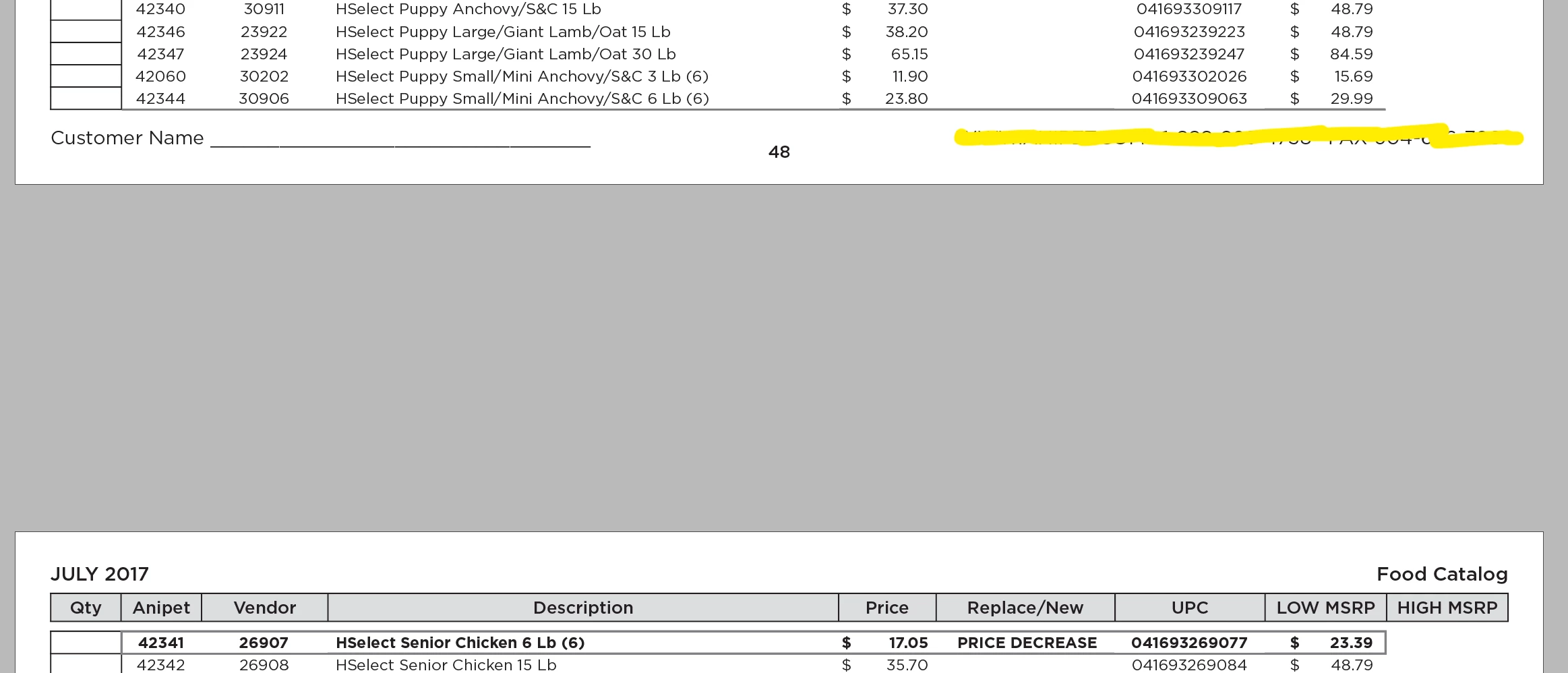
Doing a price list and am wondering if there is a way to have the stroke not show on the next page. In my picture the stroke from page 49 shows up on page 48 at the bottom. Anyway when I flow the table that I can have it now show that line?
    This topic has been closed for replies.
    Correct answer barbara_a7746676

    FrameMaker, Adobe's long-document page layout application, has a feature that makes this easy. It should be incorporated into InDesign. Anyone interested can suggest it here Feature Request/Bug Report Form

    3 replies

    Leila W.
    Leila W.Author
    Participating Frequently
    June 20, 2017

    Thanks Vinny38. That seems to be the best way to fix this issue.

    Barbara - If I do that then the stroke disappears on the next page... But thanks. I have tried that.

    vinny38
    Legend
    June 21, 2017

    Leila,

    Glad I could help.

    Now, I have the same question than yours from time to time, and that's the way I deal with it.

    However, I always feel that it's a (quite satisfactory) tweak and that there must be a more orthodox way to deal with this kind of situation.

    I was pretty certain that someone would come up with a better solution and I'm surprised nobody did...

    barbara_a7746676
    Community Expert
    barbara_a7746676Community ExpertCorrect answer
    Community Expert
    June 21, 2017

    FrameMaker, Adobe's long-document page layout application, has a feature that makes this easy. It should be incorporated into InDesign. Anyone interested can suggest it here Feature Request/Bug Report Form

    vinny38
    Legend
    June 20, 2017

    If I understand you well, here's my suggestion:

    Add a 1 row footer to your table.

    Apply bottom edit*: top stroke to it (see Barbara's answer), 0pt for all the other strokes. That way this pseudo bottom stroke will repeat and you won't have any reflow problem.

    Finally, make this footer as small as possible (no inside margin, font 0.1 pt, height 1.058mm)

    * edit: top stroke would be more appropriate, otherwise the minimum height (1.058 mm) would make your last row look higher than the others.

    barbara_a7746676
    Community Expert
    Community Expert
    June 20, 2017

    Highlight the row where you want to show or hide the stroke. Then in the Control panel, select only the line on the proxy that you want to change, and apply the stroke that you want. In the screen capture below, only the bottom line is selected and is being changed to a black 2pt stroke.