Inspiring
June 10, 2021
Answered

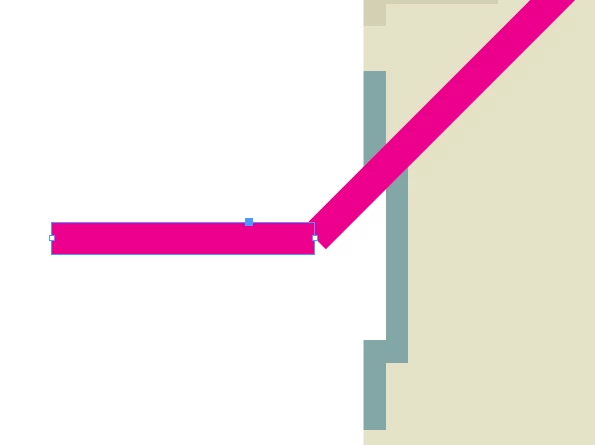
How can i connect two lines so they will apear as one, with "elbow"?

  • June 10, 2021
  • 3 replies
  • 3660 views

screenshot:


This topic has been closed for replies.
Correct answer Laubender

Hi danezeq,

all what you want is working by using the Align panel and the Pathfinder panel with its Join function.

For alignment you are working with a key element that will stay put during alignment. You have to decide which of the two items should be the key object.


One thing is important:

To properly align the two graphic lines you have to set the stroke weight of both graphic lines to value 0.


Read through this first:

https://helpx.adobe.com/indesign/using/aligning-distributing-objects.html


In detail:

Select both elements.

Click one of the two again to define the key object for alignment.

( Best do this with the "rotated" element )

Set the stroke weight of your selection to zero.

Align horizontally using the Align panel.

Align vertically by using the Distribute Vertical button with 0 distance.

Join the two paths.

Apply your stroke weight.


Regards,
Uwe Laubender

( ACP )

3 replies

Community Expert
June 10, 2021

Trust your selection.

In doubt have a look what is selected in the Layers panel.

Between any of the steps I outlined you could apply a stroke weight and set it back to 0 if you want to continue.


Regards,
Uwe Laubender

( ACP )

danezeqAuthor
Inspiring
June 11, 2021

Okay! in most cases - it works!

thank you so much.

 i'm still investigating that 🙂

LaubenderCommunity ExpertCorrect answer
Community Expert
June 10, 2021

Hi danezeq,

all what you want is working by using the Align panel and the Pathfinder panel with its Join function.

For alignment you are working with a key element that will stay put during alignment. You have to decide which of the two items should be the key object.


One thing is important:

To properly align the two graphic lines you have to set the stroke weight of both graphic lines to value 0.


Read through this first:

https://helpx.adobe.com/indesign/using/aligning-distributing-objects.html


In detail:

Select both elements.

Click one of the two again to define the key object for alignment.

( Best do this with the "rotated" element )

Set the stroke weight of your selection to zero.

Align horizontally using the Align panel.

Align vertically by using the Distribute Vertical button with 0 distance.

Join the two paths.

Apply your stroke weight.


Regards,
Uwe Laubender

( ACP )

danezeqAuthor
Inspiring
June 10, 2021

The only problem now is that i cant see the line at all when the stroke set to 0

Legend
June 10, 2021

Select the two endpoint, then go to Object > Path > Join

danezeqAuthor
Inspiring
June 10, 2021

Thanks. it works. but one thing: one of the endpoints is moving upward so the angle become "near" 90 degrees.

is there any way to lock postion of one of the endpoints or any other way to maintain 90 desgrees angel?

BobLevine
Community Expert
Community Expert
June 10, 2021
Why not use the pen tool to draw the stroke exactly the way you want it?