Known Participant
February 17, 2025
Answered

How can I create a table with different columns?

  • February 17, 2025
  • 2 replies
  • 878 views

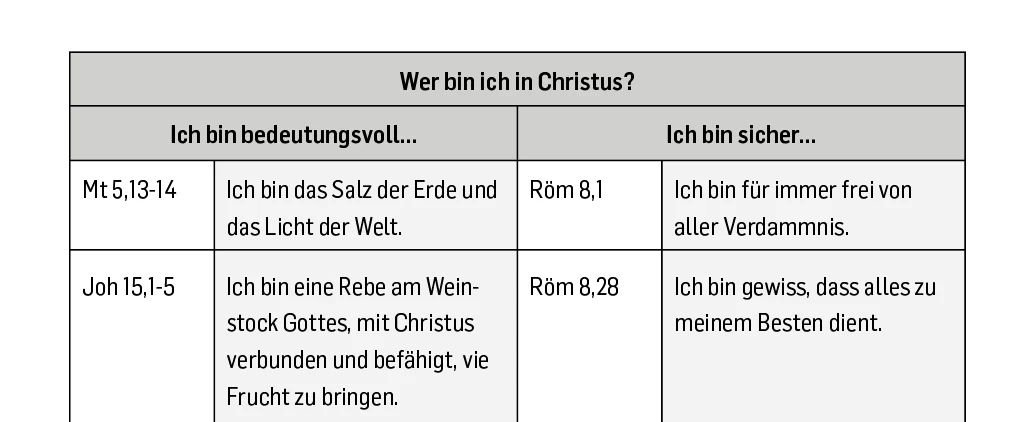
Hi, I need to create a table where there is one, two, and then four columns. However, I can't seem to create this without affecting the other columns. For example, if I add four columns, all the rows have four columns. Is there a way to achieve this in InDesign?

Thank you!


Correct answer Randy Hagan

Not exactly.


The default for creating columns is to create a column that goes from the top to the bottom of the table. So yes, if you create a four-column table, every row will have four columns. However, just like in Excel, you can merge cells to create a row with combined cells that have the impression of having less than four columns. So you've got to bake the cake — and create tables with the same number of columnsfrom top to bottom. But when you're spreading the icing and trimming the cake, you can change the number of columns for any individual row to suit your needs.


To use your example above, you would combine all the cells in the first row to create the Table title row, then combine the first and second cells, and combine the third and fourth cells, to build the "eyebrows" to cover the subsequent four rows of your table. Just highlight the cells you want to combine, go to the Table panel, open the flyaway/hamburger menu at the top right of the panel and select Merge Cells. It's that easy.


Hope this helps,


Randy

2 replies

Robert at ID-Tasker
Legend
February 17, 2025

@Mateomono 


You can achieve this through so called MERGING:


https://helpx.adobe.com/indesign/using/formatting-tables.html


Randy Hagan
Community Expert
Randy HaganCommunity ExpertCorrect answer
Community Expert
February 17, 2025

Not exactly.


The default for creating columns is to create a column that goes from the top to the bottom of the table. So yes, if you create a four-column table, every row will have four columns. However, just like in Excel, you can merge cells to create a row with combined cells that have the impression of having less than four columns. So you've got to bake the cake — and create tables with the same number of columnsfrom top to bottom. But when you're spreading the icing and trimming the cake, you can change the number of columns for any individual row to suit your needs.


To use your example above, you would combine all the cells in the first row to create the Table title row, then combine the first and second cells, and combine the third and fourth cells, to build the "eyebrows" to cover the subsequent four rows of your table. Just highlight the cells you want to combine, go to the Table panel, open the flyaway/hamburger menu at the top right of the panel and select Merge Cells. It's that easy.


Hope this helps,


Randy
MateomonoAuthor
Known Participant
February 17, 2025

@Randy Hagan Thank you very much!