
Participant
January 30, 2018
Answered

How do I change the default margins in InDesign?

  • January 30, 2018
  • 2 replies
  • 5435 views

Hi,

I need to change the default 12.7mm margin in InDesign. I have tried to change it in preferences with no documents open but my default always pops up with 12.7mm. I have also tried to define a document in Document Presets but I'm not sure I've done that correctly. Any help much appreciated.

Laura
    This topic has been closed for replies.
    Correct answer Derek Cross

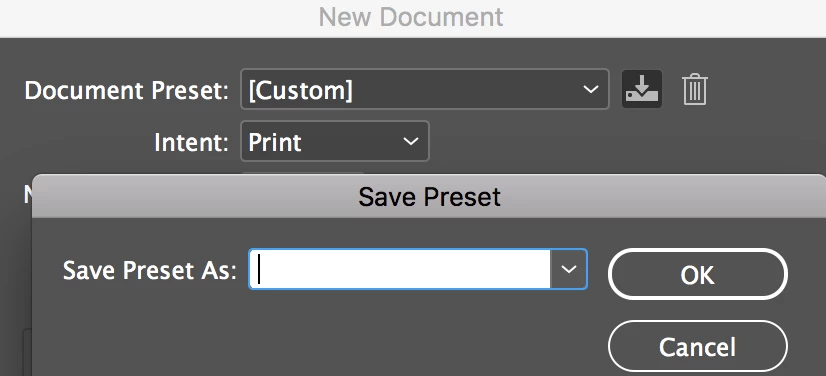
    Set up the measurements of your new document, then click on the Save New Document icon and name your document in the field that pops up.

    2 replies

    Community Expert
    July 16, 2021

    Michael said:

    "…I've been struggling with a CC library object – a boilerplate back page for a client template that always came out with 12.7mm margins despite saving with 14mm margins."


    Hi Michael,

    page information like margins cannot be saved with CC Libraries. It's only objects like text frames, graphic frames, graphic lines etc.pp. The page you see when you open a saved InDesign object from a library is always your default document's page.


    Regards,
    Uwe Laubender

    ( ACP )

    BobLevine
    Community Expert
    Community Expert
    January 30, 2018

    Save a preset and use that.

    Participant
    January 30, 2018

    thanks, how do I do this?

    Derek Cross
    Community Expert
    Derek CrossCommunity ExpertCorrect answer
    Community Expert
    January 30, 2018

    Set up the measurements of your new document, then click on the Save New Document icon and name your document in the field that pops up.