

Shangara Singh
Inspiring
February 9, 2025
Answered

How do I exclude page numbering for front cover?

  • February 9, 2025
  • 4 replies
  • 2504 views

I have created a photo book. It has a front cover, and two page spreads. The problem is auto-numbering starts on the front cover but I want it to start on the first page with content. Have speant an hour or so googling and reading threads here but not found a solution.


Have tried adding a master with no styles to page #1 (front cover). Section doesn't start from it (context-click shows Start Section greyed out).


I context-click page #2 and see:
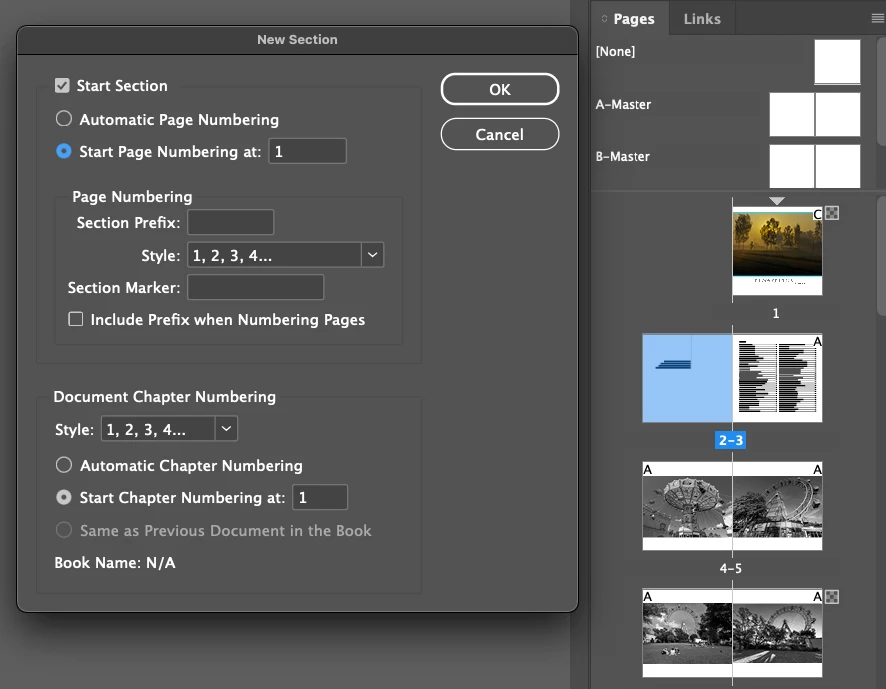
 

I start section but ID complains there is already a page number one.  I ignore it and click OK but then my pages are shuffled, and I end up with two single pages. I cannot rearrange pages:
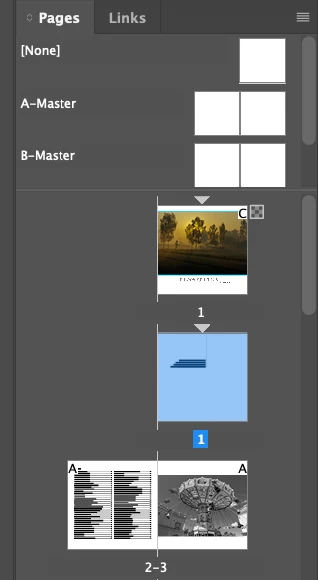
 

Any help much appreciated.

Correct answer Peter Spier

Two things here.

First, the duplication of page number 1. You can fix the complaint by chossing a different numbering system of the cover page. Front matter pages before the main copy of your book are traditionally numbered using small Roman numerals, and as the never appear, I generally use captal letters for covers.

Now the biggie -- your page shuffle.

In languages that read left-to-right books are traditioanlly numbered with odd number on the right hand page and even on the left. Because InDesign respects this tradition it assumes you want the page numbered 1 to be on the right.

In your layout I would have three sections, the cover starting at A, physical page 2 numbered i, and physical page 3 numbered 1.

4 replies

Robert at ID-Tasker
Legend
February 9, 2025

Or there is another option - add a small TextFrame, thread only on pages that should be numbered - and fill with Autonumbered text.


Then, there is no need to shuffle with pages.


Mike Witherell
Community Expert
Community Expert
February 9, 2025

Hi Shangara, still in London?


In agreement with Peter's comment above, what if you simply must go against convention and tradition of book-making (since Roman times)? There is (sigh) a way:


First, go to the Pages panel and the panel menu button flyout. Turn off Allow Document Pages to Shuffle as well as Allow Selected Pages to Shuffle. "Shuffle" means that InDesign numbers the pages in the traditional even-left/ odd-right way. 


Once you have turned this off, you can target select the left-hand page and click on Pages panel menu button > Numbering and Section Options, and start page numbering as 1; OK. 


Think deeply about the disturbance you will unleash in the universe, though! 😉

Mike Witherell
Peter Spier
Community Expert
Community Expert
February 9, 2025
quote

Think deeply about the disturbance you will unleash in the universe, though! 😉


By @Mike Witherell

Or at least on your readers.

Robert at ID-Tasker
Legend
February 9, 2025

.

Peter Spier
Community Expert
Peter SpierCommunity ExpertCorrect answer
Community Expert
February 9, 2025

Two things here.

First, the duplication of page number 1. You can fix the complaint by chossing a different numbering system of the cover page. Front matter pages before the main copy of your book are traditionally numbered using small Roman numerals, and as the never appear, I generally use captal letters for covers.

Now the biggie -- your page shuffle.

In languages that read left-to-right books are traditioanlly numbered with odd number on the right hand page and even on the left. Because InDesign respects this tradition it assumes you want the page numbered 1 to be on the right.

In your layout I would have three sections, the cover starting at A, physical page 2 numbered i, and physical page 3 numbered 1.

Shangara Singh
Inspiring
February 9, 2025

Thanks, Peter. Appying roman numbers to front page, and Arabic to others worked. Page shuffling settings also worked when allowed, so I didn't get two front pages. Option was right next to numbering but didn't see it. Duh. Haven't worked regualry in ID for many years, just here and there to create personal PDFs.

Shangara SINGH.