Participant
February 8, 2010
Resuelto

How do I get Indesign Table of Contents gap filler?

  • February 8, 2010
  • 1 respuesta
  • 51205 visualizaciones

I am having no problem getting my table of contents to come out exactly like I expect it to look - BUT-

How do I get the little periods to fill the space between the word/chapter title and the page number?

All the tutorials I see show them already in place. Mine come out blank or if I place them in the template it comes out with just how many I place - no more- no less. The chapter titles are different length words and I would like the TOC to end up in two justified columns.

I know this is probably simple but I can't seem to find the answer anywhere. Please help!

Este tema ha sido cerrado para respuestas.
Mejor respuesta de Peter Spier

If you want the traditional leader, open your TOC Callouts paragraph style options dialog and switch to the tab screen. That's where you set the tab position and the leader.

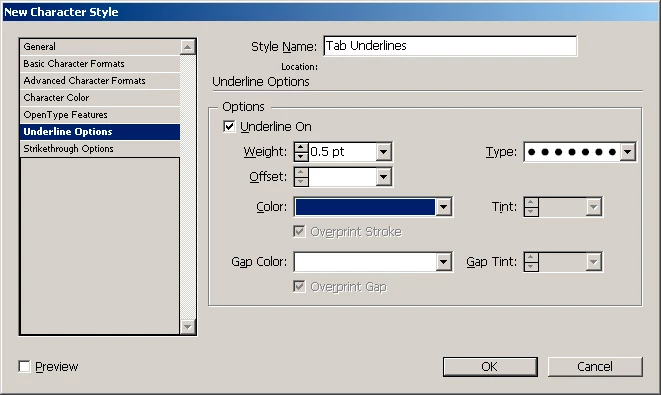
I prefer to use the underline myself.  Notice the Style drop-down field next to where you've got your ^t.?  In that field select "New Style" (in CS4, for earlier versions you have to leave the TOC dialog and define the character style first) and create a character style called Tab underline or something equally descriptive. The only attribute to the style should be adding the underline. In the example below I've set the underline to .5 pt japanese dots which are daintier than the leader created with a period or the regular dotted stroke style. Ihaven't included any offset, so the underline would appear on the baseline. You can change anything you like, just make sure the check box is on, not gray.
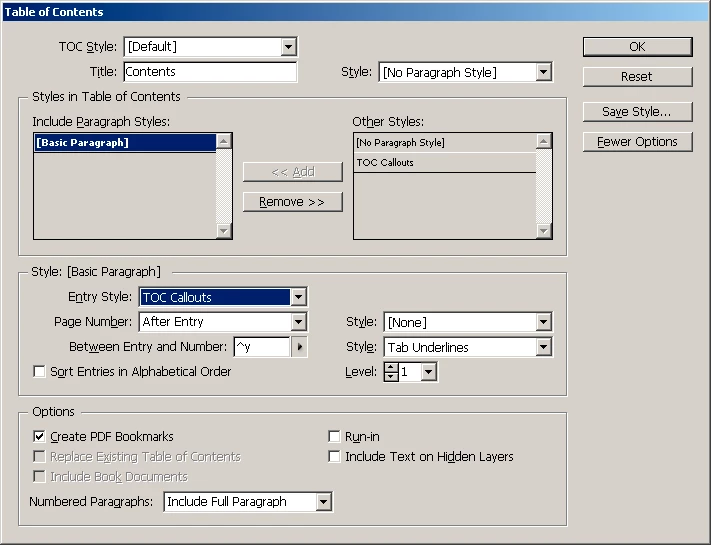
One other thing I would change, if you use the underline, is to replace your tab (which is at a fixed position) with a right-indent tab (metacharacter is ^y, but you can select it in the dropdown). A right indent tab is always at the furthest right position in a column, even if you change the column width at a later time. Regular tabs don't move if you change the column. Using this method you would not want a tab set in the paragraph style.

1 respuesta

Peter Spier
Community Expert
Community Expert
February 8, 2010

The little dots are called "leaders" and are added in the Tabs Panel or in the tab section of the style definition. That's the traditional way.

An alternative is to use a custom underline and apply it to the tab. This is best done using a character style which is applied using a nested style in the paragraph style definition. SOunds much more complicated than it is and is more flexible than the traditional leader.

Participant
February 8, 2010

This is working within the automated Table of Contents? I am using CS4 and this ends up creating bookmarks for the first page of the multiple languages in my document. I am not sure what/where you mean for me to work in the tabs area. Can you explain further? I have attached a screen shot to show you what I am working with at this point.

thank you for your help

Peter Spier
Community Expert
Peter SpierCommunity ExpertRespuesta
Community Expert
February 8, 2010

If you want the traditional leader, open your TOC Callouts paragraph style options dialog and switch to the tab screen. That's where you set the tab position and the leader.

I prefer to use the underline myself.  Notice the Style drop-down field next to where you've got your ^t.?  In that field select "New Style" (in CS4, for earlier versions you have to leave the TOC dialog and define the character style first) and create a character style called Tab underline or something equally descriptive. The only attribute to the style should be adding the underline. In the example below I've set the underline to .5 pt japanese dots which are daintier than the leader created with a period or the regular dotted stroke style. Ihaven't included any offset, so the underline would appear on the baseline. You can change anything you like, just make sure the check box is on, not gray.

One other thing I would change, if you use the underline, is to replace your tab (which is at a fixed position) with a right-indent tab (metacharacter is ^y, but you can select it in the dropdown). A right indent tab is always at the furthest right position in a column, even if you change the column width at a later time. Regular tabs don't move if you change the column. Using this method you would not want a tab set in the paragraph style.