Participant
January 8, 2021
Answered

How do I lay a full shape over a background image?

  • January 8, 2021
  • 2 replies
  • 608 views

Hello, 

     I am new to InDesign (so, please be kind). I am playing around with the software, and I have come across an 'issue' that I can not solve or find a work around. 

     I have placed an image on my background with a 30% (or so) opacity. My goal is to lay, on top of this image, a rectangle shape filled with a light color (please see photo below). The problem that I have is that the background image is visable through this light colored shape even though the shape is at 100% opacity. I have tried putting a black rectangle behind it. I have tried putting a white rectangle behind. I have played around with the arrangement (send to back, send backward, etc) and nothing has worked.

    Please, if someone can tell me how to do this or if my goal is even achievable in InDesign. Thank you for your help. 
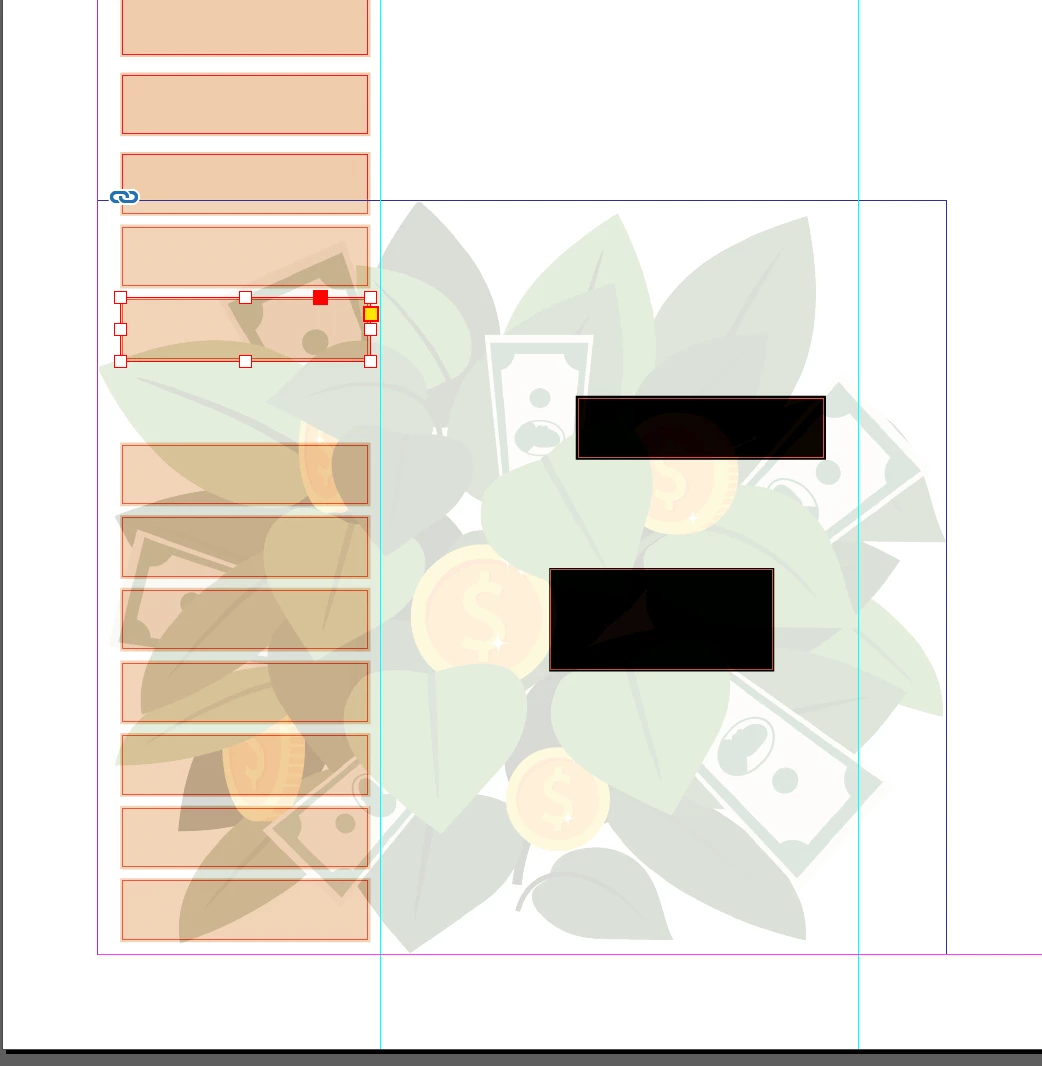
This topic has been closed for replies.
Correct answer Jeff Witchel, ACI

It's impossible to tell if the image is in front or back of the rectangles without seeing the Layers panel. So open the Layers panel (Window > Layers) to make sure your image is in back. Click the disclosure arrow to reveal all the objects in the Layer. If it's not the last object listed in the Layers panel, it's not at the bottom of the stacking order. To move the image to the back, click on the image listing and drag its position to the bottom of the listings.

If you need help using the Layers panel, here's a link to a video I produced a while ago: http://www.jeffwitchel.net/2011/11/indesign-new-layers-of-control-in-indesign

2 replies

Jeff Witchel, ACI
Community Expert
Jeff Witchel, ACICommunity ExpertCorrect answer
Community Expert
January 9, 2021

It's impossible to tell if the image is in front or back of the rectangles without seeing the Layers panel. So open the Layers panel (Window > Layers) to make sure your image is in back. Click the disclosure arrow to reveal all the objects in the Layer. If it's not the last object listed in the Layers panel, it's not at the bottom of the stacking order. To move the image to the back, click on the image listing and drag its position to the bottom of the listings.

If you need help using the Layers panel, here's a link to a video I produced a while ago: http://www.jeffwitchel.net/2011/11/indesign-new-layers-of-control-in-indesign

Legend
January 8, 2021

Hello,

One thing you can look at......under Window-Effects make sure for the filled boxes it's set to Normal.


Regards,

Mike