
Participating Frequently
March 15, 2018
Answered

How do I place a tab leader in front of a numbered list?

  • March 15, 2018
  • 4 replies
  • 961 views

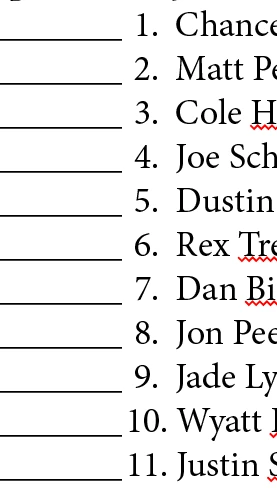
I work on a few "day sheets" for rodeos. I need them to be numbered as I place the names in, but I want a line in front of the number for people to score as they please. As of now, I have to number these manually, but if a name is added or dropped, I have to re-number them. Hopefully the screen shot below shows what I am wanting to do (and hopefully it can be done!). Thank you!
This topic has been closed for replies.
Correct answer winterm

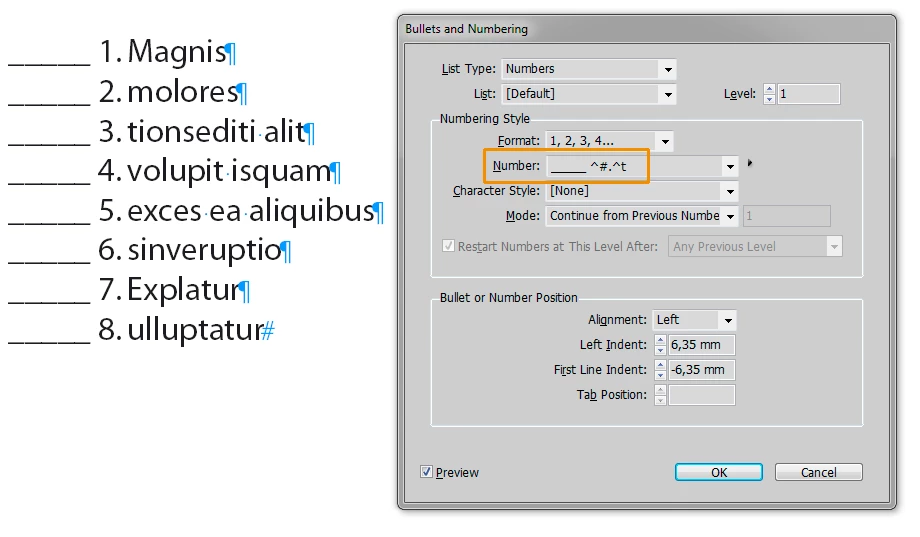
Something like this:

4 replies

Participating Frequently
March 20, 2018

I need help again and hopefully you can! I have a paragraph style with my lines set in front of my numbers, but I need the numbers to restart with-in each group. I have a dozen or more groups where this needs to happen. Do I need to make a unique paragraph style for each one?! I've tried making two different paragraph styles, like most posts suggest. It restarts at Tie-down, but then continues the numbers from there on instead of restarting. This is making no sense to me! Please help!

Steve Werner
Community Expert
Community Expert
March 20, 2018

In the Bullets & Numbering style dialog (as shown below), use the Mode menu to choose whether to start at a particular number or to continue numbering:

Participating Frequently
March 20, 2018

I did do that. When I say continue, it starts to number at 1 and then continues throughout everything. It does not restart where I need it to. When I say Start at, it just says 1 for everything.

Steve Werner
Community Expert
Community Expert
March 15, 2018

It's pretty easy.

Start by selecting the Numbered List button on Control panel (in Paragraph mode). If you Option/Alt-click on that button it opens the Bullets and Numbering dialog. Make sure List Type is Numbers.

In the Numbers field, you can enter characters which are either before or after the number. Below, I've entered the Underscore character several times, then the metacharacter for the number (^#), then a period, then an en space (^>). The en space can be selected from the menu to the right.

Then all you have to do is type each item and the underscore, number and space appear automatically.

Participating Frequently
March 15, 2018

YES!! Oh my... I can't believe it was that simple Thank you!

winterm
Legend
March 15, 2018

Not all 'simple' things are obvious

You're welcome.

winterm
wintermCorrect answer
Legend
March 15, 2018

Something like this: