Answered
How to apply Spot colour to Image in Indesign?
Hello! I am having trouble applying a spot colour to my image on Indesign. Does it need to be in a specific mode or something?? I need it for a uv print!

Hello! I am having trouble applying a spot colour to my image on Indesign. Does it need to be in a specific mode or something?? I need it for a uv print!
Simple shapes can be done in InDesign, anything more complicated you should do in Photoshop or Illustrator.
First, so that you can turn it on and off, it's good to create a new layer specifically for your UV spots so you can turn it off/on as needed.
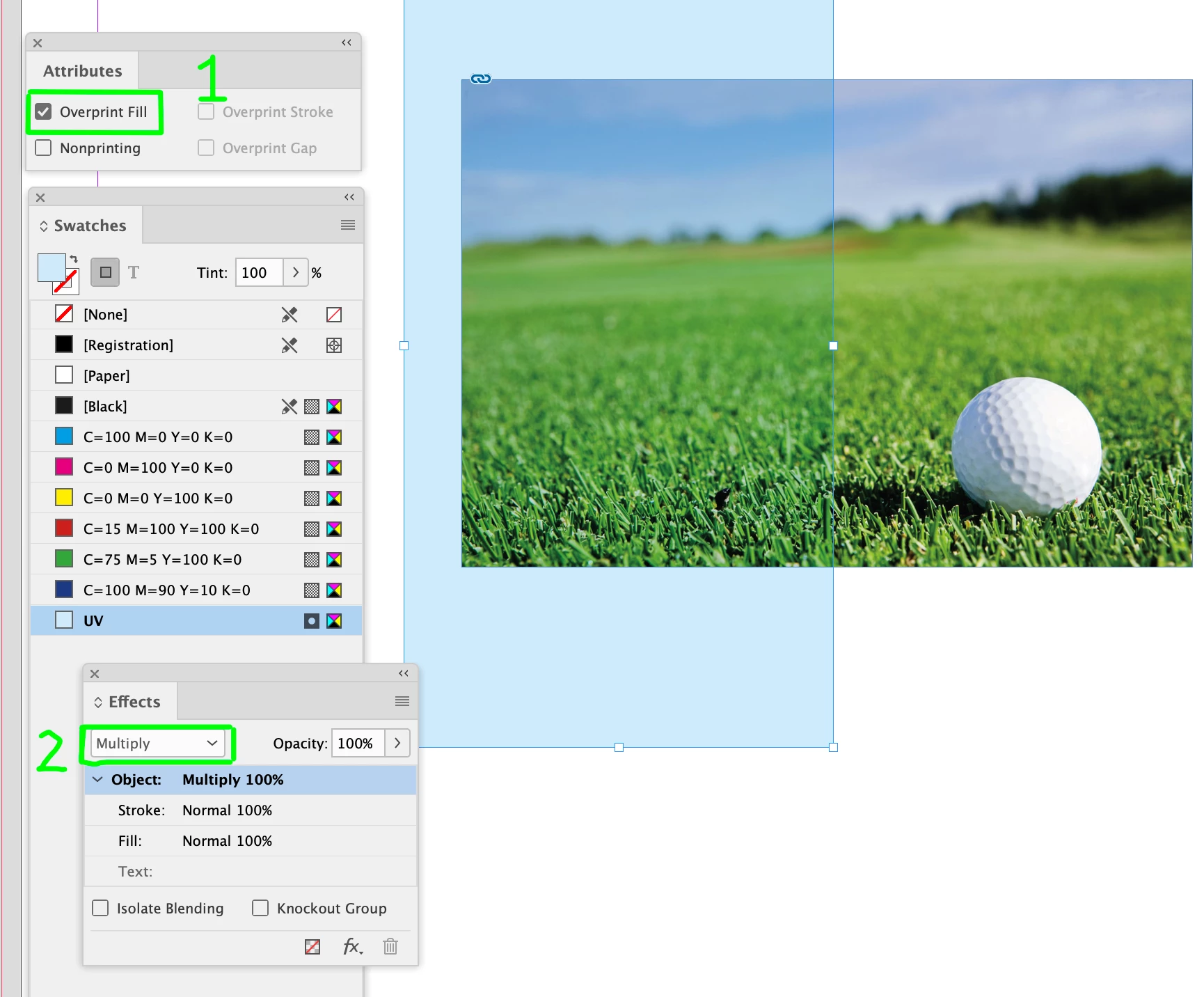
Create a new spot colour : e.g. simply "UV" and give it a bit of colour so you can see it (in my example, 20% cyan)
Add the shape(s) you want and then fill them with the colour, and then make the object overprint by either (#1) assigning Overprint Fill in the Window > Output > Attributes, or #2, assigning Multiply to the shape. Whatever works best, but either way will separate properly at print stage.
(You will need to toggle on Overprint Preview to see the photo/etc underneath in option #1)
Already have an account? Login
Enter your E-mail address. We'll send you an e-mail with instructions to reset your password.
 AdChoices