Participant
November 15, 2022
Answered

How to change the reference point in InDesign using ExtendScript?

  • November 15, 2022
  • 3 replies
  • 2417 views

I want to move the upper right corner of a selection of items to a specific position. But at the moment the reference point of the selection of items is on the lower left corner.

app.selection[0].move([10, 10]);

Is there a way to change the reference point to the upper right corner in InDesign using ExtendScript?

Thank you for your help.
This topic has been closed for replies.
Correct answer rob day

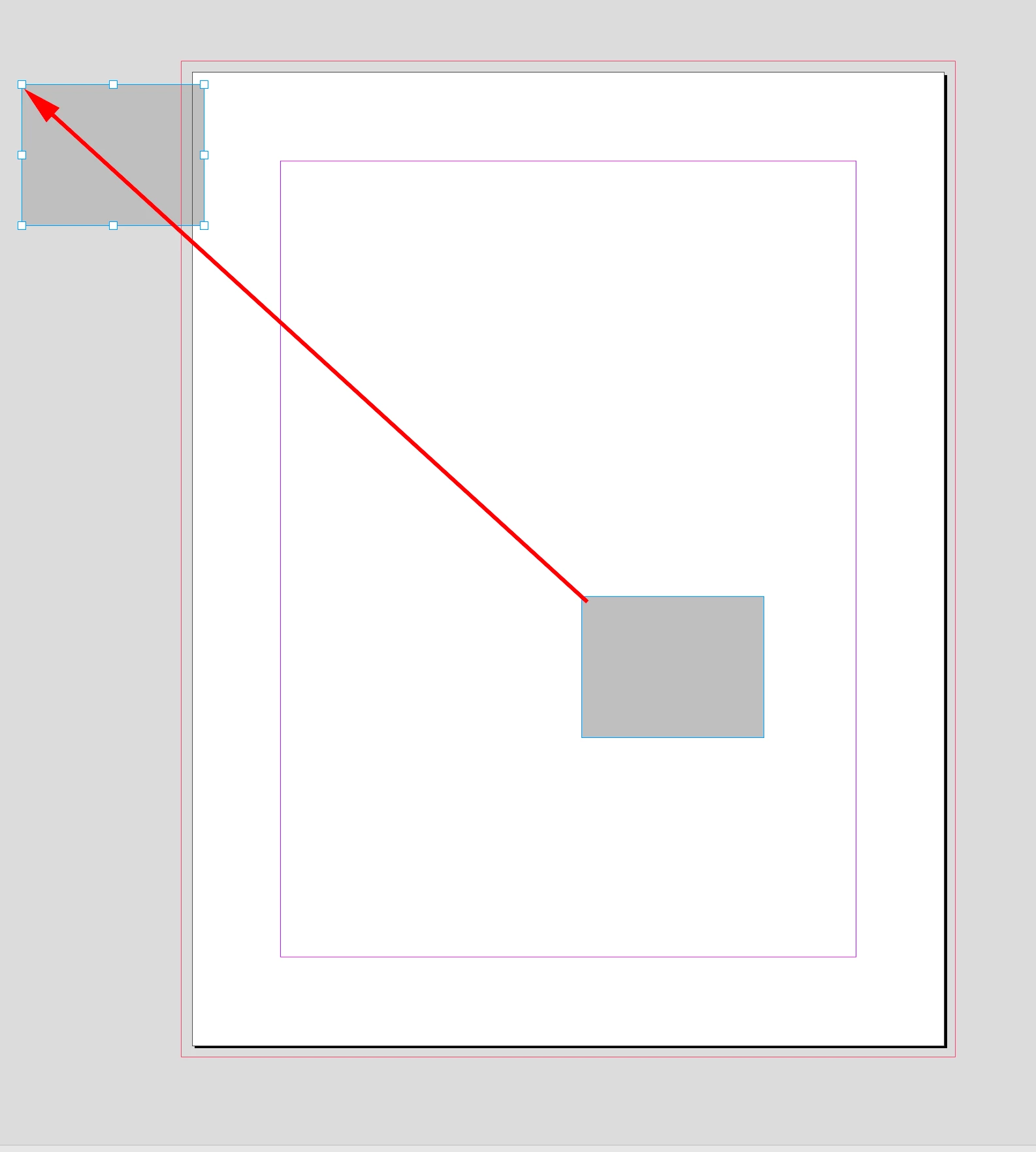
I want to set the position selection by setting the position of the upper right corner of the selection.


With app.selection[0].move([10, 10]); I always get this:


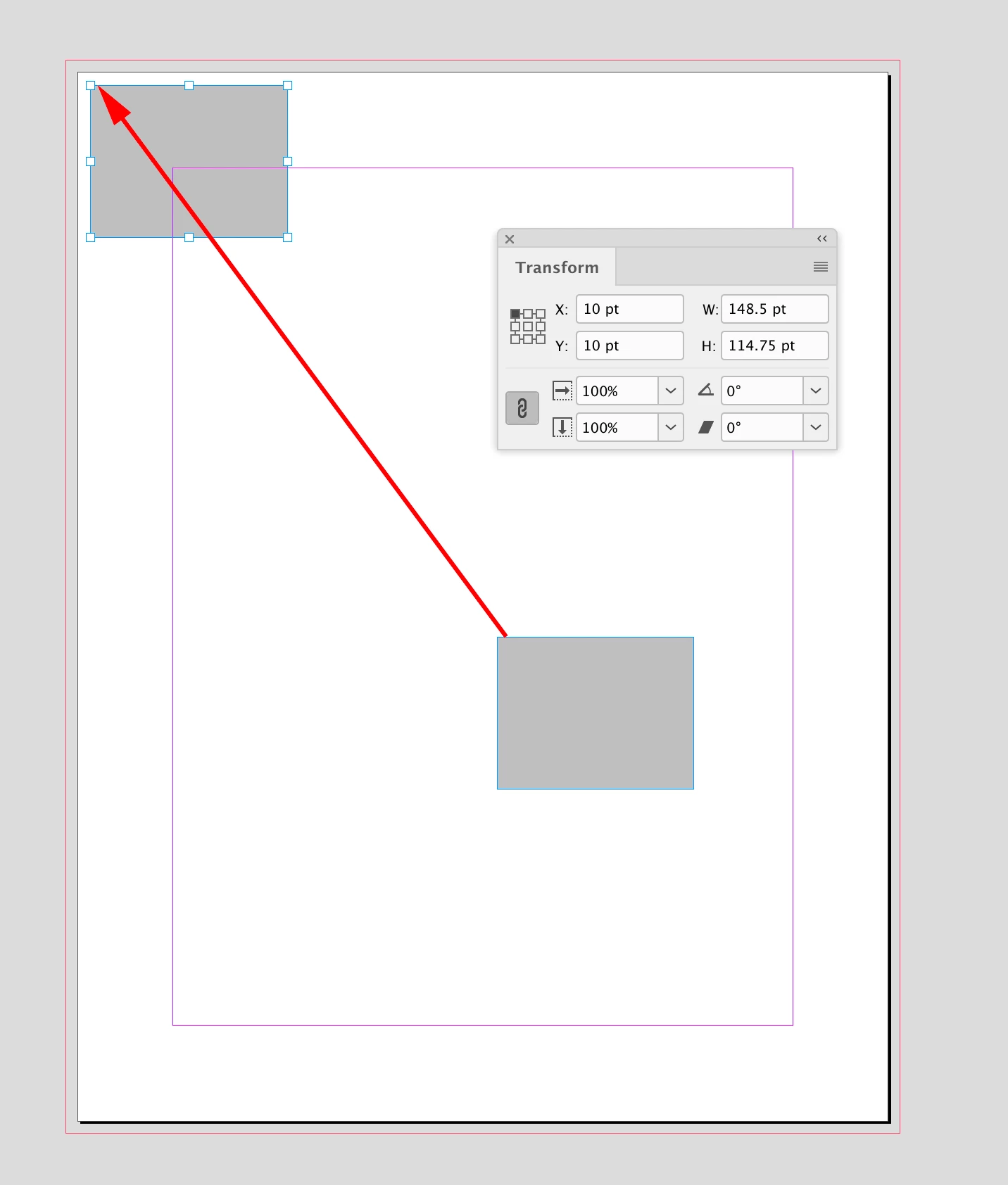
Are you looking for this?:


Subtract the width of the selection from x:


var doc = app.activeDocument
var s = app.selection[0];
var b = s.geometricBounds
var w = b[3]-b[1]
s.move([10 - w, 10]);

3 replies

Peter Kahrel
Community Expert
Community Expert
November 17, 2023

You can't. But you could of course create a document, set the refeence point, and discard the document.

Participating Frequently
November 17, 2023

Thanks a lot - yes, strange enough, but will do it this way.

I remember something similar - wasn't that the thing how to navigate to a URL?

Peter Kahrel
Community Expert
Community Expert
November 17, 2023

That was a while ago! But yes, to navigate to a URL, place a text frame, enter a URL hyperlink, and follow that link.

Participating Frequently
November 17, 2023

To come back to the actual question: "How can I change the reference point in InDesign":

Manually, it's possible to change the standard reference point with _no_ document open, i.e. without a "Layout Window".

Is this also possibly by scripting? Or is also this lacking in the scripting API?
(Just as a side note: You can't set a text frame on a master page to be the "primary text frame" by script.)

leo.r
Community Expert
Community Expert
November 17, 2023

I'm not sure, but I wonder if the last script by @rob day in this discussion will give you a hint:

https://community.adobe.com/t5/indesign-discussions/javascript-how-to-scale-an-image-using-a-script/td-p/14215420


Namely, this parameter: AnchorPoint.TOP_LEFT_ANCHOR


I don't know the final goal you pursue so it may have nothing to do with what you need.

Peter Kahrel
Community Expert
Community Expert
November 19, 2023

You have to reference a layout window, which you don't have if you don't have an open document.

rob day
Community Expert
Community Expert
November 15, 2022

Hi @Alexander17 , the move() method is to x,y, so you shouldn’t have to set the reference point. Make sure the rulers are set to 0—does this work?:


app.scriptPreferences.measurementUnit = MeasurementUnits.POINTS;
var doc = app.activeDocument

doc.zeroPoint = [0, 0];
doc.viewPreferences.rulerOrigin = RulerOrigin.PAGE_ORIGIN;

app.selection[0].move([10, 10]);
app.scriptPreferences.measurementUnit = AutoEnum.AUTO_VALUE;


Participant
November 15, 2022

The rulers and the measurement unit are not the problem. The rulers are set to 0 und the measurement unit is correct.

I want to set the position selection by setting the position of the upper right corner of the selection. But at the moment the reference point of the selection is the lower left corner.

rob day
Community Expert
rob dayCommunity ExpertCorrect answer
Community Expert
November 15, 2022

I want to set the position selection by setting the position of the upper right corner of the selection.


With app.selection[0].move([10, 10]); I always get this:


Are you looking for this?:


Subtract the width of the selection from x:


var doc = app.activeDocument
var s = app.selection[0];
var b = s.geometricBounds
var w = b[3]-b[1]
s.move([10 - w, 10]);