Inspiring
December 14, 2017
Answered

How to control JPG quality loss when exporting to PDF from INDD?

  • December 14, 2017
  • 6 replies
  • 15231 views

Hello everyone...Im experiencing sever quality loss of jpg screen shots when exporting INDD pages to PDF that contain jpg files on them.

Its nuts and you'd think Adobe would have found a sure-fire way to resolve this by now BUT Im exporting some pages that contain jpg files of screen shots. The raw jpg files look great when previewed. I import them into INDD file, scale them down a little then export for interactive. Actually ... doesn't matter if I export for interactive or print... same result, fuzzy and clarity of jpgs not NEAR as nice as the originals. What gives? My PPI resolution in export settings is at 300 with no compression. What else to do??

Thanks in advance!
    This topic has been closed for replies.
    Correct answer concort

    but when doing for interactive... forget it

    Have you compared the Effective res of the ID link with the exported res in AcrobatPro (Print Tools>Output Preview>Object Inspector)? I'm not seeing a problem —the ID and PDF resolutions match.

    Can you show a screen capture?

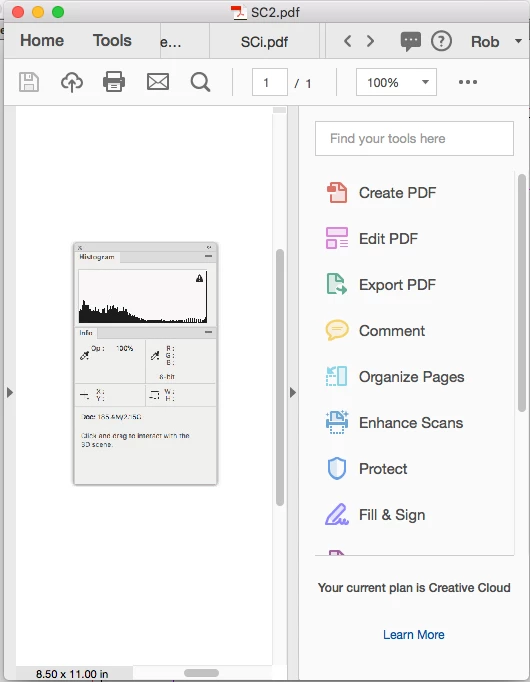
    Also the display will depend on zoom level, the PDF reader and if it's Acrobat the display prefs. Here my screen capture scaled down (which actually exacerbates the zoom scaling problem) and exported as interactive:

    Acrobat's Image Smoothing off

    Image smoothing on


    Ok thanks all for the helpful tips and feedback. After many trials and experiment I've finally found what works! The ONLY thing that works... and I mean the ONLY thing that works for this finicky PDF conversion engine inside of InDesign is I made sure to resize my screen shots to the exact size they need to be in the INDD page layout. So this mean NO resizing in INDD at all... Up or down. NONE. As soon as you resize a jpg or png in INDD its all over for that image when it gets PDF'd. Resize the image first in Photoshop then place it in INDD then PDF at all the highest settings possible for interactive. Boom. Finally got a suitable output that I can live with... even though its STILL not as nice as the original.

    NOTE: This is all based on PDFing just for interactive output and getting the best possible quality out of your imported screenshots.

    6 replies

    Participant
    October 16, 2023

    I found that simply switching to 300 DPI fixed the issue for me 🙂

    Rishabh_Tiwari
    Community Manager
    Community Manager
    October 30, 2023

    Hi @portrayalteam,


    Thank you for reaching out and sharing the solution that worked for you. Changing the DPI Value does help in improving the output quality.


    Thanks

    Rishabh

    Participant
    July 6, 2022

    I have a problem the precedes exporting. Everytime I save an .idd file, I seem to lose quality of .png files. It is conceivable that it's the same problem as has been mentioned. That I should resize the image to the exact dimensions before importing to inDesign. Has anyone else had that problem?

    Participant
    May 20, 2022

    thanks for this thread, I have exactly the same issue 5 yeasr down the line! I was trying to create a digital pdf but the picture quality was rubbish even using digital photoshop files, tiff, pngs and mesing about with all the export settings. My solution was to export IN Design to a print-ready PDF - which keeps all the images nice & crips and then use PDF tools to manually embed text links which are flattened out of the ID text. It doesn't make any difference to the final pdf size.

    Community Expert
    May 23, 2022

    Hi Sam,

    you could do it also this way:


    [ 1 ] Export to PDF (Interactive) to file A with all interactivity InDesign is able to export.

    [ 2 ] Export to PDF ( Print ) with no loss of quality in image data to file B.


    Open file A from [ 1 ] in Acrobat Pro.

    Replace all pages of file A with the pages from file B.

    Your interactive elements are maintained.


    Acrobat Pro > Organize Pages > Replace


    Regards,
    Uwe Laubender
    ( Adobe Community Professional )

    Participant
    May 24, 2022

    Thanks for your reply. I did not know about the Replace function. Thank you for taking the time to teach me something new : ) 


    concortAuthor
    Inspiring
    December 15, 2017

    Hi all,

    So to answer collectively everyone here:

    - Working in v13.0.1 and Mac OS 10.13.1

    - As mentioned in original post; Compression set to non and highest level of quality (Max)

    To me its just mind boggling that Adobe can't replicate the exact clarity I am seeing in the original jpg files when its PDF'd out form and InDesign pg. Its 2018 (almost) there is no reason for mirroring that same clarity in the pdf. There is no point to a pdf file then in high end design environments.... Pointless. It really shouldn't be this hard. Yes the PNG does work a little better but its still not EXACT as the original host file. What in the world. 

    hammer0909
    Community Expert
    Community Expert
    December 15, 2017

    Hi Concort,

    The fact that you're placing a .jpg in InDesign and then exporting to a PDF which is using a .jpg is creating a loss in quality. It's literally impossible to NOT lose quality using your technique. .jpg uses lossy compression. Every time you open a .jpg and choose File > Save, you're losing some amount of data and quality. You're creating a perpetual problem. My recommendation is to save those original .jpg files as .PSD to limit your loss moving forward. Adobe has nothing to do with the loss in clarity and everything to do with the .jpg format. If you are in fact working in a high end design environment, you shouldn't be placing .jpg files in InDesign. I hope that helps to clear things up.

    concortAuthor
    Inspiring
    December 15, 2017

    Yes I understand the cycle of jpg files and their issue with quality but I can export from photoshop and they are perfect every time (in jpg format) and publishing them directly online... no problem. You're talking as if this is a third, forth, fifth generation printed piece (in the printing world) but in reality this is the digital environment and there should be no loss if done properly. However I DONT believe its just a jpg file issue as we've also tried resaving the jpg to PSD and then imported that... same result. Here again, psd file looks perfect when open as a standalone and previewed... and published that was (without it going into InDesign and exported to PDF). I have to believe theirs some inherent exporting conversion issues going on with Acrobat/InDesign because if Photoshop can export and save jpg files everytime with the same file and have it look amazing every time... why in the world can't InDesign export that same file and have it look just as nice. In fact... Photoshop can save out that same exact jpg file to a pdf and it looks amazing. As soon as it hits InDesign and PDF'd out of that program, its all over for that jpg.

    Dave Creamer of IDEAS
    Community Expert
    Community Expert
    December 15, 2017

    What are your Compression and Image Quality settings at?

    For compression, use Automatic (JPEG) or Zip.

    For Image Quality, use High or Maximum.

    Resolution will not affect these since they would be below the "images above" threshold--unless you res'd them up in Photoshop.

    Finally, I would never use JPEG for screen captures. Use PNG. Using JPEG compromises the files during the initial creating and save; it's all downhill from there. Viewing JPEGs in other programs doesn't always reflect reality since there could be anti-aliasing occurring.

    David Creamer: Community Expert (ACI and ACE 1995-2023)
    Mike Witherell
    Community Expert
    Community Expert
    December 14, 2017

    What version of ID and what version of OS?

    Mike Witherell
    Mike Witherell
    Community Expert
    Community Expert
    December 14, 2017

    You probably need to patch to 13.0.1 and maybe also this maneuver:

    You will have to trash both your InDesign cache and preferences. Launch InDesign with cleanly rebuilt preferences, the preference to check links will be ON by default and things will start to work fine.

    Mike Witherell