
Participant
June 14, 2019
Answered

How to create repetitive lines in a circle

  • June 14, 2019
  • 4 replies
  • 2524 views

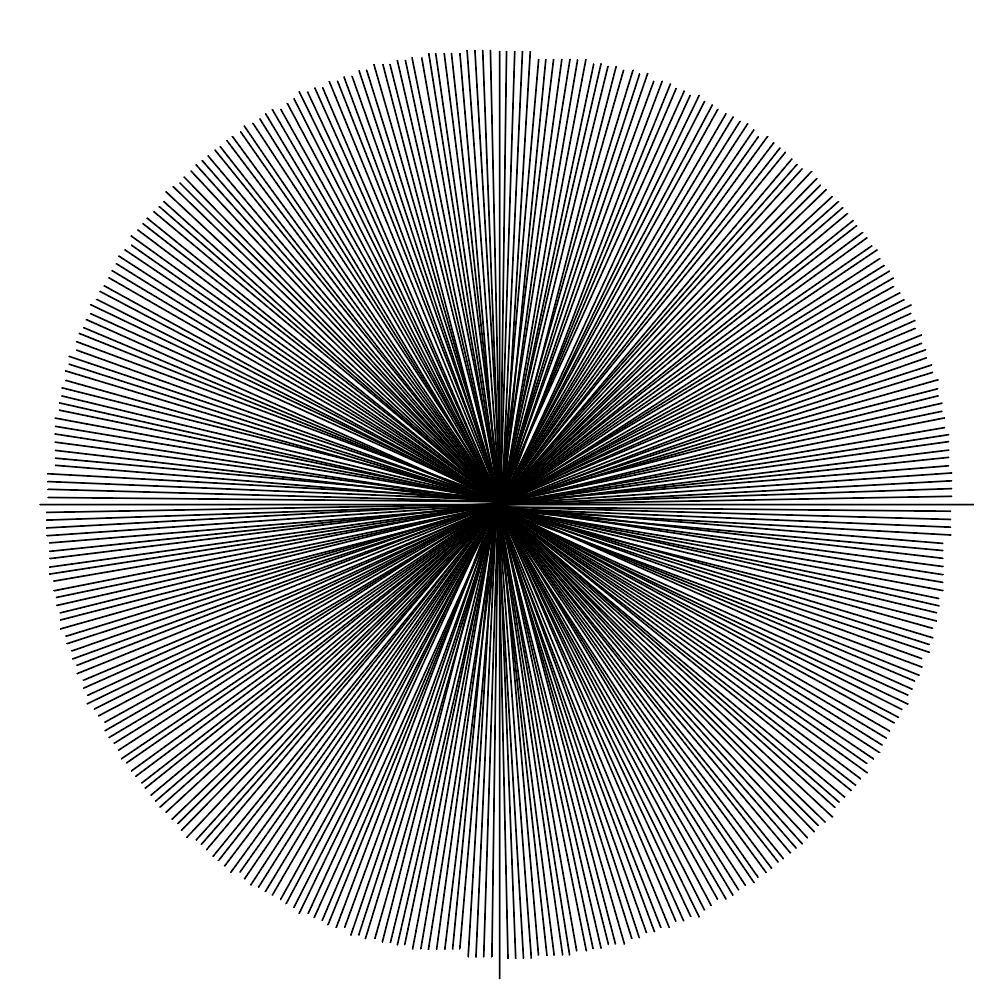
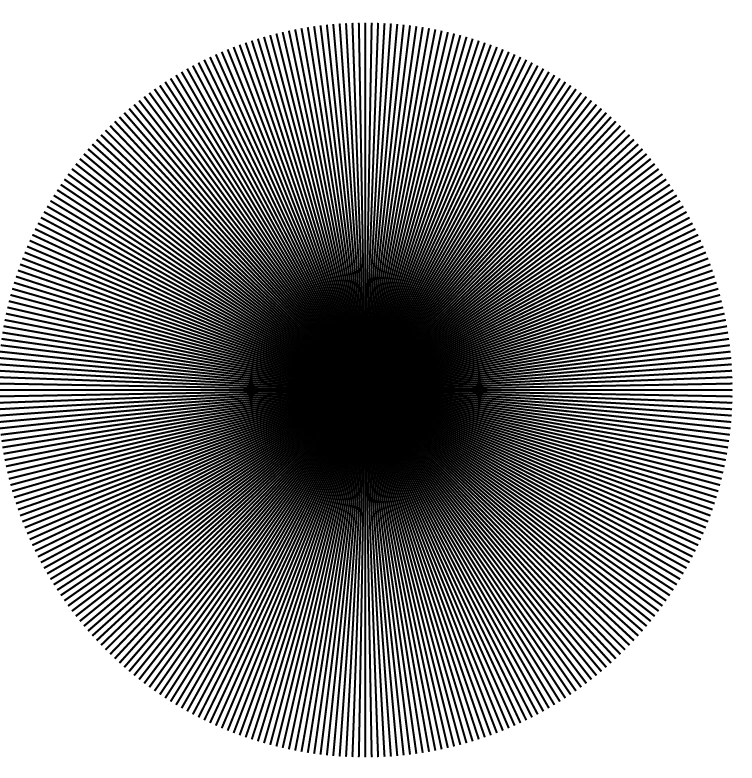
I'm working in InDesign trying to create a 360 degree circle, with a line starting at 1 degree, two degrees, three degrees, ect. Instead of placing each line I thought that there might be an easier way to create a circle out of lines stemming from the exact center and branching out to all 360 degrees. Any/all comments and help welcome!
This topic has been closed for replies.
Correct answer Migintosh

Instead of rotating the radius 360 times, why not double the length of the line and rotate 180 instead? Use the rotation tool, and use horizontal and vertical guides to mark your center point. Snap the rotation proxy to that point and duplicate at 1° 8 times. Now that you have 9 lines, select the group and rotate 9° 4 times to get a 45° wedge. Select that and rotate 45° 3 times to complete the circle. If your center proxy was off and they don't align properly, use the Align Horizontal Centers and Vertical Centers tools.

4 replies

Participant
June 17, 2019

Wow I'll try it out! Thank you all so much!

Willi Adelberger
Community Expert
Community Expert
June 14, 2019

Go to Illustrator and use the radial grid tool. Click once on the art board, put in your parameters, use the direct selection tool to select the ring(s) to delete them, copy all and paste it into InDesign.

MigintoshCorrect answer
Legend
June 14, 2019

Instead of rotating the radius 360 times, why not double the length of the line and rotate 180 instead? Use the rotation tool, and use horizontal and vertical guides to mark your center point. Snap the rotation proxy to that point and duplicate at 1° 8 times. Now that you have 9 lines, select the group and rotate 9° 4 times to get a 45° wedge. Select that and rotate 45° 3 times to complete the circle. If your center proxy was off and they don't align properly, use the Align Horizontal Centers and Vertical Centers tools.

Mike Witherell
Community Expert
Community Expert
June 14, 2019

1. Draw a line.

2. Select one end as the reference point in the reference proxy on the Control Panel

3. Object > Rotate > 1 degrees > COPY

4. Object Transform Again > Cmd+Opt+4

5. Repeat step 4

Mike Witherell