
June 30, 2012
Answered

How to disable arabic digits in character pallette

  • June 30, 2012
  • 2 replies
  • 22001 views

My interface is showing digits as arabic and when i try to use bullets and numbering - the digits show up in arabic.

how do i disable this?

my geographic location is currently israel. but I have no need whatsoever for arabic digits nor writing.

thanks

seth
This topic has been closed for replies.
Correct answer Jongware

I tried deleting prefs and it didnt work.

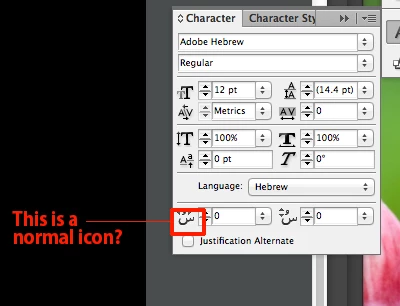
HARBS: Are you saying this is normal - please look at attached screenshot of my cahracter pallette.

This looks like arabic to me and not an icon. Thanks.


http://helpx.adobe.com/mena/using/arabic-hebrew.html#id_48870

-- the section on "Diacritical marks".

2 replies

Participant
June 17, 2021

Open Photoshop

Edit> Preferences > Type> 

Dialogue box will open

select Type >

click East Asian under 'Choose Text Engine Options'

Restart the Photoshop again. 
SOLVED 

TᴀW
Legend
June 30, 2012

Shavua tov,

The digits pick up their style from the language the text is set to. If

you set the language to English, for instance, you'll get regular

digits. Alternatively (or indeed additionally), from the fly-out of the

character palette go to "digits" and select the type you want. It's

probably set to default right now.

HTH,

Ariel

id-extras.com | InDesign tools & scripts for typesetters, form designers, and translators
June 30, 2012

the digits are set to Native. I have no english option. only: Default, Native, Hindi, Arabic, Farsi.

TᴀW
Legend
June 30, 2012

So choose "Arabic" which is what we call regular digits (1234).

id-extras.com | InDesign tools & scripts for typesetters, form designers, and translators