dublove
Legend
April 11, 2026
Answered

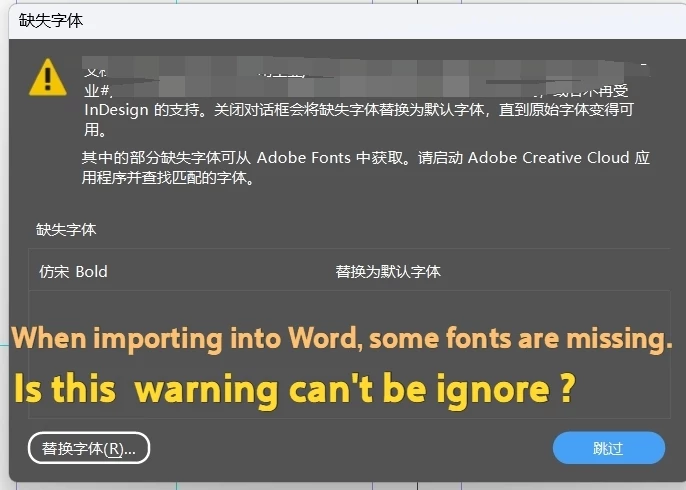
How to disable the missing font warning dialog box when importing a Word document?

  • April 11, 2026
  • 1 reply
  • 45 views

Is it necessary to display a warning for missing fonts when importing from Word?
Sometimes I don’t need it.

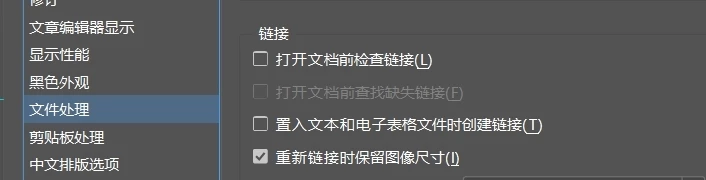
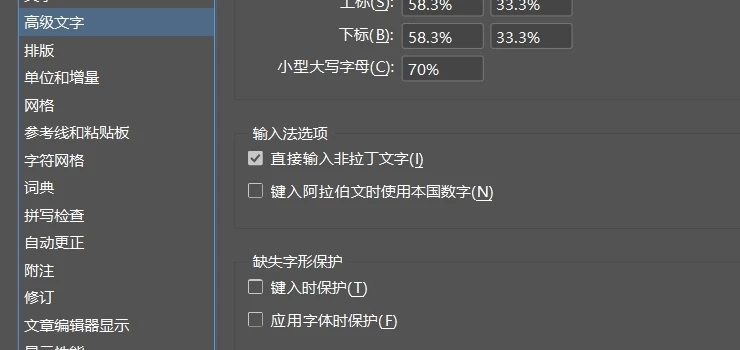
I’ve already unchecked the “Check fonts” option under “Advanced Text” in “File Handling” in the Preferences.
It doesn’t seem to be working.
 

    Correct answer Dave Creamer of IDEAS

    You usually ask about scripting, but this is the non-script answer…

    When placing, check “Show Import Options”. 
    In the next dialog box, select Remove Styles and Formatting from Text and Tables.

    If you wanted to keep formatting, you will need to change the fonts in Word* before importing. 

    *Easier if Word styles were used.

    1 reply

    Dave Creamer of IDEAS
    Community Expert
    Dave Creamer of IDEASCommunity ExpertCorrect answer
    Community Expert
    April 11, 2026

    You usually ask about scripting, but this is the non-script answer…

    When placing, check “Show Import Options”. 
    In the next dialog box, select Remove Styles and Formatting from Text and Tables.

    If you wanted to keep formatting, you will need to change the fonts in Word* before importing. 

    *Easier if Word styles were used.

    David Creamer: Community Expert (ACI and ACE 1995-2023)
    dublove
    dubloveAuthor
    Legend
    April 12, 2026

    This is exactly the answer I was looking for.
    Thank you very much.
    I’ve always avoided using the “Static Text” feature to prevent losing Word’s built-in elements like footnotes and superscripts.
    Now I realize that sometimes I don’t need this font-missing warning.