Participant
April 25, 2020
Answered

How to Import Endnotes in InDesign?

  • April 25, 2020
  • 2 replies
  • 1809 views

I am compiling my Endnotes for an academic book and I can see that the references are being created in a single text frame at the end of the document, but to my surprise, when the endnotes reach the end of the text frame, they simply keep going. I have somewhere around 180 endnotes and almost all of them are overloaded text in the text frame. 


How do I get the endnotes to display properly over several pages. In other words, how do I export my document for print and have all the endnotes displayed correctly, rather than hiding as overloaded text in the frame?


{Renamed by MOD}
This topic has been closed for replies.
Correct answer David Popham

You'll first need to add a page, then thread the frame with your endnotes to display the rest of the text.


1. In the Window > Pages panel, right + click on the page with your text, then choose Insert Pages...


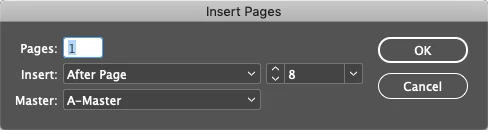
2. In the Insert Pages dialog, add 1 page after the current page.


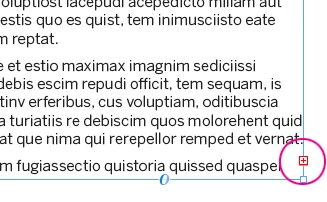
3. With the original page with text showing, click on the text frame with the Selection Tool. In the lower right corner, you should see the text port with a red plus sign.


4. Click on the port, navigate to the page you just added, hold down the Shift Key and click on the page. That will flow the rest of the text into the document and create as many pages as needed.

2 replies

Community Expert
June 8, 2020

Hi David,

just a variant of your solution without the need to add a new page:


1. Select the text frame with the red plus sign indicating overset text.

2. Click the red plus sign of the selected text frame to load the overflow text to the cursor.

3. Remove the text frame with the red plus sign using the Delete key on the keyboard.
( No fear, the text of the removed text frame will also be inside the loaded cursor… )

4. Hold down the Shift key and let the text flow with a click to the margin area on the page.


Regards,
Uwe Laubender

( ACP )

David Popham
David PophamCorrect answer
Participating Frequently
April 25, 2020

You'll first need to add a page, then thread the frame with your endnotes to display the rest of the text.


1. In the Window > Pages panel, right + click on the page with your text, then choose Insert Pages...


2. In the Insert Pages dialog, add 1 page after the current page.


3. With the original page with text showing, click on the text frame with the Selection Tool. In the lower right corner, you should see the text port with a red plus sign.


4. Click on the port, navigate to the page you just added, hold down the Shift Key and click on the page. That will flow the rest of the text into the document and create as many pages as needed.

Inspiring
April 25, 2020

David

That technique works but the question is. Why does Indesign do this? Why doesn't all the text flow? I have been reflowing the final  pages of endnotes for ages but why does this text not flow like all the other?

Ian

Frans v.d. Geest
Community Expert
Community Expert
April 25, 2020

Check InDesign Preferences, Text. See if Smart reflows is enabled and what options are set.