Participant
April 12, 2018
Answered

How to insert japanese emoticons in Indesign?

  • April 12, 2018
  • 2 replies
  • 3610 views
Ꮚ❛ꈊ❛ᏊᏊ⌀֊̫⍉ᏊᏊᵔꈊ’Ꮚෆ

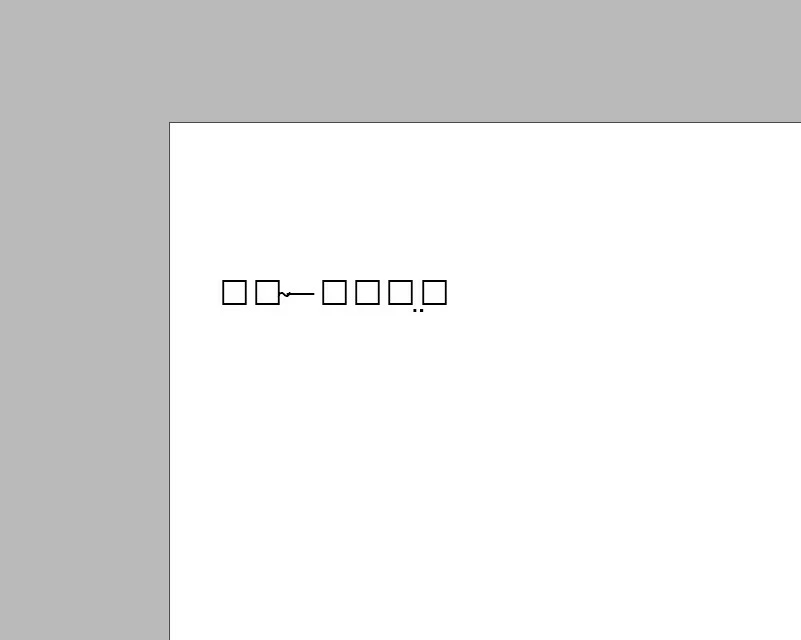
Hello! How can i insert these emoticons in Indesign? I need to use Russian language whille working with japanese smiles too.Instead of seeing smiles i see these characters:
(sorry for my bad English)

    This topic has been closed for replies.
    Correct answer Bevi Chagnon - PubCom.com

    The squares are called "tofu" after the shape of a block of real edible tofu.

    They indicate that the particular characters are not available on the font you've chosen.

    You'll have to use a Unicode font that specifically has the emoticon characters you want.

    Steps:

    1. If you don't know each character's Unicode codepoint (the unique 4 or 5 digit number that represents each character of the world's alphabets, symbols, emoticons, dingbats, and punctuation), then use www.unicode.org/charts to find it. For example, the Unicode codepoint for upper case Latin "A" = 0041, and the codepoint for uppercase Cyrillic "A" = 0410. So a Latin A is different from a Cyrillic A, even though they may look similar.
      • Unicode has 64,000+ codepoints, so it might take time to find the specific characters you want.
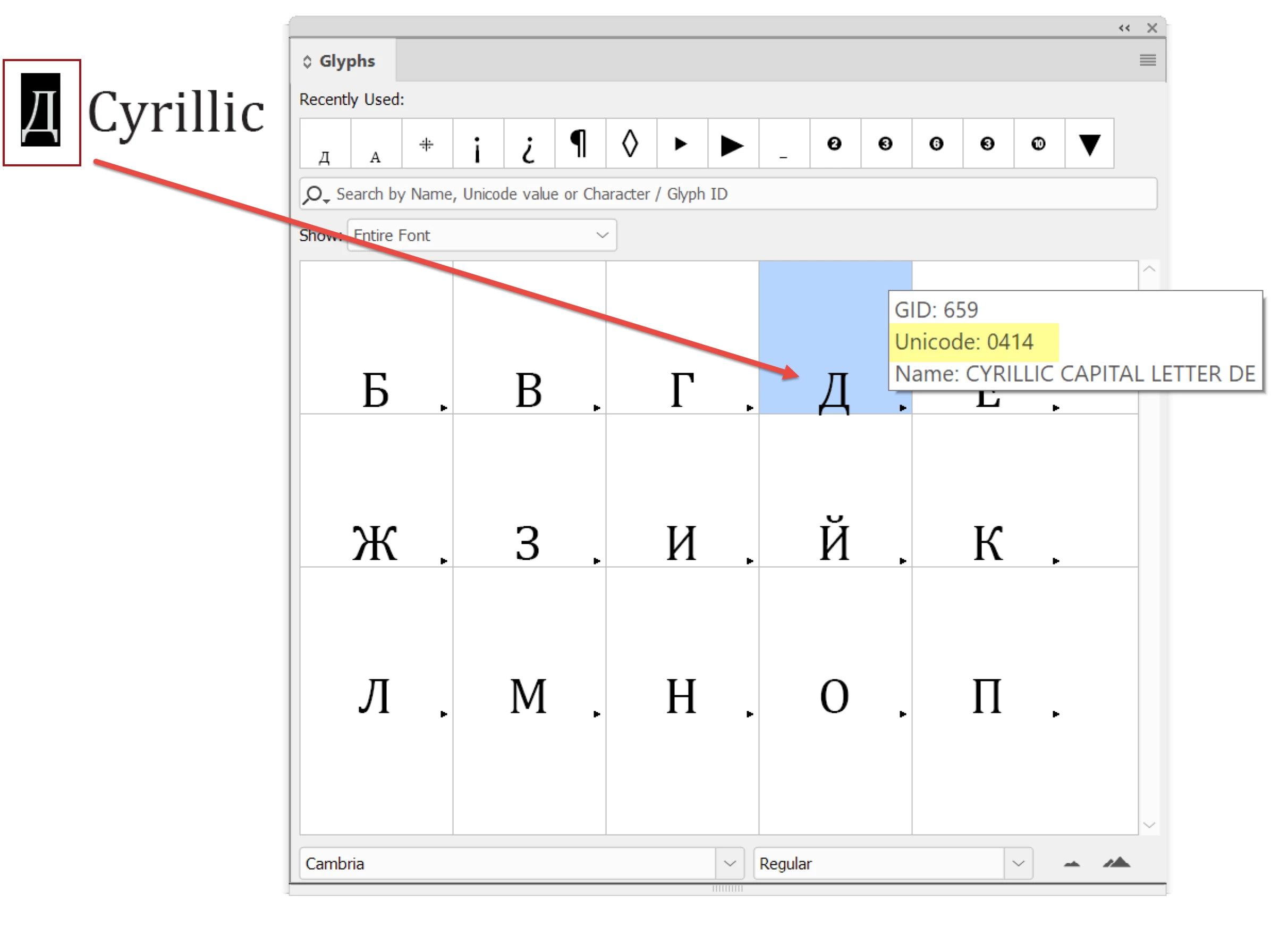
      • You might also be able to find the codepoint in InDesign's glyph panel.
        Open the Glyphs panel, and then elect the missing character in your layout. InDesign will highlight the character you've selected.
        Hover over the character and the pop-up will show you its Unicode codepoint.
    1. Once you have the codepoint for the characters, then you must find a font that has that character. Although OpenType/Unicode fonts can have all 64,000 characters (or glyphs) on one font, I don't know of any that actually do and most fonts have between 600 and 3,000 characters.
    2. You might look at some fonts that are known to have more Unicode codepoint characters than most, such as:
      • Lato
      • Noto / Noto Symbol (in 75 world languages, including Japanese dialects)
      • Arial Unicode MS (different from the normal Arial that ships with Windows)
      • MS UI Gothic
      • Segoe UI Symbols
      • Yu Gothic / Yu Mincho
      • Kozuka Gothic / Kozuka Mincho
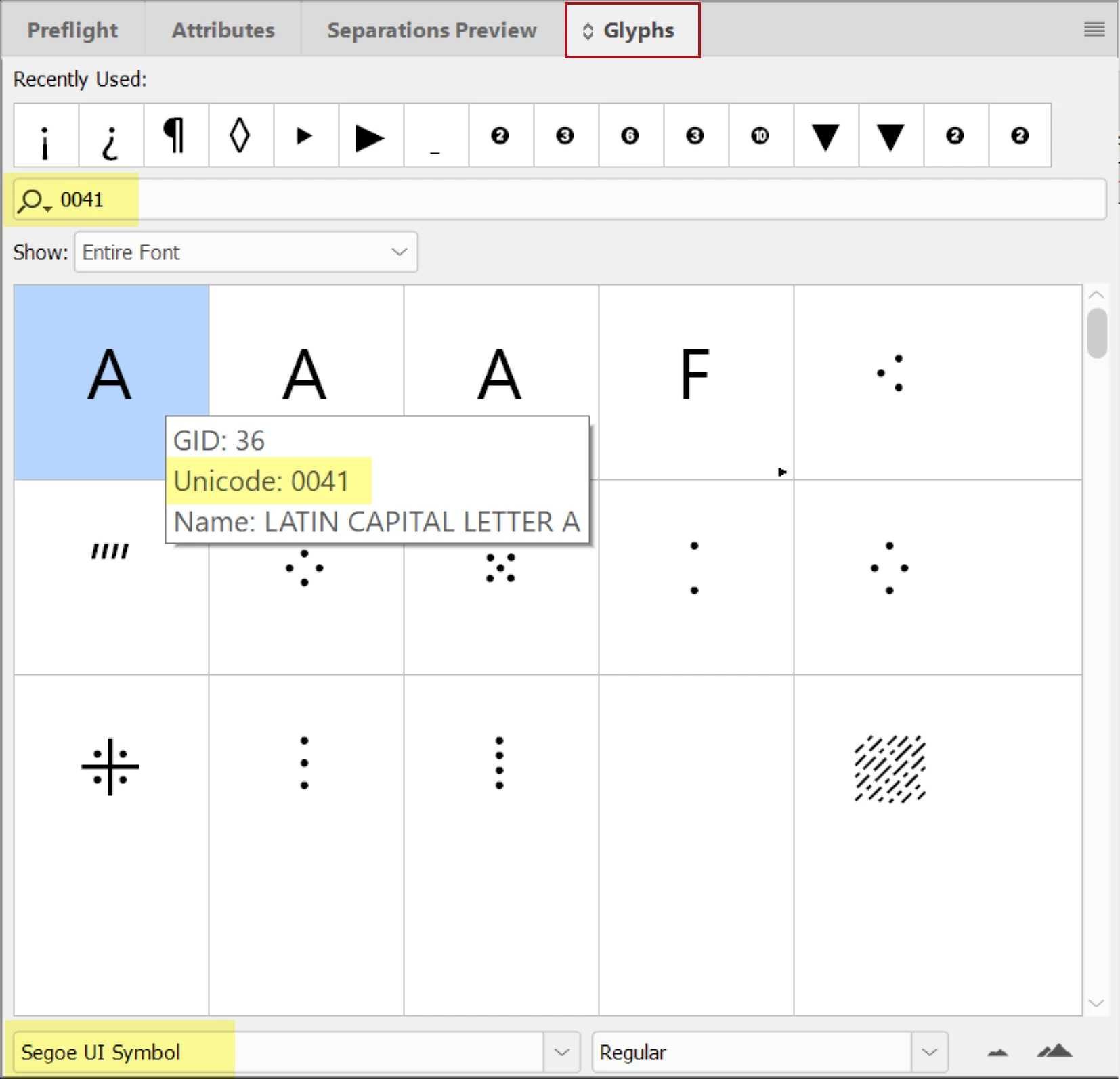
    3. To quickly search a font to see if it has the particular characters you need:
      • Open the Glyphs panel
      • Choose the font you want to search in the bottom drop-down menu.
      • Type the 4 or 5 digit codepoint into the search field.
      • Note that GID is not the same as Unicode in the pop-up shown below.
    Hope this helps you find the missing glyphs!

    2 replies

    Bevi Chagnon - PubCom.com
    Legend
    April 13, 2018

    That's wonderful, Julianna!

    Arial Unicode MS has been a lifesaver for our shop, too. More times than I can count.

    |    Bevi Chagnon   |  Designer, Trainer, & Technologist for Accessible Documents ||    PubCom |    Classes & Books for Accessible InDesign, PDFs & MS Office |
    Bevi Chagnon - PubCom.com
    Legend
    April 12, 2018

    The squares are called "tofu" after the shape of a block of real edible tofu.

    They indicate that the particular characters are not available on the font you've chosen.

    You'll have to use a Unicode font that specifically has the emoticon characters you want.

    Steps:

    1. If you don't know each character's Unicode codepoint (the unique 4 or 5 digit number that represents each character of the world's alphabets, symbols, emoticons, dingbats, and punctuation), then use www.unicode.org/charts to find it. For example, the Unicode codepoint for upper case Latin "A" = 0041, and the codepoint for uppercase Cyrillic "A" = 0410. So a Latin A is different from a Cyrillic A, even though they may look similar.
      • Unicode has 64,000+ codepoints, so it might take time to find the specific characters you want.
      • You might also be able to find the codepoint in InDesign's glyph panel.
        Open the Glyphs panel, and then elect the missing character in your layout. InDesign will highlight the character you've selected.
        Hover over the character and the pop-up will show you its Unicode codepoint.

    1. Once you have the codepoint for the characters, then you must find a font that has that character. Although OpenType/Unicode fonts can have all 64,000 characters (or glyphs) on one font, I don't know of any that actually do and most fonts have between 600 and 3,000 characters.
    2. You might look at some fonts that are known to have more Unicode codepoint characters than most, such as:
      • Lato
      • Noto / Noto Symbol (in 75 world languages, including Japanese dialects)
      • Arial Unicode MS (different from the normal Arial that ships with Windows)
      • MS UI Gothic
      • Segoe UI Symbols
      • Yu Gothic / Yu Mincho
      • Kozuka Gothic / Kozuka Mincho
    3. To quickly search a font to see if it has the particular characters you need:
      • Open the Glyphs panel
      • Choose the font you want to search in the bottom drop-down menu.
      • Type the 4 or 5 digit codepoint into the search field.
      • Note that GID is not the same as Unicode in the pop-up shown below.

    Hope this helps you find the missing glyphs!
    |    Bevi Chagnon   |  Designer, Trainer, & Technologist for Accessible Documents ||    PubCom |    Classes & Books for Accessible InDesign, PDFs & MS Office |
    Participant
    April 12, 2018

    Thanks a lot!
    Arial Unicode MS helped!