



dublove
Legend
May 3, 2026
Answered

How to make the width of an image on the screen more closely match its perceived “actual size”?

  • May 3, 2026
  • 1 reply
  • 45 views

Hi everyone.

I posted a thread on the Photoshop forum about the discrepancy between displayed dimensions and actual dimensions.

I always thought that the print dimensions in Photoshop were the actual dimensions, but that’s not the case.
I’ve found that Illustrator (ID) has the same issue.
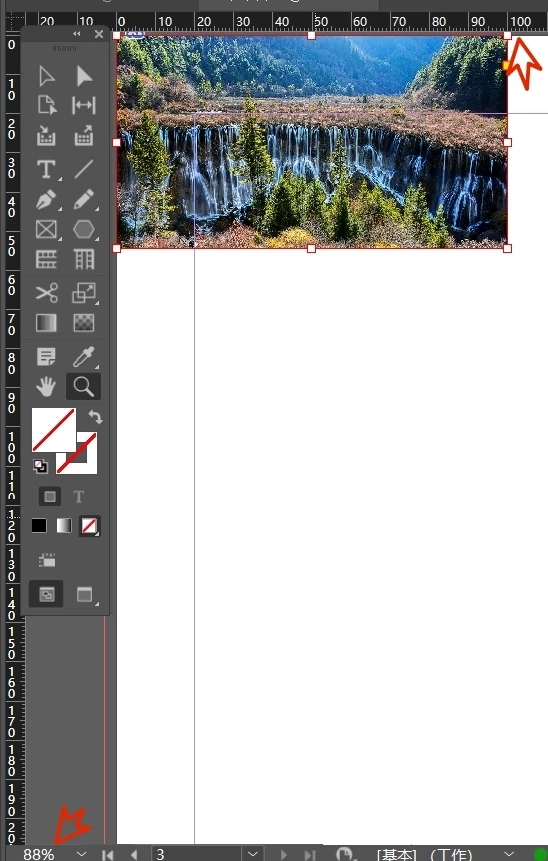
For example, in the image below, the ruler in ID shows a width of 100 mm. When I set the zoom to “Actual Size,” the bottom-left corner shows 100% zoom, but when I measure the screen with a ruler, I find that the corresponding width on my physical ruler is 11.5 mm.


When I set the zoom level in the bottom-left corner to 88%, the image measures 100 mm in width on the screen.


This might be significant. For example, could actual size have an impact on “perceived design”?


I suspect this has to do with my monitor’s resolution.
So, is there a way to make the width on the computer match the actual physical width?
 

    Correct answer rob day

    There is a hidden preference accessible via scripting that lets you set a custom monitor resolution —app.generalPreferences.useCustomMonitorResolution. The default 100% view for CS6 and later is the print size when there’s no UI scaling.


    You can set a custom monitor PPI with this:


    app.generalPreferences.useCustomMonitorResolution = true;
    //set a desired monitor ppi
    app.generalPreferences.customMonitorPpi = 72


    https://www.indesignjs.de/extendscriptAPI/indesign-latest/#GeneralPreference.html


    1 reply

    rob day
    Community Expert
    rob dayCommunity ExpertCorrect answer
    Community Expert
    May 3, 2026

    There is a hidden preference accessible via scripting that lets you set a custom monitor resolution —app.generalPreferences.useCustomMonitorResolution. The default 100% view for CS6 and later is the print size when there’s no UI scaling.


    You can set a custom monitor PPI with this:


    app.generalPreferences.useCustomMonitorResolution = true;
    //set a desired monitor ppi
    app.generalPreferences.customMonitorPpi = 72


    https://www.indesignjs.de/extendscriptAPI/indesign-latest/#GeneralPreference.html