
Participant
January 28, 2025
Answered

How to Modify Specific Side Strokes in InDesign Text Frame

  • January 28, 2025
  • 5 replies
  • 638 views

Hi,

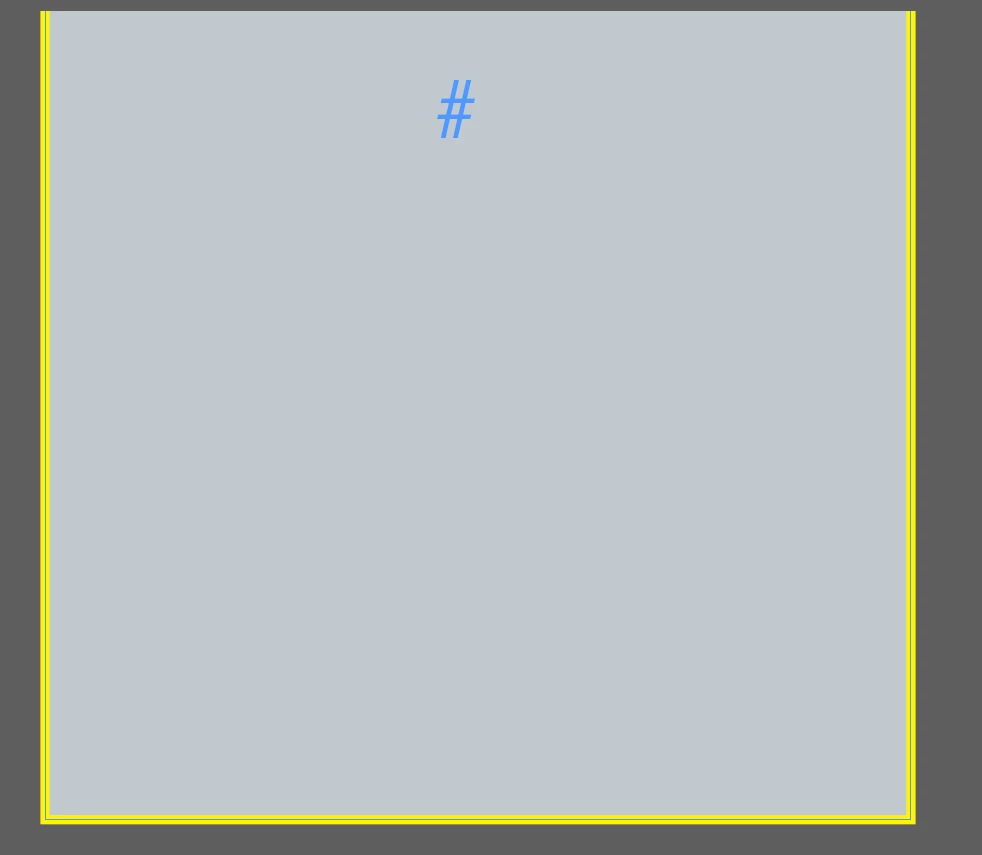
I’m currently working with an InDesign Asset Library file provided by a client, which contains a text frame with strokes on three sides (bottom, left, and right). I need to modify the individual side strokes—specifically, I want to add a stroke on the top while removing the stroke at the bottom. I’ve spent hours trying to figure out how to make this change and haven’t had any success. My team, who also received this file, is unfamiliar with the original settings as it was provided by the client.

Has anyone encountered this issue or can guide me on how to modify the individual strokes effectively?



Correct answer Mike Witherell

I'm guessing that to build that example, someone created a rectangle with the rectangle frame tool. They turned it into a textframe (in one of several ways). They applied gray fill and yellow stroke, and also choose a stroke thickness in points using the Stroke panel.


My next guess is they chose the white arrow Direct Selection tool and clicked on the path segment at the top of the rectangle, and pressed the Backspace/Delete key. This causes the rectangular shape to become an open path; not a closed path.


So don't simply rotate the textframe 180 degrees, because that would make the text upside down, too. Instead, draw another rectangle in the same way as described above, and use the white arrow Direct Selection tool to click on and delete the bottom path segment.


By the way: Many publishing groups benefit from having targeted practical training to increase the general skill level of your publishing efforts. The time savings going forward can be great.

5 replies

Mike Witherell
Community Expert
Community Expert
January 28, 2025


Mike Witherell
Peter Spier
Community Expert
Community Expert
January 28, 2025

I think it's more likely the open frame than a table. I never seem to be able to get table formatting to work the way I want, but playing around I'm not having a lot of luck getting the strokes to show properly when I try to fill a text frame with a single cell.

Willi Adelberger
Community Expert
Community Expert
January 28, 2025

With a text frame it is not possible.

But you could use a table with a single cell or you can apply a text frame in the parGRph settings.

Peter Spier
Community Expert
Community Expert
January 28, 2025

Might also be a table...

You can control individual cell border strokes.

jmlevy
Community Expert
Community Expert
January 28, 2025

You must first convert the frame into a rectangle (menu Object > Convert shape) and you'll get a stroke on the top. Then use the sissors tool to cut the bottom strike by clicking on the left and right bottom corners. The last step will be to delete this stroke using the direct selection tool (the white arrow)

Mike Witherell
Community Expert
Mike WitherellCommunity ExpertCorrect answer
Community Expert
January 28, 2025

I'm guessing that to build that example, someone created a rectangle with the rectangle frame tool. They turned it into a textframe (in one of several ways). They applied gray fill and yellow stroke, and also choose a stroke thickness in points using the Stroke panel.


My next guess is they chose the white arrow Direct Selection tool and clicked on the path segment at the top of the rectangle, and pressed the Backspace/Delete key. This causes the rectangular shape to become an open path; not a closed path.


So don't simply rotate the textframe 180 degrees, because that would make the text upside down, too. Instead, draw another rectangle in the same way as described above, and use the white arrow Direct Selection tool to click on and delete the bottom path segment.


By the way: Many publishing groups benefit from having targeted practical training to increase the general skill level of your publishing efforts. The time savings going forward can be great.

Mike Witherell