dublove
Legend
April 26, 2026
Answered

How to obtain the original height/width ratio of an image?

  • April 26, 2026
  • 4 replies
  • 149 views

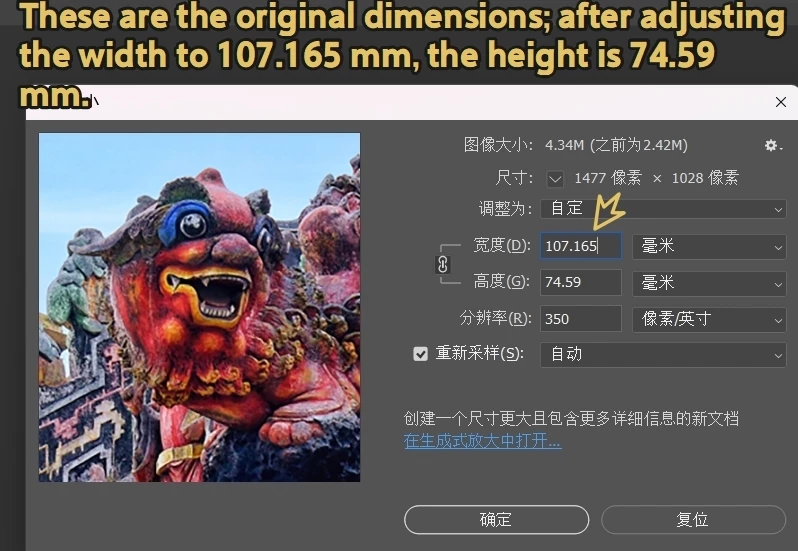
There was originally a piece of code used to obtain the height and width of an image.

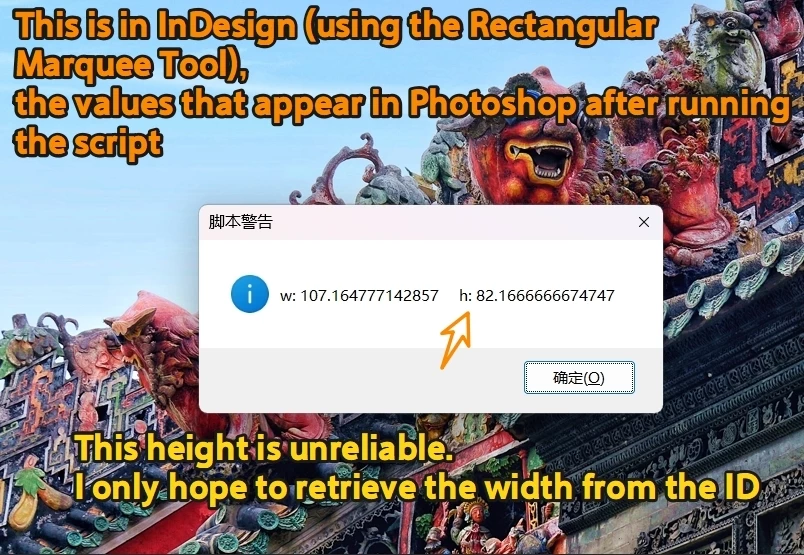
I found that when an image is distorted in InDesign, using this aspect ratio calculation is incorrect.

This code can only be used to obtain the "usable width" of the image in the ID.

Cannot execute s.redefineScaling([1, 1]);Because it may be a design requirement at this point.

How to obtain the original height/width ratio of an image?

Thank you.

var image = app.activeDocument.selection[0];
var imagePath = image.itemLink.filePath;
var myResolution = 350;
var hScale = image.horizontalScale * (myResolution / image.actualPpi[0]);
var vScale = image.verticalScale * (myResolution / image.actualPpi[1]);
app.preferences.rulerUnits = Units.MM;
var myFile = new File(imagePath);
var myDoc = app.open(myFile);
myDoc.resizeImage(undefined, undefined, myResolution, ResampleMethod.NONE);
var w = myDoc.width.value * hScale * 0.01;
var h = myDoc.height.value * vScale * 0.01;


    Correct answer rob day

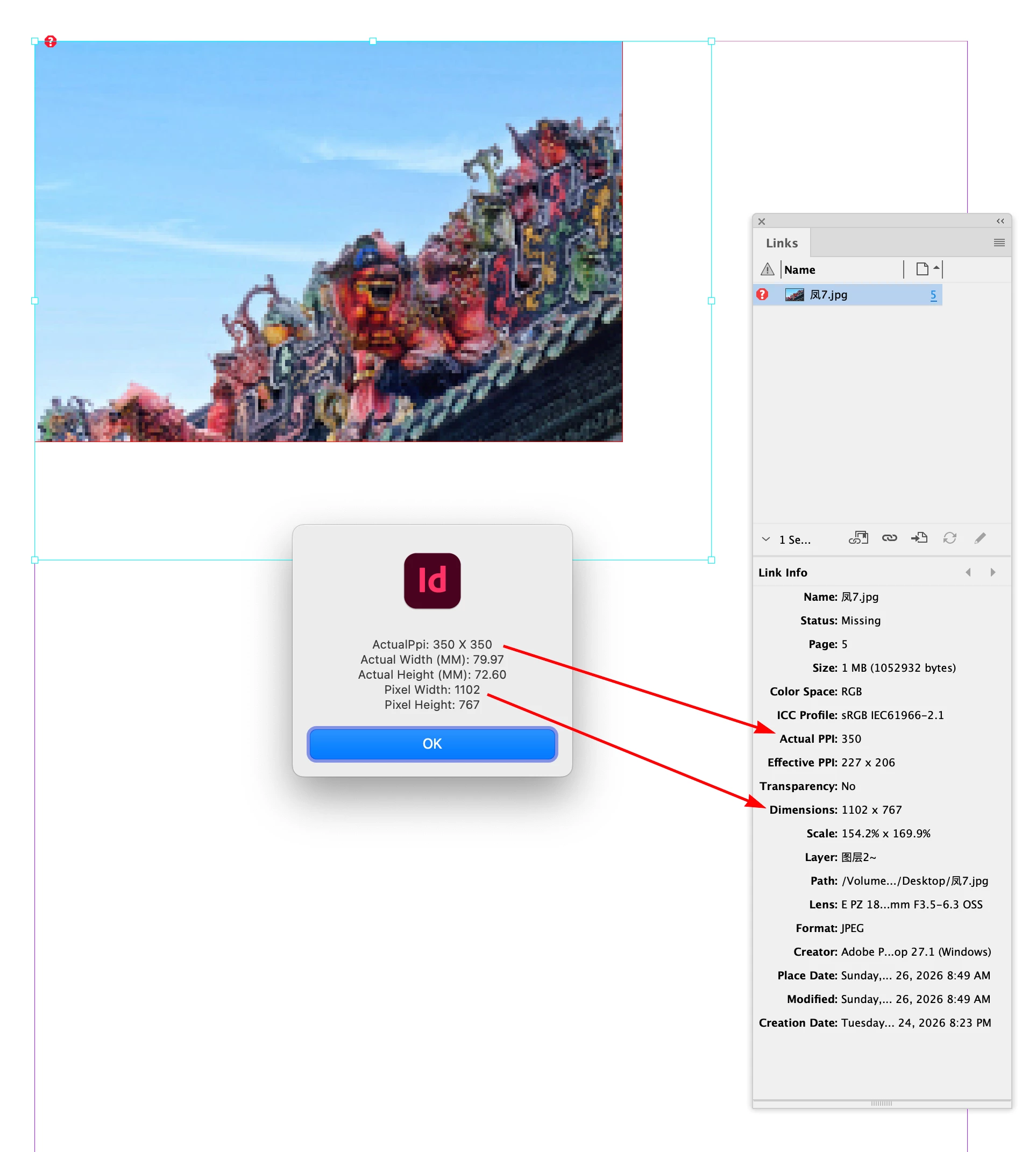
    Hi ​@dublove ,  Something like this gets the Actual PPI and the original pixel dimensions:


    //Need inches, the I in PPI is Inches
    app.scriptPreferences.measurementUnit = MeasurementUnits.INCHES;

    var d = app.activeDocument;
    var s = d.selection[0]
    var api = s.actualPpi
    var hs = s.horizontalScale/100
    var vs = s.verticalScale/100
    var b = s.geometricBounds
    var w = b[3]-b[1]
    var h = b[2]-b[0]

    alert("\rActualPpi: "+ api[0] + " X " + api[1] + "\rActual Width (MM): " + ((w/hs)*25.4).toFixed(2) + "\rActual Height (MM): " + ((w/vs)*25.4).toFixed(2) + "\rPixel Width: " + (api[0])*(w/hs)+ "\rPixel Height: " + (api[1])*(h/vs))


    app.scriptPreferences.measurementUnit = AutoEnum.AUTO_VALUE


    4 replies

    m1b
    Community Expert
    Community Expert
    April 29, 2026

    Hi ​@dublove Rob has answered you well, but this is a side topic...

    I want to remind you—not the first time!—that you are confusing yourself when you talk about “the value selected by the white arrow” and “Direct Selection tool… vs Selection tool”.

    Please stop using these terms; they aren’t useful here. Proof: I can select the image OR its parent frame with either tool, so the tool you have currently is not a determinative factor.

    Instead please focus on, and understand: exactly WHAT you have selected.

    Do I have a Rectangle frame selected…
    or do I have an Image selected?

    This is what’s important.

    When you are coding you can check what you have selected by various ways, eg. does it have an `itemLink`? If so, it is a linked graphic. Does it have a single graphic (eg. item.graphics && item.graphics.length === 1)? This is probably a graphic frame. Does `item.hasOwnProperty(‘contentType’) && item.contentType === ContentType.GRAPHIC_TYPE`. Does item.graphics.firstItem() have `itemLink`.

    There is a lot you can do for your code to understand what item you have.

    Nothing to do with which UI tool is active at all. I recommend that you forget about that.

    —Mark

    dublove
    dubloveAuthor
    Legend
    April 30, 2026

    Hi ​@m1b 

    The issue now is that after rotation:
    The aspect ratio of the image is no longer accurate, and I need to restore the original aspect ratio (h/w).
    I also need the “actual image width” (the width when the image is selected).

    As for determining whether an image is selected and the selection state, those issues have already been resolved.

    rob day
    Community Expert
    Community Expert
    April 30, 2026

    The issue now is that after rotation:


    The indiscripts.com article I posted earlier explains transformations in depth.


    A transform could be more complex than your one simple rotation, and all the nested containers (including the page) could have different transformations applied:


    dublove
    dubloveAuthor
    Legend
    April 29, 2026

    Hi ​@m1b 

    Calling all m1b experts.
    How do I get the original (fixed) aspect ratio(h/w) of an image?
    Also, how do I get the image’s actual display width (the value selected by the white arrow, which doesn’t change when the image is rotated or distorted)?

    Thank you.


    dublove
    dubloveAuthor
    Legend
    April 27, 2026

    Hi ​@rob day 

    Thank you very much.


    I don't understand the difference between the following two lines:

    var b = s.geometricBounds
    var b = s.visibleBounds;

    The width below turns out to be the width of the image when using the Direct Selection tool; I always thought it was the width when using the Selection tool;

    w = b[3] - b[1];

    Additionally, I noticed that when the image is 72 dpi and has been modified but not updated,
    the actual width (uw) is incorrect, and the resulting value is very large.
     

    app.preferences.rulerUnits = Units.MM;
    var myFile = new File(imagePath);
    var myDoc = app.open(myFile);
    myDoc.resizeImage(undefined, undefined, myResolution, ResampleMethod.NONE);
    var uw = myDoc.width.value * hScale * 0.01;


    leo.r
    Community Expert
    Community Expert
    April 27, 2026

    I don't understand the difference between the following two lines:

    var b = s.geometricBounds

    var b = s.visibleBounds;


    https://www.indesignjs.de/extendscriptAPI/indesign-latest/#Image.html


    dublove
    dubloveAuthor
    Legend
    April 27, 2026

    Thank you very much.
    I understand.


    However,
    how do I indicate the boundary of an object when it is selected with the black arrow (selection tool)?
    In other words, how do I indicate the boundary marked by the red arrow?

    rob day
    Community Expert
    rob dayCommunity ExpertCorrect answer
    Community Expert
    April 26, 2026

    Hi ​@dublove ,  Something like this gets the Actual PPI and the original pixel dimensions:


    //Need inches, the I in PPI is Inches
    app.scriptPreferences.measurementUnit = MeasurementUnits.INCHES;

    var d = app.activeDocument;
    var s = d.selection[0]
    var api = s.actualPpi
    var hs = s.horizontalScale/100
    var vs = s.verticalScale/100
    var b = s.geometricBounds
    var w = b[3]-b[1]
    var h = b[2]-b[0]

    alert("\rActualPpi: "+ api[0] + " X " + api[1] + "\rActual Width (MM): " + ((w/hs)*25.4).toFixed(2) + "\rActual Height (MM): " + ((w/vs)*25.4).toFixed(2) + "\rPixel Width: " + (api[0])*(w/hs)+ "\rPixel Height: " + (api[1])*(h/vs))


    app.scriptPreferences.measurementUnit = AutoEnum.AUTO_VALUE