
Participant
May 22, 2018
Answered

How to prevent a word breaking if only the last two letters appear on the next line?

  • May 22, 2018
  • 4 replies
  • 2486 views

Hello,

I am wondering if there is a way to prevent words from breaking if it means only the last two letters end up on the next line. Currently, we highlight the word and choose “no break” from the character menu, but is there a global fix or setting to prevent this? Editing an entire book, having to do that sometimes multiple times per page gets old fast.

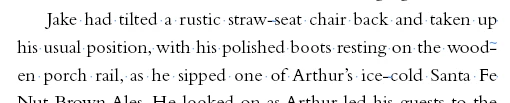
Here, the word I don't want to break is “wooden” because the e and the n appear alone on the second line. As I said, I can fix it individually, but I would prefer a global fix or preventative measure that myself or my compositors could implement before the final proofing phase.
Thanks in advance for any advice!

—Courtney

(Sorry if this question has been answered, I did do a couple of searches and couldn't find what I was looking for)

This topic has been closed for replies.
Correct answer Bevi Chagnon - PubCom.com

Some options:

  • Your best bet is to adjust the hyphenation settings in your styles.
  • Also see if Adobe Paragraph Composer is better for your material than Single Line Composer.
  • Our studio also uses a character style set to No Break. We assign it a keyboard shortcut which makes it pretty quick to apply when needed.

PS: no snarks here...

4 replies

Bevi Chagnon - PubCom.com
Legend
May 22, 2018

Try the Style method first, as it will work globally throughout the document and across all the workstations.

Here are some suggestions for settings to improve the hyphenation problems you're seeing.

These are the default settings in your basic styles for body text. (Using Basic Paragraph in this example, but they apply to any style you've created for formatting body text.

And here are some suggestions:

|    Bevi Chagnon   |  Designer, Trainer, & Technologist for Accessible Documents ||    PubCom |    Classes & Books for Accessible InDesign, PDFs & MS Office |
Scott Citron
Legend
May 22, 2018

Create a Character style whose only attribute is No Break. In your paragraph style(s) create a GREP style with any words you don't want broken. See screen shots.

BobLevine
Community Expert
Community Expert
May 22, 2018

The OP is going to need to have the InDesign user do that since we’ve learned that InCopy is being used here.

Scott Citron
Legend
May 22, 2018

Easy-peasy.

Bevi Chagnon - PubCom.com
Legend
May 22, 2018

Some options:

  • Your best bet is to adjust the hyphenation settings in your styles.
  • Also see if Adobe Paragraph Composer is better for your material than Single Line Composer.
  • Our studio also uses a character style set to No Break. We assign it a keyboard shortcut which makes it pretty quick to apply when needed.

PS: no snarks here...

|    Bevi Chagnon   |  Designer, Trainer, & Technologist for Accessible Documents ||    PubCom |    Classes & Books for Accessible InDesign, PDFs & MS Office |
Participant
May 22, 2018

Thanks! I'm going to ask the compositors to look into changing the hyphenation settings (we actually use InCopy to edit what they set up in InDesign, so I have limited functionality with most of that kind of thing). But we may also consider adding a style with a shortcut—that would certainly make doing it by hand just a little more convenient. Thank you!

PS—I noticed.

BobLevine
Community Expert
Community Expert
May 22, 2018

Change the hyphenation rules, but there’s really no way to make anything perfect.

There are times you just have futz with things manually. That’s why they call it a job.

Of course, someone might have a script that will run through an entire document for you. Check the scripting forum.

Participant
May 22, 2018

“That's why they call it a job.” — Ok, but I would not be doing my due diligence if I didn't seek out whether or not there was a way to change a setting or run a grep to change it in one fell swoop instead of wasting my employer’s time doing it by hand. Thanks for the snark, though. Helpful, that is.

BobLevine
Community Expert
Community Expert
May 22, 2018

You’re welcome.