Participant
February 19, 2018
Answered

How to scale all text contained in a box, not just visible text

  • February 19, 2018
  • 1 reply
  • 837 views

I'm working with InDesign 2018 on a Mac trying to enlarge 70 threaded pages worth of formatted text (primarily 6 pt text with some 5 pt for notes) to 141.6% so it fills a larger page size with primarily 8.5 pt text (with 7.08 pt note text). I also want to preserve the leading which is a mixture of 5,6 and 8 pt.

I start by copying and pasting all the text into a single unthreaded box. Obviously, not all the text is visible. I grab the corner of the text box (for this example it shows 10 lines of type) while holding down command & shift and the visible text is enlarged. However, the unseen text for lines 11-up hasn't changed size. Performing this same function in Quark does enlarge all of the text in the box, both visible and beyond. I've tried to make this work on 2 different Macs and 2 other PCs.

Am I missing a setting somewhere?
    This topic has been closed for replies.
    Correct answer Laubender

    Hi Mark,

    in InDesign we have two basic modes of scaling that can be set in the preferences:

    1. Adjust to Content

    2. Adjust scaling percentage

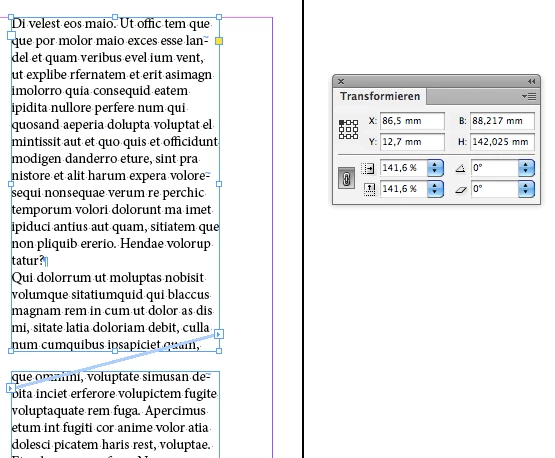
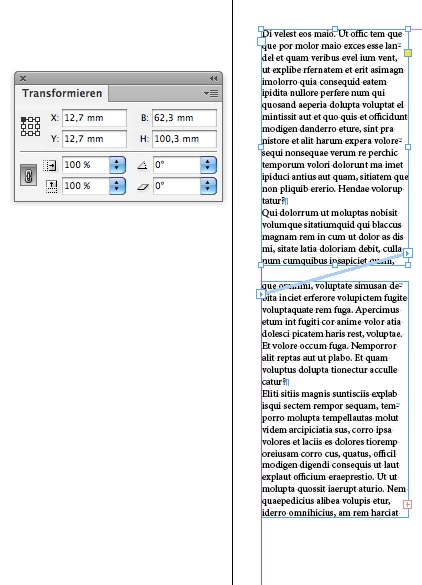
    If Adjust scaling percentage is used as application preference you see the scaling percentage ( e.g. your 141.6% ) when selecting the frame after scaling. When Adjust to Content is used the scaling percentage remains at 100% after scaling the text frame. Use Adjust scaling percentage on all your threaded text frames, that means: Change the preference before scaling the first text frame of your story, then scale all your threaded text frames of that story using the percentage input fields.

    Change height and width of the text frames after scaling as you like. Either by using the transformation panel or the control panel or by dragging the control points of the text frame to a new position.

    From my German InDesign where width is B: and height is H: in the transformation panel.

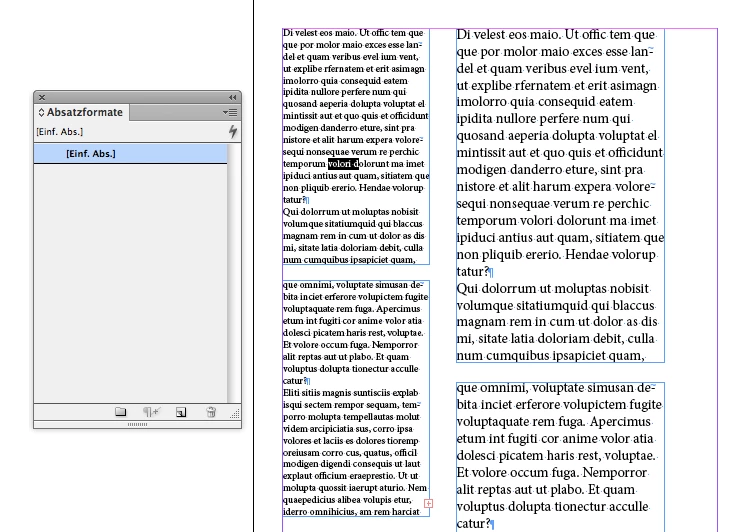
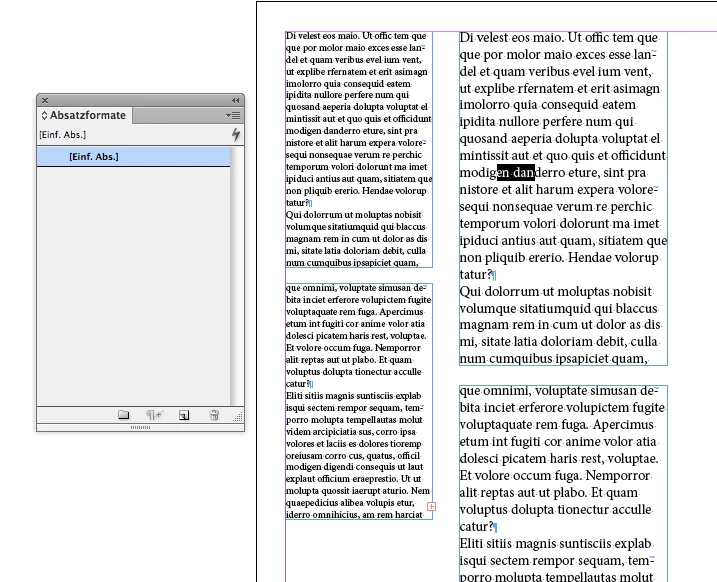
    Here a view from the Control panel when a scaled text frame is selected:

    Scaling with Adjust scaling percentage will not do any overrides on applied paragraph styles or character styles, means: no plus + sign is added to the name of the applied style when you select text and no other change in properties is overriding the style:

    Text will show point size and leading this way in the Control panel and the Character panel:

    12 Pt(16.99)

    Where the old size is e.g. 12 Pt and the new scaled size factored in is showing in brackets ( 16.99 ).

    If automatic leading is applied to the text, you see only a number in brackets showing the scaled value for leading.

    Regards,
    Uwe

    1 reply

    BobLevine
    Community Expert
    Community Expert
    February 19, 2018

    That’s what paragraph styles are for.

    markh1015Author
    Participant
    February 19, 2018

    It's not simple text like a novel. It's for a price guide with a mish-mash of text, tabs, numbers, bolds and italics and returns in various combinations. Seems like I'd have to specify one of four or five different paragraphs styles for each line or grouping of 2-4 lines. That's not efficient over 600+ pages of total content.

    The text box enlargement preserves all the formatting quirks of the content inside the visible box. I just can't make a text box big enough to include more than 15 of my pages. The max page size is 216" tall.

    BobLevine
    Community Expert
    Community Expert
    February 19, 2018

    What’s the end game here? Are you simply trying to scale up a current document? If so, why not just export a PDF and scale that?