Inspiring
October 29, 2018
Answered

How to set chapter title above margin and keep it flowing?

  • October 29, 2018
  • 2 replies
  • 2434 views

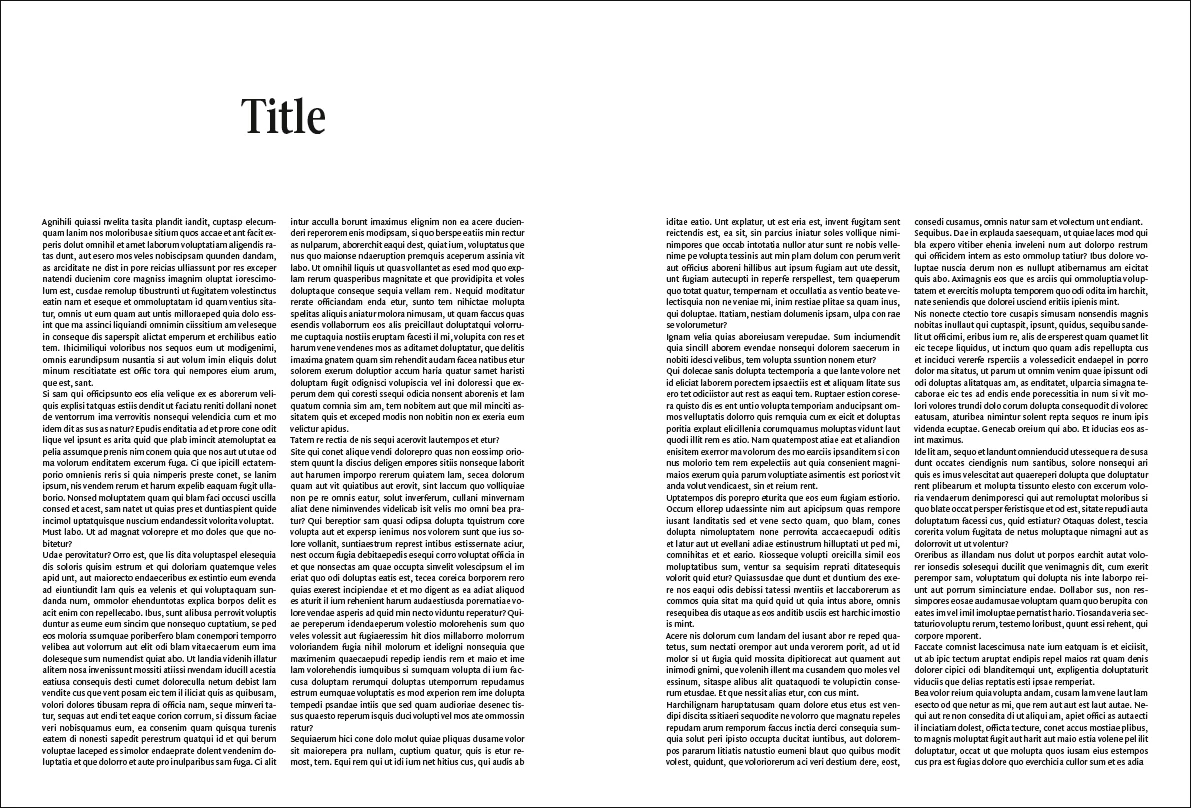
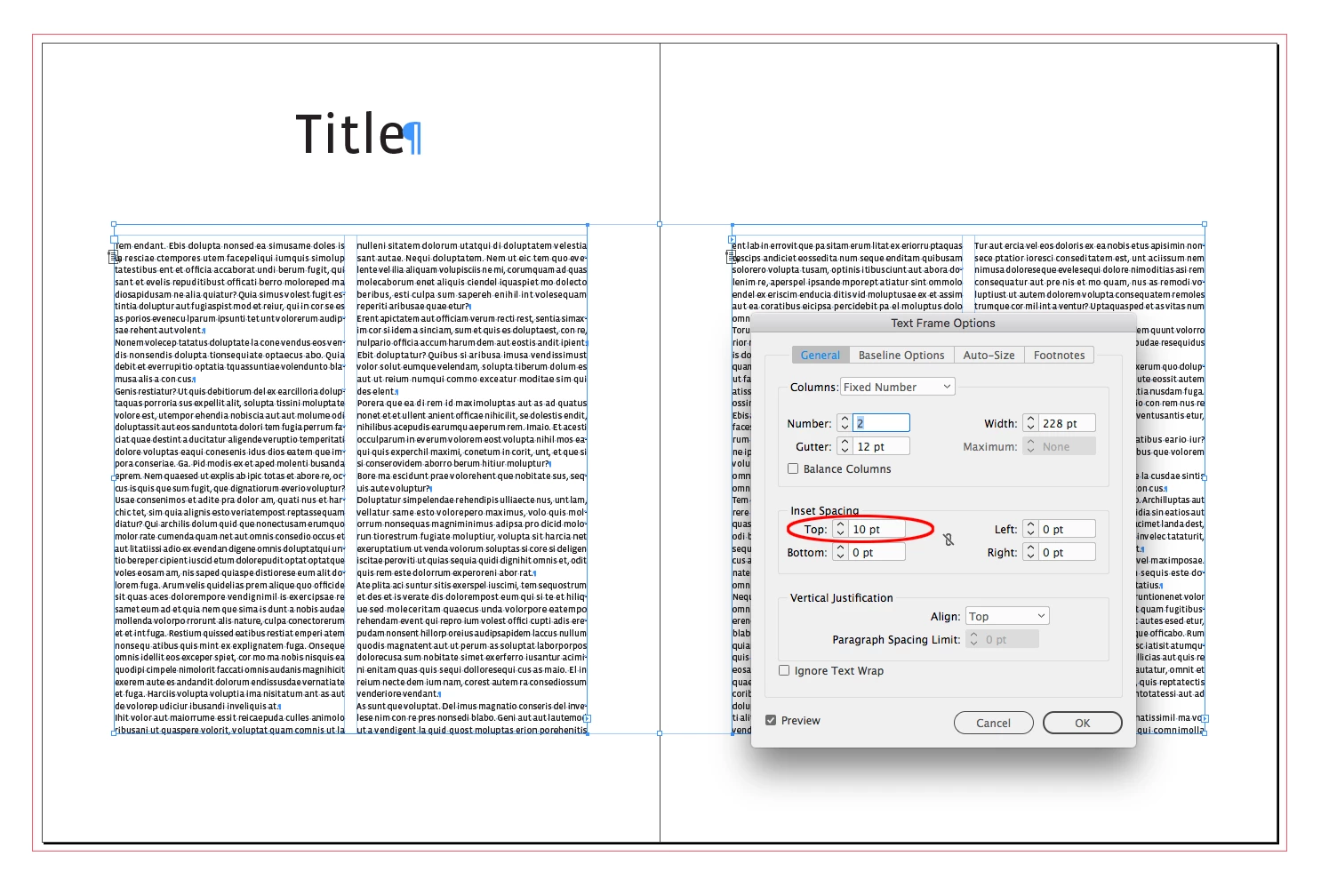
I am working on a book. The basic layout has a large margin at the top and I want each chapter title to 1. be above that margin and 2. to flow along with the text whenever text gets added or removed. So in the example below 'Title' should automatically move to the right page whenever I add one page in front of this example. If you know what I mean.

Up to know I 'simply' enlarged the text frame containing the title, pulling it up to the top of the page, but whenever pages or text gets added or deleted and titles move left or right I have to go through the entire book and manually edit the frames... There MUST be a way to get this done in an easier way! Right...?
    This topic has been closed for replies.
    Correct answer rob day

    So it seems there is no easy (free  ) solution.

    I think it can be done for free—easy is relative:

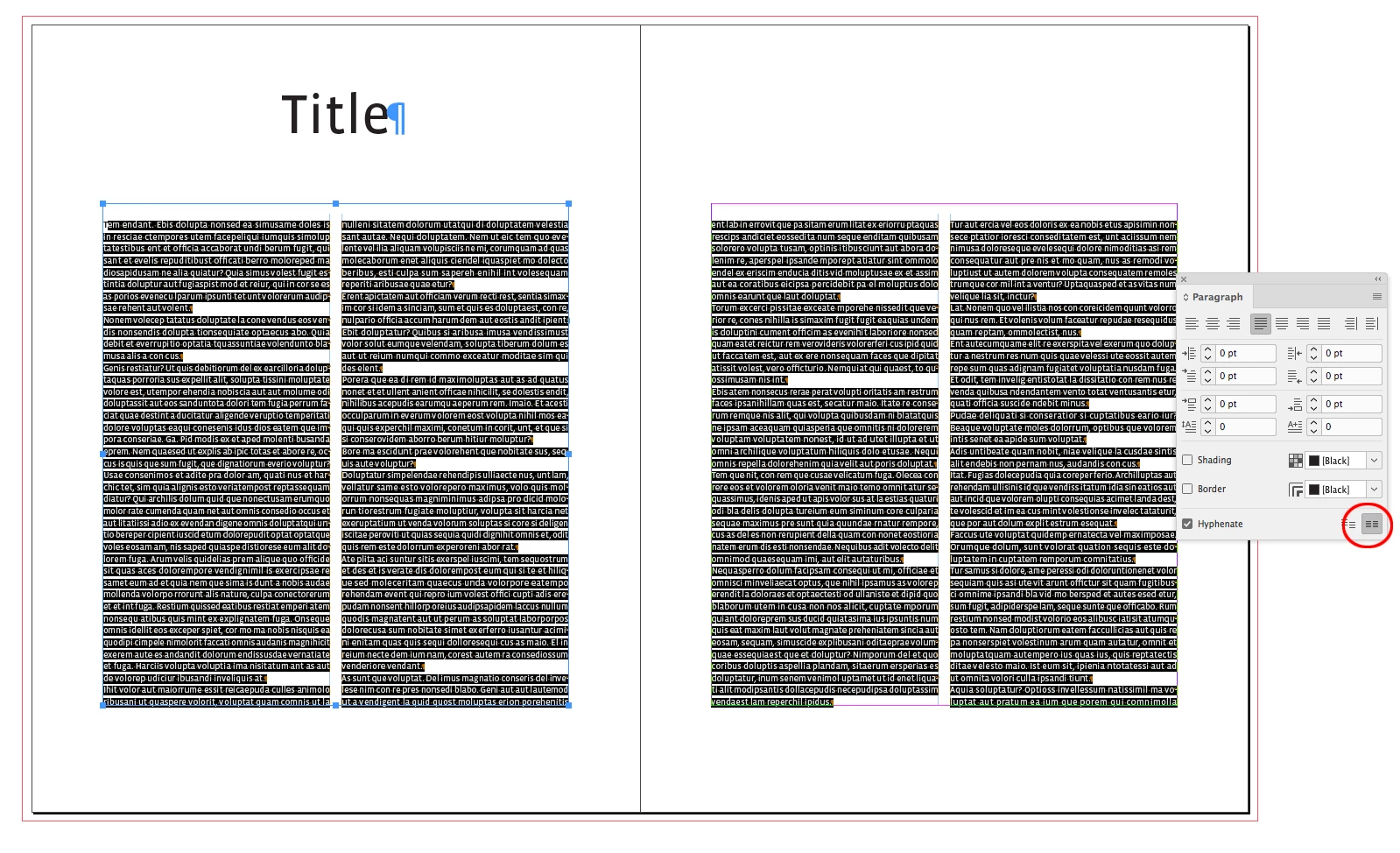
    On your master spread set the two column text frames so the top inset is something less than the text leading, but more than 0—my text is 9/12pt

    Also set the the First Baseline Offset to Leading

    Set the body text's paragraph style to snap to the baseline grid—my baseline grid is also set to 12pt

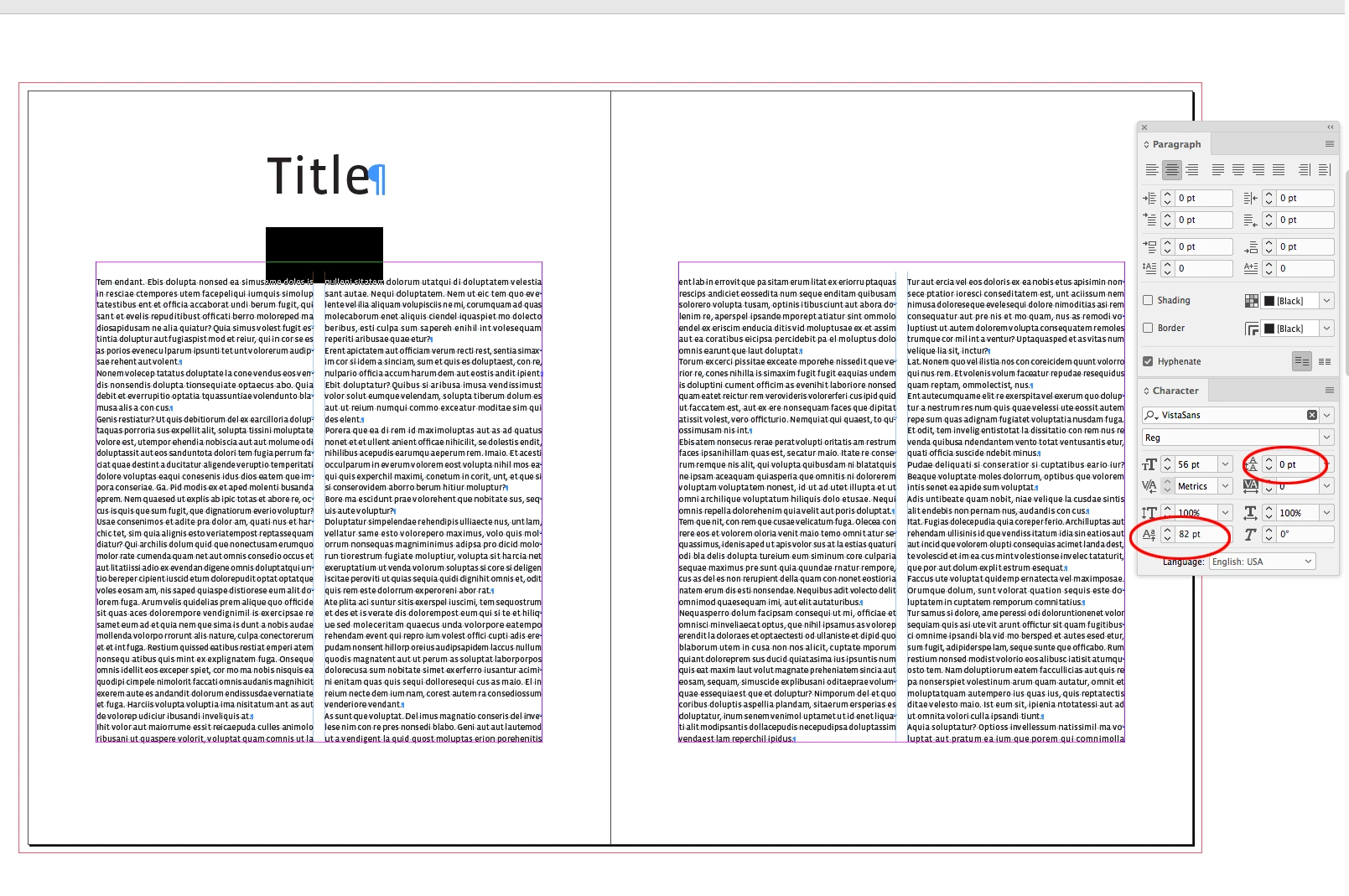
    The title position can be moved up via Baseline Shift—here I've set it to 82pt with its leading at 0pt. Span Columns is turned on.

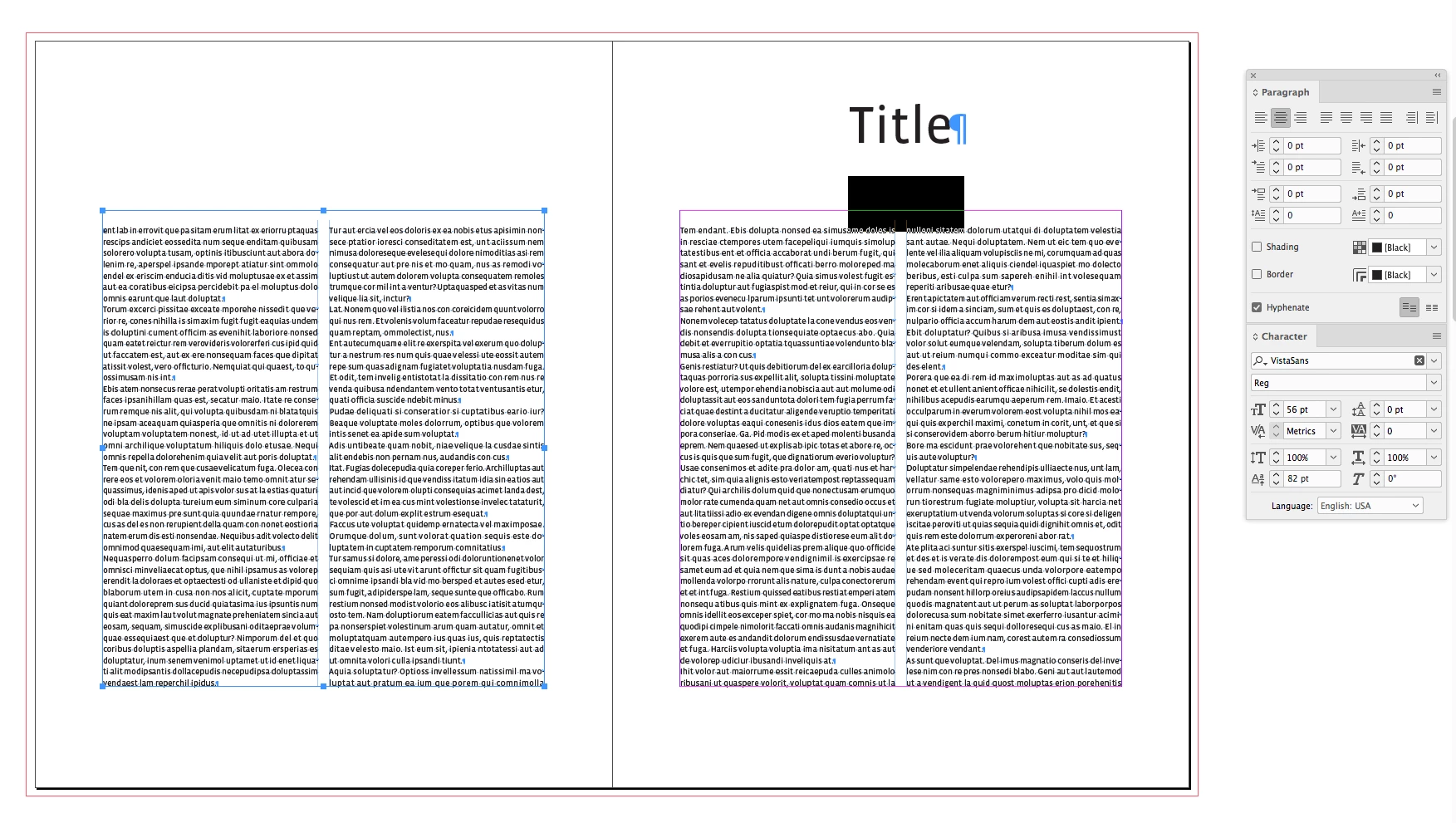
    The body text's position stays put because of the align to baseline grid and the text frames' top inset:

    If I swap the pages:

    2 replies

    lo21
    Community Expert
    Community Expert
    October 29, 2018

    Hi,

    I agree with AM - that this calls for Master Pages. But, that said, here is another possible work around that may get your some results, and it free.

    Select the Title and set it to SPAN (choose the little "magic menu" to the very right of the control Panel and choose SPAN columns.) Then set that paragraph to span all columns. This way it will center on top of the two columns of the body text.

    Make a paragraph Style so it can easily be applied to each title. (this way you don't have to make a separate text frame for the title, it will be able to travel with your story.

    Another setting that I would apply to that Title paragraph style is KEEP OPTIONS (found in the same menu to the very right in the control panel.) In Keep Options, you can set the Title paragraph style to always start at the top of the next frame, column, odd or even page.

    Now, if you add text to the previous page, the title has been told that no text can exist above it on a page - so it will automatically jump to the next frame, on the next page.

    Not sure it is the most elegant answer, but I've been in a pinch like this and anything might just work!

    Good luck.

    AnneMarie Concepcion
    Community Expert
    Community Expert
    October 29, 2018

    Good ideas, lo21! Though I assumed the  OP was already doing both of those actions.

    You can see  that he wants the position of the Chapter Title to be higher than any body  text, even on pages where there  is no  title. And you can't do that with Span Columns. The text on title-less pages would start at the same vertical position as the Chapter Title.

    AM

    AnneMarie Concepcion
    Community Expert
    Community Expert
    October 29, 2018

    What you describe is normally done with master  pages. The master page for Chapter Opener has a text frame that starts in a different place (and often has different  headers and footers) than regular manuscript pages, all based on a different master page. When you add more manuscript text, just make sure the  additional pages are based on that master.

    However,  it can't all be one long threaded series of text frames for the entire book.  Each chapter has to be its own  story. So the  Chapter Opener text frame is the first text frame  of  that story. 

    It sounds like you're using one long threaded  story for the whole  book.  (Otherwise you wouldn't need to redo  the text frame heights whenever you added text.)

    If  you need to maintain that workflow, I'd suggest you try  out the third-party Mastermatic plugin from ID-Extras.com. This InDesign add-on will  automatically apply the correct  master page  based on paragraph  or object  styles:

    https://www.id-extras.com/products/mastermatic

    FWIW I tried using a few tricks for the Chapter Title paragraph style to make  it "break  out" of the text frame  (baseline shift and so on) but none worked satisfactorily.

    AM

    J van EAuthor
    Inspiring
    October 29, 2018

    Thanks for the quick reply, AM. So it seems there is no easy (free ) solution. The problem with the book I am working on now is that the chapters aren't yet divided. Some will be merged, some will get longer or shorter, so making each chapter its own story is not really possible yet. But I suppose that if I use a specific master pages for the chapter opener and add or remove pages, the master page would simply go with the flow... and go left or right whenever it is needed...?

    I think I have to work on my master page skills: I never make books, only single documents and I do work with master pages but always 'unlock' them (or whatever you call it) so they aren't really linked to the master anymore. Whenever I drop a master page on an existing edited page the existing frames are not affected at all... I will see how to keep text flowing through various master pages... or something like that. I don't even know how to explain what I am thinking about LOL

    rob day
    Community Expert
    rob dayCommunity ExpertCorrect answer
    Community Expert
    October 29, 2018

    So it seems there is no easy (free  ) solution.

    I think it can be done for free—easy is relative:

    On your master spread set the two column text frames so the top inset is something less than the text leading, but more than 0—my text is 9/12pt

    Also set the the First Baseline Offset to Leading

    Set the body text's paragraph style to snap to the baseline grid—my baseline grid is also set to 12pt

    The title position can be moved up via Baseline Shift—here I've set it to 82pt with its leading at 0pt. Span Columns is turned on.

    The body text's position stays put because of the align to baseline grid and the text frames' top inset:

    If I swap the pages: