stephene9093387
Known Participant
Nov 8, 2023 8:09 PM UTC
Answered

How to split an image across multiple pages for printing

I have a long image that I'd like to split in order to print on several pages as it's too long for a single page. So for example, I'd like the top third of the image on page 1, the middle third on page 2 and the bottom third on page 3. Is there a straightforward way of doing this? 


My starting point was a simple paste to put the image an a single page but I cannot see how progress from there. (image attached).
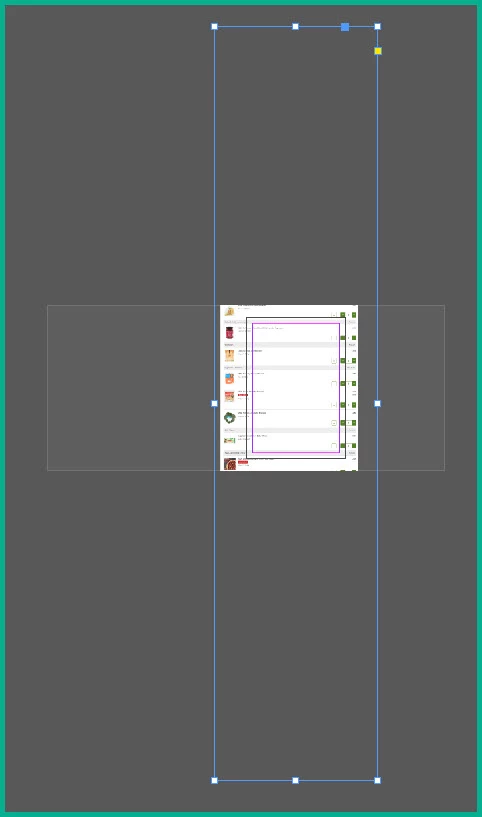
 

I have looked at creating a spread but cannot see how to get the image to spread beyond the first page. I am fairly novice at InDesign so I'm not really familiar enough to look for the right things to search for.


I'm using InDesign 2024 on Windows 10 64-bit


Can anyone help?


Thanks

    rob day
    rob dayCorrect answer
    Community Expert
    Nov 8, 2023 11:05 PM UTC

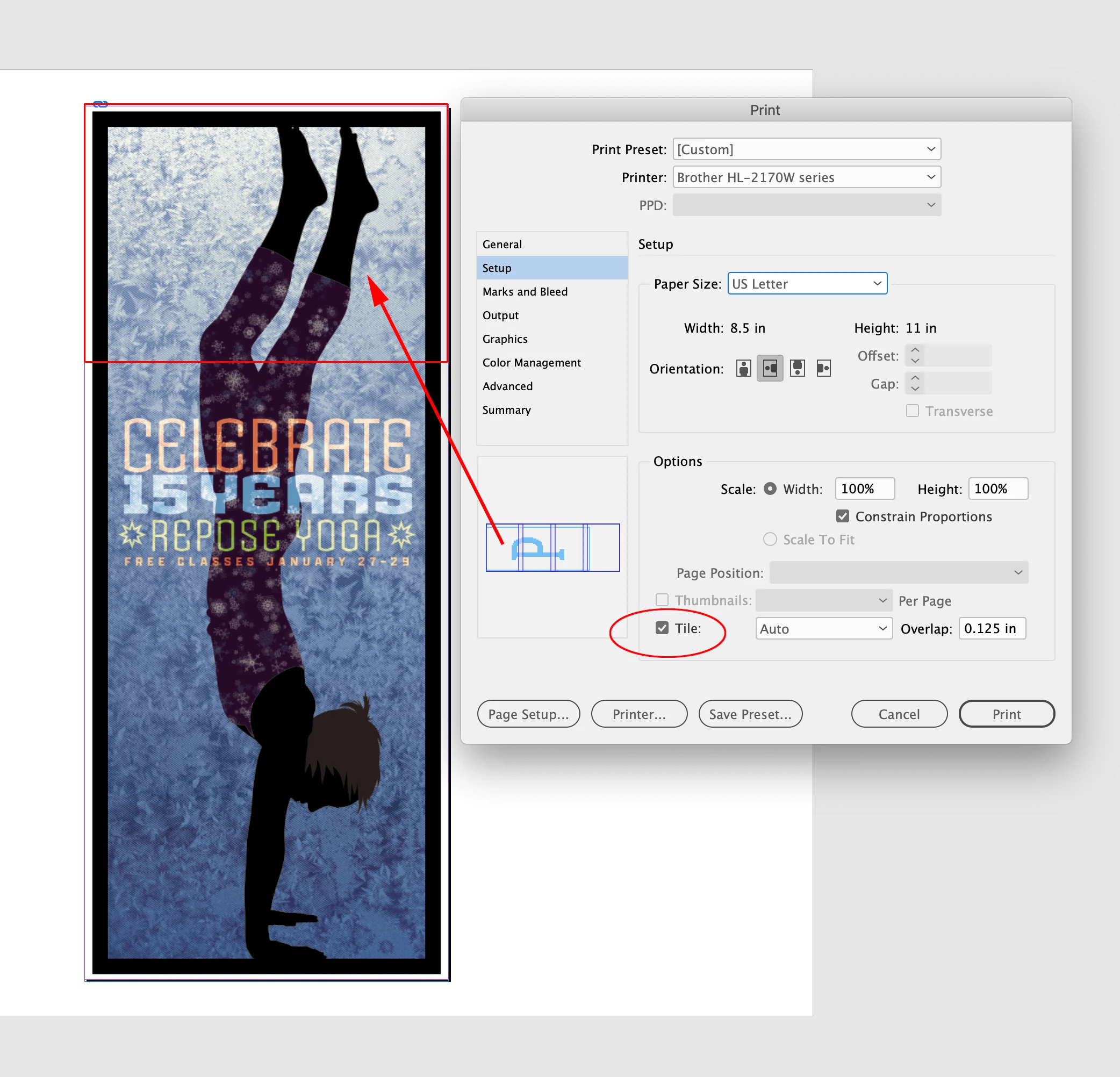
    Hi @stephene9093387 , Look at the Print dialog’s Tile feature in the Setup tab.


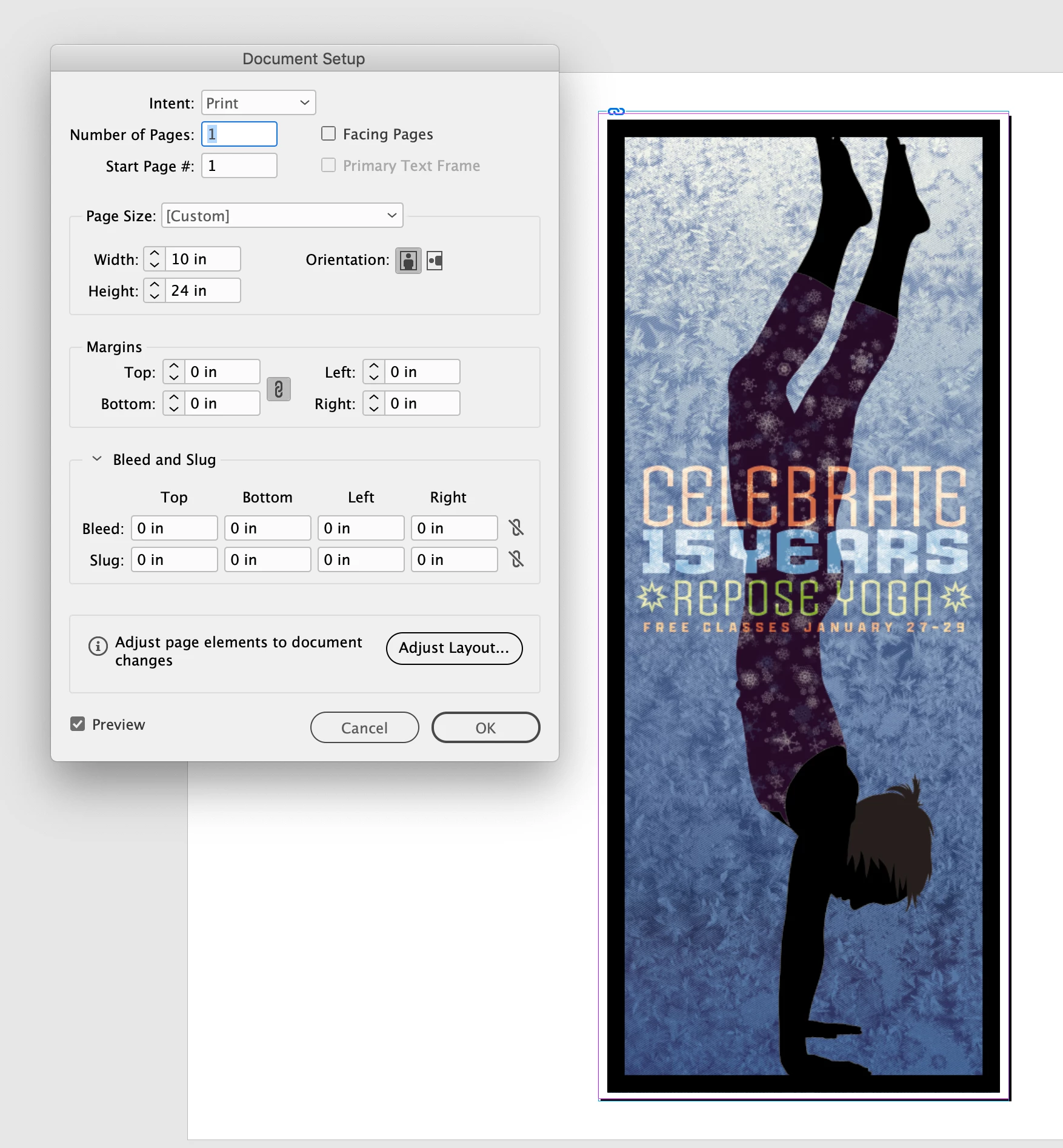
    I can tile this 10"x24" page onto 4, 11"x8.5" sheets with a designated overlap:


    9 replies

    rob day
    Community Expert
    rob dayCommunity ExpertCorrect answer
    Community Expert
    Nov 8, 2023 11:05 PM UTC

    Hi @stephene9093387 , Look at the Print dialog’s Tile feature in the Setup tab.


    I can tile this 10"x24" page onto 4, 11"x8.5" sheets with a designated overlap:


    Translate
    stephene9093387
    Known Participant
    Nov 10, 2023 11:26 AM UTC

    Thanks Rob; this is exactly what I was looking for. I like your simple solution. What I was missing was I need to create a document the same size as the image rather than the same size as my paper, then tile it as you explain.


    I still see one thing I don't understand. I create a long document and paste the image into a frame within the margins.


    When I go to the Print dialog and tile it, I get the document width spreading onto a second page:

    If I reduce the scale, the document prints correctly:

    Why is this happening? The document width is the same as the paper (210mm), with the frame and image sitting inside this. I have tried adjusting the original document width but it makes no difference.


    What am I missing? I'd just like to understand what is happening.


    Many thanks again for your very clear help.


    Stephen

    Translate
    rob day
    Community Expert
    Community Expert
    Nov 10, 2023 11:38 AM UTC

    Does your HP print edge to edge borderless? Probably not. Try making the document width to the printer's printable area.

    Translate
    Robert at ID-Tasker
    Legend
    Nov 8, 2023 10:24 PM UTC

    If it's one of - you could make a frame the size of your page, place your image inside, duplicate this page - then on each page use Direct Selection arrow and select image - INSIDE the frame - and in Y value of the position - add or subtract - height of the page / frame. 


    (I'm sorry but I'm on my phone so can't give you step-by-step screenshots) 


    Translate
    John T Smith
    Community Expert
    Community Expert
    Nov 8, 2023 8:50 PM UTC

    You need to ask program questions in the forum for the program you are using
    To ask in the forum for your program please start at https://community.adobe.com/
    Moving from Using the Community (which is about the forums) to the correct forum

    Translate
    stephene9093387
    Known Participant
    Nov 10, 2023 10:48 AM UTC

    Thanks for the heads-up John. Apologies for my unfamiliarity with the forum. Noted for the future.

    Translate