Nojo509
Known Participant
June 23, 2017
Answered

How to stop InDesign from making 5 page spreads

  • June 23, 2017
  • 1 reply
  • 2514 views

In my project all I want is 2 page spreads. The project was fine, until I aligned my text to my baseline grid. That caused the page count to grow, but rather than add spreads, InDesign added pages to the last spread of the main section. And didn't flow the text across them.
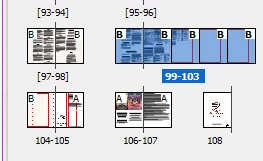
I noticed this because I had overset text at the end.

I tried to redistribute pages, allowing document pages and the selected spread to shuffle (and said NO to the keep same amount of pages in a spread), and things just got weirder

An extra oddity here is this spread shown with three pages in the workspace shows as a 2 page spread in the Pages window. And page 1 (Introduction) should be on the left hand page. What a mess!

I've bounced around the forums and help pages, but didn't find any help.

Any clues? Thanks!!!
This topic has been closed for replies.
Correct answer Barb Binder

Thank you, I'm almost there. When I did what you said, I got this (notice page 1 is not in a spread and it should be):

I noticed this is the start of a new numbering section, so I took out the section and got this:

I have noticed a lot of publishers don't bother with sections for numbering (the cover on a pdf is page 1). Maybe this is why? Perhaps I should switch to one big section.


Odd numbers are right hand pages (and 1 is an odd number). If you want a spread, undo and add a blank left page in front of one.

1 reply

Barb Binder
Community Expert
Community Expert
June 23, 2017

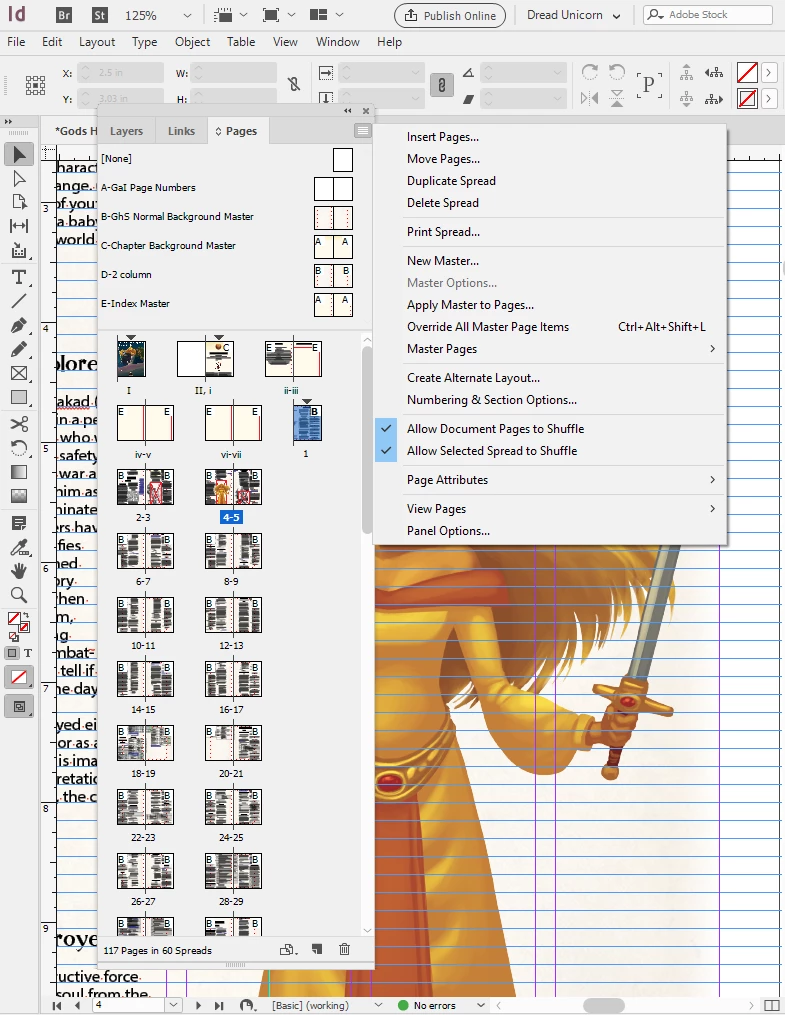
In the Pages panel menu, make sure Allow Document Pages and Selected Spread to Shuffle are both checked:

~Barb at Rocky Mountain Training
Nojo509
Nojo509Author
Known Participant
June 23, 2017

I did that and got my second image (above).

Just to be sure, I did it again just now, and got all sorts of problems:

And when I scroll down, I still have the 5 page spread of infinite evil.

Barb Binder
Community Expert
Community Expert
June 23, 2017

I don't see your Pages panel menu in any of your screen shots, but I do see brackets around the page numbers, which means you don't have both commands enabled on all the spreads.

In the Pages panel, click on the first page, shift click the last page and go back to the Pages Panel one more time and make sure both commands outlined in orange have a checkmark in front of them.

~Barb at Rocky Mountain Training