landscape_snarkitect
Known Participant
August 25, 2026
Answered

How to turn off global defaults for "jump object" text wrap setting

  • August 25, 2026
  • 7 replies
  • 36 views

I have been doing some searching over the past few days and finally discovered that the text wrap on my objects are all set to a defaut of “jump object.” I would like all text wrap options to be turned off unless otherwise specified. 

  1. How do I ensure that text wrap is turned off as a default?
  2. For existing elements, is there anyway to globally turn this setting off throughout my document?
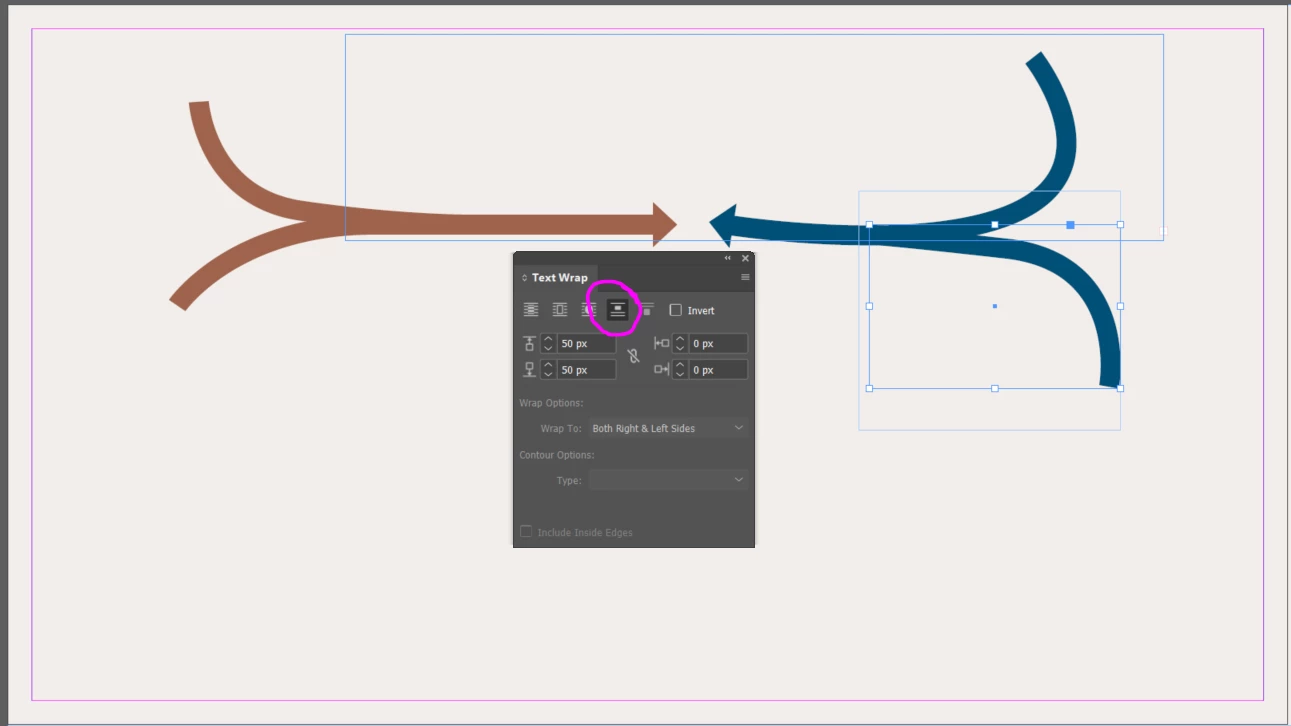
Object with the “jump object” setting specified
​​​​​​

Thanks! 

    Correct answer Dave Creamer of IDEAS

    You (or someone working on the document) changed the setting with nothing selected. That created a document default. 

    You get out of it the same way: deselect everything and change the setting. This will only affect new objects. 


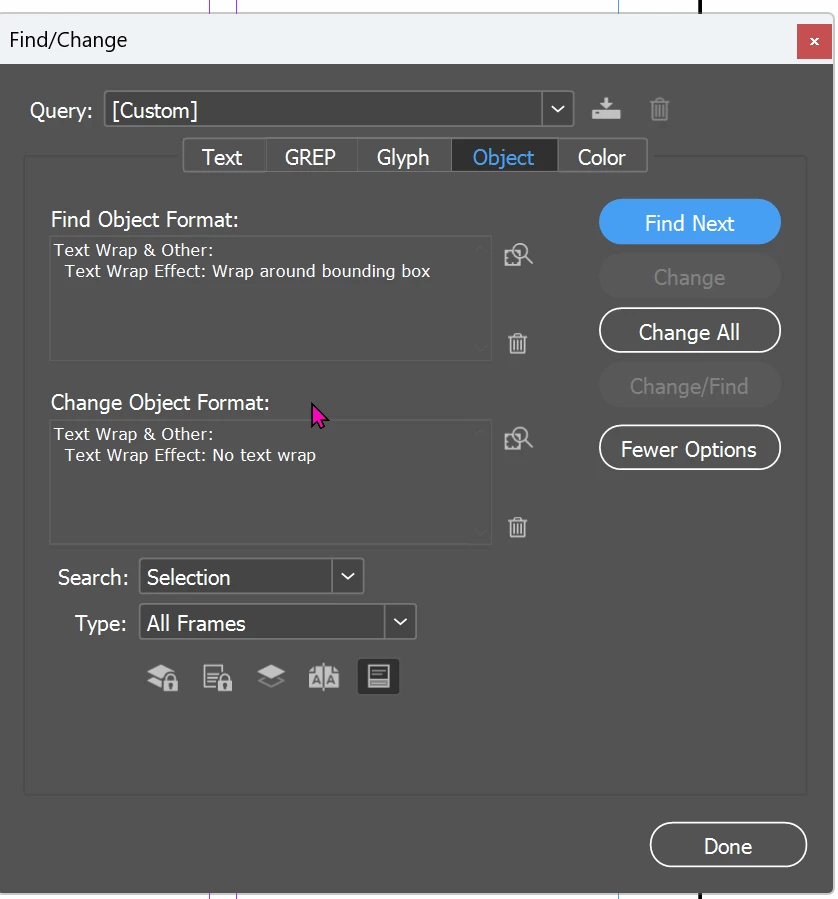
    To change [all] the existing objects, use the Find/Change panel. 


    7 replies

    landscape_snarkitect
    Known Participant
    August 25, 2026

    Thanks so much, everyone! Thanks to all your recommendations, I was able to fix the issue. I have now saved a lot of time for an impending deadline. I have learned that I need to dig deeper into InDesign formatting and settings. You don’t know what you don’t know sometimes! 

    Barb Binder
    Community Expert
    Community Expert
    August 25, 2026

    And I just addressed defaults on the original thread:


    Here’s an article I wrote on the topic for my students: https://www.rockymountaintraining.com/adobe-indesign-setting-and-removing-defaults/

    ~Barb at Rocky Mountain Training
    Dave Creamer of IDEAS
    Community Expert
    Dave Creamer of IDEASCommunity ExpertCorrect answer
    Community Expert
    August 25, 2026

    You (or someone working on the document) changed the setting with nothing selected. That created a document default. 

    You get out of it the same way: deselect everything and change the setting. This will only affect new objects. 


    To change [all] the existing objects, use the Find/Change panel. 


    David Creamer: Community Expert (ACI and ACE 1995-2023)
    leo.r
    Community Expert
    Community Expert
    August 25, 2026

    When no documents are open, set the desired settings, which will make them the default settings from that moment on.

    For existing documents, if you need to turn them off for objects where the settings are already applied, you’ll probably need a script.

    landscape_snarkitect
    Known Participant
    August 25, 2026

    Thanks again! Do you mean from this window shown below or do I find this elsewhere?

    Also, I have never run a script before. How might I do something like that?