Inspiring
June 23, 2020
Answered

How to update automatically new first line ident

  • June 23, 2020
  • 3 replies
  • 761 views

Hi,


I'm working with a long document. In the Normal style i set first line ident to 10 mm, now i want a more less space for this setting, then a defined first line ident to 7 mm. But this setting not applied to my content. For do this i need:


 - Select the content

- Apply one more time the Normal style to selected text


It's a very large document with different style, then i can't to do "Select all" and apply Normal style. 


There is one way to reflect this change on all paragraphs with this style?


If i change the font size for example, all paragraphs are updated to new setting. Why when i change first line ident the paragraph are not updated automatically?


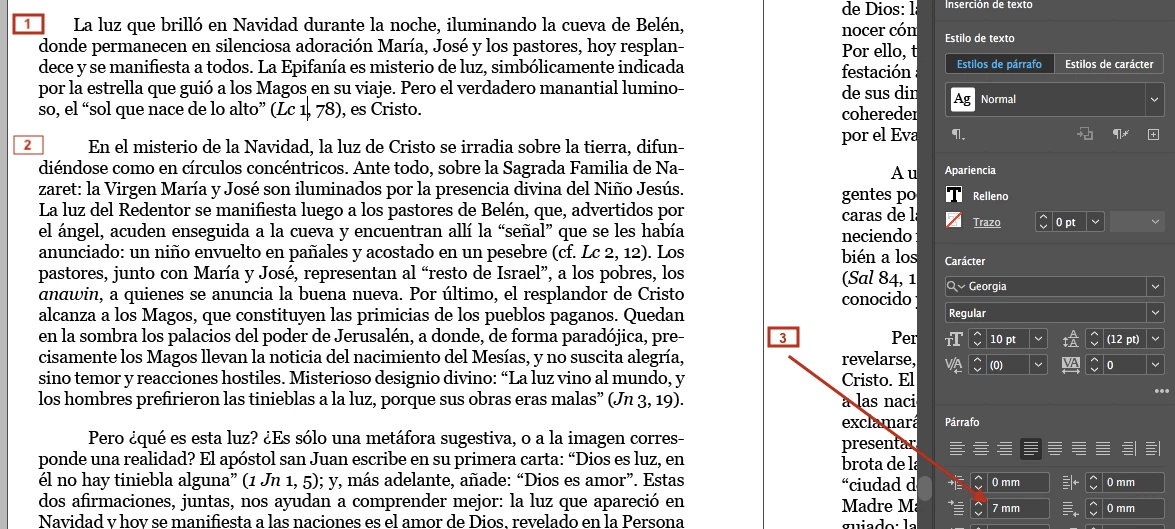
As you can see into the image below:


1. This is the new first line ident setting (7 mm) as shows (3). It's applied in this paragrahp because i selected it at applied one more time the style.


2. This is the old first line ident setting (10 mm). All paragraphs into the document preserve this old setting. If i not select this content and apply one more time the style the new ident is not setted.


3. This is the current setting into the style.
 

This topic has been closed for replies.
Correct answer Barb Binder

I can't apply "clear overrides" because i will be lost another format as bold text in some parts.

The first thing I do after placing text from Word is search for local overrides (bold, italic, small caps) and replace with the equivalent character style. You can do this through Find/Change in a few minutes. Then if you clear paragraph style overrides, the character styles will remain in place.


Once that is done:

  1. Save your file.
  2. Select one body paragraph, update it to the desired 7mm indent,
  3. Right click the name Body+ in the Paragraph styles panel > Redefine style.
  4. You may need to follow that with Select All and click Clear Overrides button at the bottom of the Paragraph Styles panel. Look for trouble on the other pages and undo if necessary. Address those issues and try again.


Now all Body paragraphs will have the same definition and you won't lose local overrides because you converted them to character styles first.


~Barb 


Likes


3 replies

Barb Binder
Community Expert
Community Expert
June 24, 2020

Great! Glad we could help. And don't forget to save your successful queries in the Find/Change dialog box. I use mine over and over and over. 

~Barb 

~Barb at Rocky Mountain Training
Barb Binder
Community Expert
Barb BinderCommunity ExpertCorrect answer
Community Expert
June 24, 2020

I can't apply "clear overrides" because i will be lost another format as bold text in some parts.

The first thing I do after placing text from Word is search for local overrides (bold, italic, small caps) and replace with the equivalent character style. You can do this through Find/Change in a few minutes. Then if you clear paragraph style overrides, the character styles will remain in place.


Once that is done:

  1. Save your file.
  2. Select one body paragraph, update it to the desired 7mm indent,
  3. Right click the name Body+ in the Paragraph styles panel > Redefine style.
  4. You may need to follow that with Select All and click Clear Overrides button at the bottom of the Paragraph Styles panel. Look for trouble on the other pages and undo if necessary. Address those issues and try again.


Now all Body paragraphs will have the same definition and you won't lose local overrides because you converted them to character styles first.


~Barb 


Likes


~Barb at Rocky Mountain Training
a.cedanoAuthor
Inspiring
June 24, 2020

@BarbBinder


Wow! that was magic.


I'm new in InDesing and now i understand the utility o "Character Styles".


With your recommendations i solved this problem.


Thanks!

Mike Witherell
Community Expert
Community Expert
June 23, 2020

Long documents operate heavily dependent on paragraph styles. If you "tag" the text with named paragraph styles, then you only have to right-click and edit a named paragraph style to change something about the style, such as the first line indent.

Some reminders:

1. Never make or use a style named Normal. This is a default style from Microsoft Word. Name your style something else, like "Body".

2. Never make a paragraph style that is based on either Normal or Basic Paragraph Style. BPS is the default style for an InDesign document, but basing a style on BPS leads to confusing changes when you later copy and paste new text into the document from maybe another ID document.

3. Most styles should be based on No Paragraph Style so that they cannot accidentally change because of inheriting changes from another edited style. Stabler that way, I have found.

Mike Witherell
a.cedanoAuthor
Inspiring
June 24, 2020

@Mike_Witherell


Thanks for your answer, i appreciate your recommendations. 


The document was imported from Word, then the style names are from Word (Normal, Heading 1, Heading 2, etc). I created a new Style called "Body", i deleted the Normal style doing replace by the new style "Body", but the setting of first line ident is not changed! 


There is one way to change this, or should I do it selecting paragraph by paragraph?

douglasc50519187
Participating Frequently
June 24, 2020

One trick is that if you actually click in your document (say, on one of your lines of text), then your changes seem to only apply to that paragraph.


Instead, ensure no text is selected, then double-click the style you're trying to change.


Go to Indents and Spacing (purple), ensure "PREVIEW" is checked so you can see the result (green), and then you should be able to change your first-line indent (red) and all paragraphs with that style should be affected.


If not, it's possible you have a character style overriding your paragraph command, OR you can select the entire document and then "clear overrides" and then perhaps you'll see your spacing change per your commands.