dublove
Legend
August 22, 2026
Answered

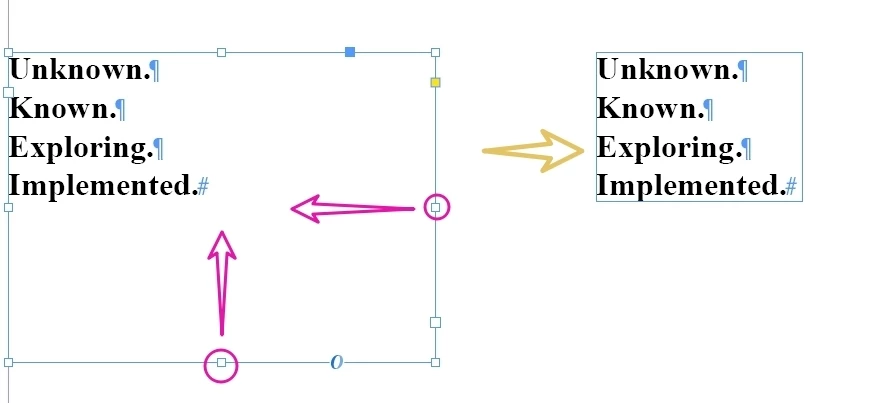
How to use a script to automatically adapt the content width on the right side of this text box?

  • August 22, 2026
  • 4 replies
  • 35 views

(Usually, I double click on that small square to shrink it.
Now I want to implement it with code.)

The framework is suitable for the content (sel [i]. fit (FitOptions. FAME-TO-CONNECT); )It seems to have no effect on width.


I guess this involves two steps:
Firstly, set the text frame to automatically adjust to: height and width, without line breaks.

Secondly, set the text frame to automatically adjust to 'none'.
I don't know, is this safe?

or , Is there still a better idea?


    Correct answer Eugene Tyson

    Text frames already have an Auto-Sizing feature for this, so I’d probably use that rather than trying to reproduce the double-click behaviour with fit().


    It’s under Object > Text Frame Options > Auto-Size. You can set it to Height Only, Width Only, or Height and Width, choose the reference point it should resize from, and enable No Line Breaks.

    Those same options are exposed to scripting through textFramePreferences. Adobe specifically provides autoSizingType, autoSizingReferencePoint and useNoLineBreaksForAutoSizing.

    So your two-step idea is reasonable temporarily enable auto-sizing, let InDesign calculate the required dimensions, then turn auto-sizing off again if you don’t want the frame to remain dynamic.

    For example

    var tf = sel[i];
    var prefs = tf.textFramePreferences;

    prefs.useNoLineBreaksForAutoSizing = true;
    prefs.autoSizingReferencePoint = AutoSizingReferenceEnum.TOP_LEFT_POINT;
    prefs.autoSizingType = AutoSizingTypeEnum.HEIGHT_AND_WIDTH;

    // Once InDesign has resized the frame:
    prefs.autoSizingType = AutoSizingTypeEnum.OFF;

    I’d set the reference point and useNoLineBreaksForAutoSizing before setting autoSizingType but it seems that Adobe recommends setting the sizing type after the other auto-sizing properties.

    fit(FitOptions.FRAME_TO_CONTENT) does exist and is documented as resizing the frame to its content, but with text it is still working with the text as currently composed/wrapped. It doesn’t necessarily mean “find the natural unbroken width of this text and resize to that”, which is why you can see the height change without getting the width you expect.

    Auto-Size + No Line Breaks + switch Auto-Size off afterwards is probably the cleanest of the approaches for what you describe.


    4 replies

    m1b
    Community Expert
    Community Expert
    August 22, 2026

    Hi ​@dublove here is a simple function you could use. – Mark

    /**
    * @file Fit Frame To Text.js
    *
    * Reduces the text frame height and width to fit the text content.
    *
    * @author m1b
    * @version 2026-08-22
    * @discussion https://community.adobe.com/questions-671/how-to-use-a-script-to-automatically-adapt-the-content-width-on-the-right-side-of-this-text-box-1638214
    */
    function main() {

    fitFrameToText(app.activeDocument.selection[0]);

    };
    app.doScript(main, ScriptLanguage.JAVASCRIPT, undefined, UndoModes.ENTIRE_SCRIPT, 'Fit frame to text');

    /**
    * Reduces the text frame height and width to fit the `frame's` text content.
    * @author m1b
    * @version 2026-08-22
    * @param {TextFrame} frame - an Indesign TextFrame.
    */
    function fitFrameToText(frame) {

    if (
    !frame.hasOwnProperty('overflows')
    || 'function' !== typeof frame.resize
    )
    return;

    while (!frame.overflows)
    frame.resize(CoordinateSpaces.PARENT_COORDINATES, AnchorPoint.TOP_LEFT_ANCHOR, ResizeMethods.ADDING_CURRENT_DIMENSIONS_TO, [0, -1]);

    while (frame.overflows)
    frame.resize(CoordinateSpaces.PARENT_COORDINATES, AnchorPoint.TOP_LEFT_ANCHOR, ResizeMethods.ADDING_CURRENT_DIMENSIONS_TO, [0, 1]);

    while (!frame.overflows)
    frame.resize(CoordinateSpaces.PARENT_COORDINATES, AnchorPoint.TOP_LEFT_ANCHOR, ResizeMethods.ADDING_CURRENT_DIMENSIONS_TO, [-1, 0]);

    while (frame.overflows)
    frame.resize(CoordinateSpaces.PARENT_COORDINATES, AnchorPoint.TOP_LEFT_ANCHOR, ResizeMethods.ADDING_CURRENT_DIMENSIONS_TO, [1, 0]);

    };


    dublove
    dubloveAuthor
    Legend
    August 22, 2026

    Hi m1b.

    Thank you very much.

    I just tested it.
    I think reducing by -1 every time is too slow.
    My idea is still better, set the text box to automatic width first, and then set it back to its original state.

    Eugene TysonCommunity ExpertCorrect answer
    Community Expert
    August 22, 2026

    Text frames already have an Auto-Sizing feature for this, so I’d probably use that rather than trying to reproduce the double-click behaviour with fit().


    It’s under Object > Text Frame Options > Auto-Size. You can set it to Height Only, Width Only, or Height and Width, choose the reference point it should resize from, and enable No Line Breaks.

    Those same options are exposed to scripting through textFramePreferences. Adobe specifically provides autoSizingType, autoSizingReferencePoint and useNoLineBreaksForAutoSizing.

    So your two-step idea is reasonable temporarily enable auto-sizing, let InDesign calculate the required dimensions, then turn auto-sizing off again if you don’t want the frame to remain dynamic.

    For example

    var tf = sel[i];
    var prefs = tf.textFramePreferences;

    prefs.useNoLineBreaksForAutoSizing = true;
    prefs.autoSizingReferencePoint = AutoSizingReferenceEnum.TOP_LEFT_POINT;
    prefs.autoSizingType = AutoSizingTypeEnum.HEIGHT_AND_WIDTH;

    // Once InDesign has resized the frame:
    prefs.autoSizingType = AutoSizingTypeEnum.OFF;

    I’d set the reference point and useNoLineBreaksForAutoSizing before setting autoSizingType but it seems that Adobe recommends setting the sizing type after the other auto-sizing properties.

    fit(FitOptions.FRAME_TO_CONTENT) does exist and is documented as resizing the frame to its content, but with text it is still working with the text as currently composed/wrapped. It doesn’t necessarily mean “find the natural unbroken width of this text and resize to that”, which is why you can see the height change without getting the width you expect.

    Auto-Size + No Line Breaks + switch Auto-Size off afterwards is probably the cleanest of the approaches for what you describe.

    dublove
    dubloveAuthor
    Legend
    August 22, 2026

    Hi Eugene Tyson.

    Thank you very much.

    I think this method is faster and more natural.