dublove
Legend
September 21, 2025
Answered

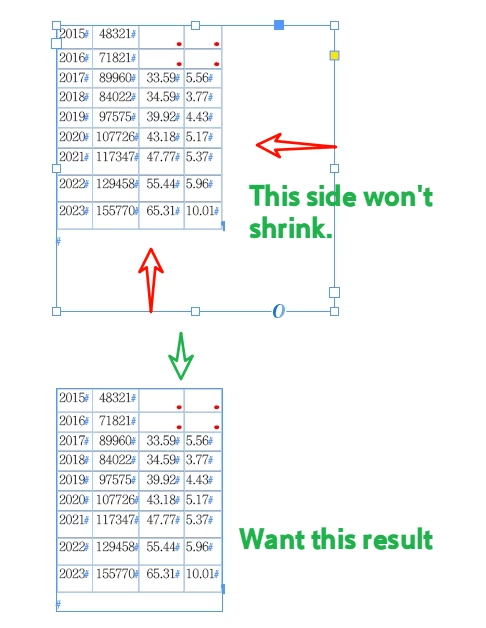
How  to use a script to make the bottom and right sides of a textFrame fit the content?

  • September 21, 2025
  • 1 reply
  • 290 views

Using a frame to fit the content seems to only shrink the bottom.

I just ran into this problem again today.

Double-clicking the box on the right will definitely work.

Correct answer Fred.L

Hey,

Well, I don't see why double clicking on the handles wouldn't work. Any of them do work for me.

If they don't for some reasons, you could indeed bypass the bug with a script.
What you basically do is activating/ deactivating the autofit option on the selected textframe, using the settings your prefer. In the meantime, there is already something canon in ID for modifying the options of the selected texframe (right-click, Text frame option / CMd+B). Not sure a script is relevant here. 

Anyways, the code could be then something like that :

var selectedItem = app.selection[0];
selectedItem.textFramePreferences.autoSizingType = AutoSizingTypeEnum.WIDTH_ONLY;
selectedItem.textFramePreferences.autoSizingReferencePoint = AutoSizingReferenceEnum.LEFT_CENTER_POINT;
selectedItem.textFramePreferences.autoSizingType = AutoSizingTypeEnum.OFF;


If the purpose of the script is to adjust the width of every textframe of the active document, then, a script would obviously not be an option, but pretty much mandatory if you want to really save some time. Just making a loop on all the textframes of the document will do


1 reply

Fred.L
Fred.LCorrect answer
Inspiring
September 21, 2025

Hey,

Well, I don't see why double clicking on the handles wouldn't work. Any of them do work for me.

If they don't for some reasons, you could indeed bypass the bug with a script.
What you basically do is activating/ deactivating the autofit option on the selected textframe, using the settings your prefer. In the meantime, there is already something canon in ID for modifying the options of the selected texframe (right-click, Text frame option / CMd+B). Not sure a script is relevant here. 

Anyways, the code could be then something like that :

var selectedItem = app.selection[0];
selectedItem.textFramePreferences.autoSizingType = AutoSizingTypeEnum.WIDTH_ONLY;
selectedItem.textFramePreferences.autoSizingReferencePoint = AutoSizingReferenceEnum.LEFT_CENTER_POINT;
selectedItem.textFramePreferences.autoSizingType = AutoSizingTypeEnum.OFF;


If the purpose of the script is to adjust the width of every textframe of the active document, then, a script would obviously not be an option, but pretty much mandatory if you want to really save some time. Just making a loop on all the textframes of the document will do
dublove
dubloveAuthor
Legend
September 21, 2025

Hi @Fred.L 

Thank you very much.

Double-clicking the handle works.
It seems the left side jumped a bit—can you keep it stationary?
Did it contract toward the center?


Changing it to TOP_LEFT_POINT still seems to center it.

This line seems ineffective:

selectedItem.textFramePreferences.autoSizingReferencePoint = AutoSizingReferenceEnum.BOTTOM_LEFT_POINT;


Removing it makes no difference.


Community Expert
September 21, 2025

Hi @dublove ,

assign both property/value pairs at the same time like that:

var selectedItem = app.selection[0];

selectedItem.textFramePreferences.properties =
{
	autoSizingType : AutoSizingTypeEnum.WIDTH_ONLY ,
	autoSizingReferencePoint : AutoSizingReferenceEnum.LEFT_CENTER_POINT
};


Or change the order of assigning the values like that:

var selectedItem = app.selection[0];

selectedItem.textFramePreferences.autoSizingReferencePoint = AutoSizingReferenceEnum.LEFT_CENTER_POINT;
selectedItem.textFramePreferences.autoSizingType = AutoSizingTypeEnum.WIDTH_ONLY;


Kind regards,
Uwe Laubender
( Adobe Community Expert )