


Known Participant
August 29, 2024
Answered

How to Use GREP to Remove Text After a Colon in InDesign Index

  • August 29, 2024
  • 1 reply
  • 749 views

Hi! Question for the greg wizards... I have a completed index from an old InDesign file that was given to me. I need to strip out all the words and use that for creating a new index.


How to I find ": and everything to the paragraph return" and replace it just the "paragraph return"?

Enclosed is a pic of what im trying to do. Should be simple, right?
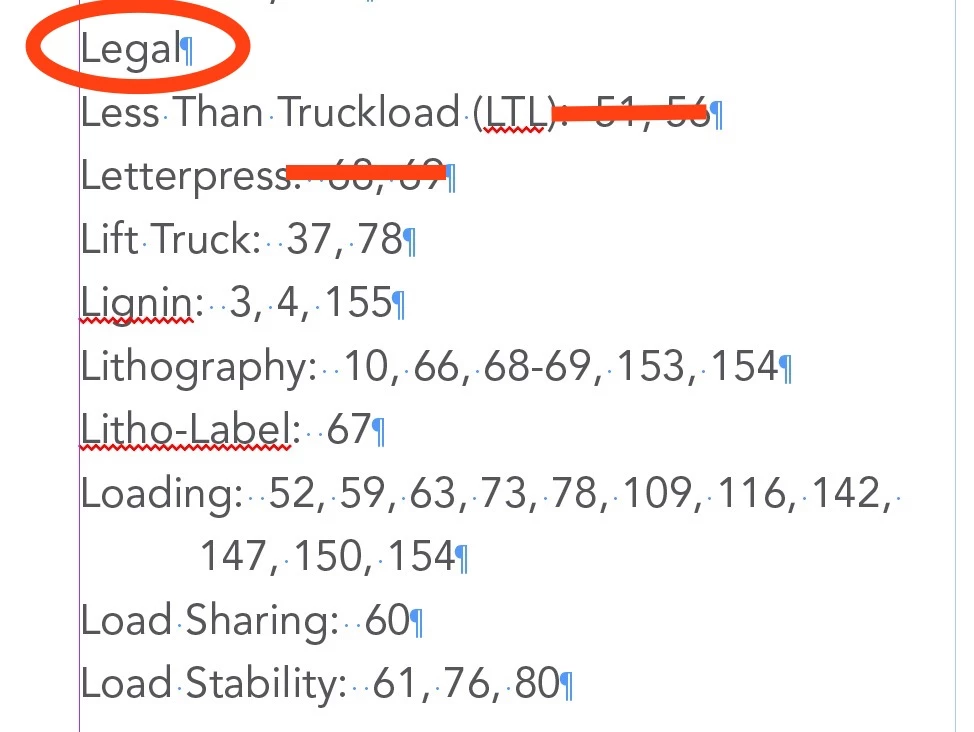


<TItle renamed by MOD>

 

This topic has been closed for replies.
Correct answer James Gifford—NitroPress

GREP FIND: \:(.+)\r
REPLACE: \r


...should do it.


Always work on a copy of your file, of course, in case anything goes sideways. This doesn't necessarily accommodate any unusual entries such as two terms separated by commas, but it should strip out all the index numbering, leaving the words for any further filtering.


A bit more specific, finding only numbers, commas and spaces after the colon: \:[\d,\s]+\r
This would keep from deleting any words separated by a colon in the list.

1 reply

James Gifford—NitroPress
Legend
August 29, 2024

GREP FIND: \:(.+)\r
REPLACE: \r


...should do it.


Always work on a copy of your file, of course, in case anything goes sideways. This doesn't necessarily accommodate any unusual entries such as two terms separated by commas, but it should strip out all the index numbering, leaving the words for any further filtering.


A bit more specific, finding only numbers, commas and spaces after the colon: \:[\d,\s]+\r
This would keep from deleting any words separated by a colon in the list.

Known Participant
August 29, 2024

AWESOME! Thank you. I was on the right track, but didn't know what to use for the inbetween stuff. Thanks, saved me a bunch of time!