elizabeth6828
Participant
March 13, 2018
Answered

Hyphens carrying over from Word as characters

  • March 13, 2018
  • 3 replies
  • 1081 views

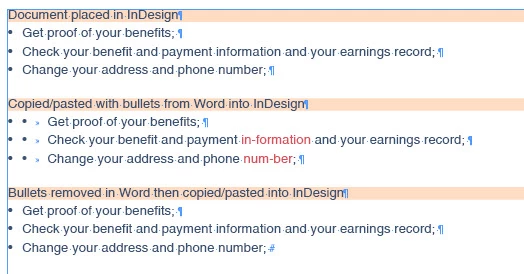
I have a table in Word that has some hyphenated words in a bulleted list. When I place it into InDesign the hyphens aren't there which is good but when I copy and paste the bulleted text from Word to InDesign the hyphens carry over as characters. And the hyphenated words are in the middle of the line in InDesign but where the line breaks in Word. If I remove the bullets in Word, then copy and paste the text into InDesign there are no hyphens.

I don't want to place the text because I'm just updating the document and I would have to reformat the whole thing. Turning hyphenation off fixes it obviously but I want to know why it's happening. Thanks!
This topic has been closed for replies.
Correct answer davidblatner

As Chad said, copy and paste from Word should only be a last resort. File > Place is certainly better.

However, another option here would be to search for all the hyphens inside words and delete them. You could do that with Find/Change by choosing the GREP tab, then searching for (?<=\w)-(?=\w) and then leaving the Change field blank. That searches for hyphens that are between two letters. Of course, it would also delete hyphens that might be correct, like "in-between" so you need to be careful.

3 replies

Martin_Bns
Inspiring
May 2, 2018

Hi there, from what I understood the problem you are having is in the copy and paste step.

You have to Place the document and not do just a wild copy and paste because it can behive not as you like.

Cheers,

Martin

hammer0909
Community Expert
Community Expert
May 2, 2018

The issue resides in the Word document unfortunately. InDesign is just dealing with what you're giving it. As you've discovered, using File > Place allows InDesign to deal with those hyphens and handles them properly. Copy and paste however is handing off the content to InDesign and doesn't let InDesign deal with those hyphens properly. One options I can suggest would be to simply place the file in a text frame on the pasteboard. Then copy from that placed text and paste into the appropriate location.

davidblatner
Community Expert
davidblatnerCommunity ExpertCorrect answer
Community Expert
May 2, 2018

As Chad said, copy and paste from Word should only be a last resort. File > Place is certainly better.

However, another option here would be to search for all the hyphens inside words and delete them. You could do that with Find/Change by choosing the GREP tab, then searching for (?<=\w)-(?=\w) and then leaving the Change field blank. That searches for hyphens that are between two letters. Of course, it would also delete hyphens that might be correct, like "in-between" so you need to be careful.

dave c courtemanche
Inspiring
March 14, 2018

I don't know the why, but turning off hyphenation in Word has become part of my workflow. I didn't have the problem with English documents, but definitely with other languages (French, Spanish, Polish)