

Julia_Langianni
Participant
February 21, 2026
Question

I would like to know how to put a ruler in the exact middle of the page. Is there any "easy" way?

  • February 21, 2026
  • 5 replies
  • 59 views

Hello, I would like to know how to put a ruler in the exact middle of the page. Is there any "easy" way?

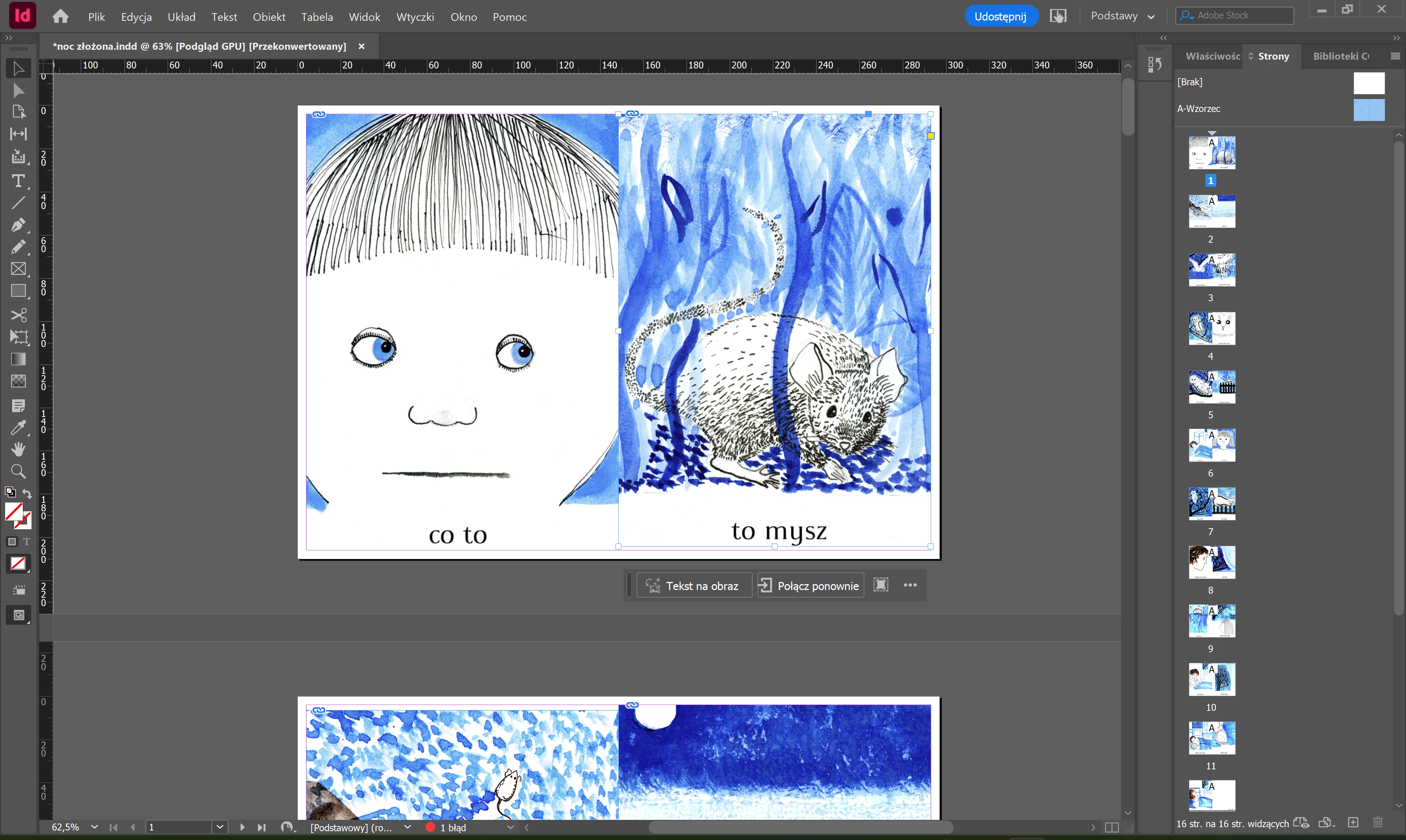
The aim is to print a small book for my daughter, but I need to be sure that the middle is in the real middle, so that no page would be cut nor “flood” other page. It is my first time using InDesign, so I’m really groping in the dark.
 

    5 replies

    Mike Witherell
    Community Expert
    Community Expert
    February 22, 2026

    Turn Smart Guides on, too.

    Mike Witherell
    Conrad_C
    Community Expert
    Community Expert
    February 21, 2026

    The other replies are excellent, I’m just adding a tip...when dragging a guide, if you want it to be precise, hold down Shift. For example, if I know 8.5 inches is exactly halfway across and I just want to drop a guide there, holding down Shift makes the guide snap to regular ruler intervals so that it can snap precisely to 8.5 inches when I drag a guide close to that mark. 

    Barb Binder
    Community Expert
    Community Expert
    February 21, 2026

    Two great answers already.

    I was going to come in with a different approach, which I will still share just for fun:


    Layout > Create Guides

    • 2 rows, 0 gutter for a centered horizontal guide
    • 2 columns, 0 gutter for a centered vertical guide
    • Fit guides to Page


    ~Barb at Rocky Mountain Training
    Dave Creamer of IDEAS
    Community Expert
    Community Expert
    February 21, 2026

    Another method is to drag a guide out onto the page, don’t deselect. In the Control panel enter the X or Y position will be active depending on if the guide is horizontal or vertical. Enter the page size divided by 2. For example: 8.5 in /2  and 11 in /2

    David Creamer: Community Expert (ACI and ACE 1995-2023)
    Community Expert
    February 21, 2026

    For a book you should use Facing Pages and then each page is separate (except first and last) - go to document setup and choose Facing Pages. https://helpx.adobe.com/ie/indesign/using/pages-spreads.html


    But I see you’re a good bit through it. 

    So you can draw a Ruler Guide - drag it out from the side (I can see the Ruler in your screenshot so you should be able to click, hold and drag to pull a ruler guide out) - and then use the Align tools to align to the page. 

    If you put it on the Parent Page then it should appear on all pages.


    Select your parent page


    Grab from the rule


    Open the Align panel (if not open already)


    Align to Page


    Then Select the Middle Icon at the top to align to the page