Inspiring
September 4, 2018
Answered

ID CC 2018 margin change in New Document dialog crashes with Preview checked

  • September 4, 2018
  • 2 replies
  • 862 views

I'm crashing in the 2018 version of ID in the New Document dialog whenever I make changes to the margins with the Preview checkbox checked. This happens each and every time, consistently.

This occurs in both the new, New Document dialog format (Preview checkbox added in 2018) as well as the Legacy dialog format (enabled with General Preferences setting).

This does not occur in the 2017 CC version of ID. (Legacy dialog only — no Preview checkbox in the new format.) This does not occur when changing any other page attribute, including page size, slug, and bleed; only Margin.

Testing: in both new, New Document dialog and Legacy dialog, check Preview checkbox. Change Margin amount, up or down, with arrow keys or by typing in value results in a crash.

In the Legacy dialog, with Preview unchecked, you can make changes to the Margin value without issue. Once it has been changed, the moment you check Preview it crashes again.

In the new dialog, with Preview unchecked, changes can be made to the Margin value, and once Preview is checked ID appears stable. However, once the Margin value is touched again, it crashes again.

Adobe InDesign CC 2018 v 13.1

Mac OS Sierra v 10.12.4

Model Name: Mac Pro 

Model Identifier: MacPro5,1 

Processor Name: Quad-Core Intel Xeon 

Processor Speed: 3.2 GHz 

Number of Processors: 1 

Total Number of Cores: 4 

L2 Cache (per Core): 256 KB 

L3 Cache: 8 MB 

Memory: 16 GB 

Processor Interconnect Speed: 4.8 GT/s

Chipset Model: ATI Radeon HD 5770 

Type: GPU 

Bus: PCIe 

Slot: Slot-1 

PCIe Lane Width: x16 

VRAM (Total): 1024 MB 

Vendor: ATI (0x1002) 

Device ID: 0x68b8 

Revision ID: 0x0000 

ROM Revision: 113-C0160C-155 

EFI Driver Version: 01.00.436
This topic has been closed for replies.
Correct answer David Cardillo

Answer: it happens when Layout Adjustment is enabled — or ID thinks it is (see below).

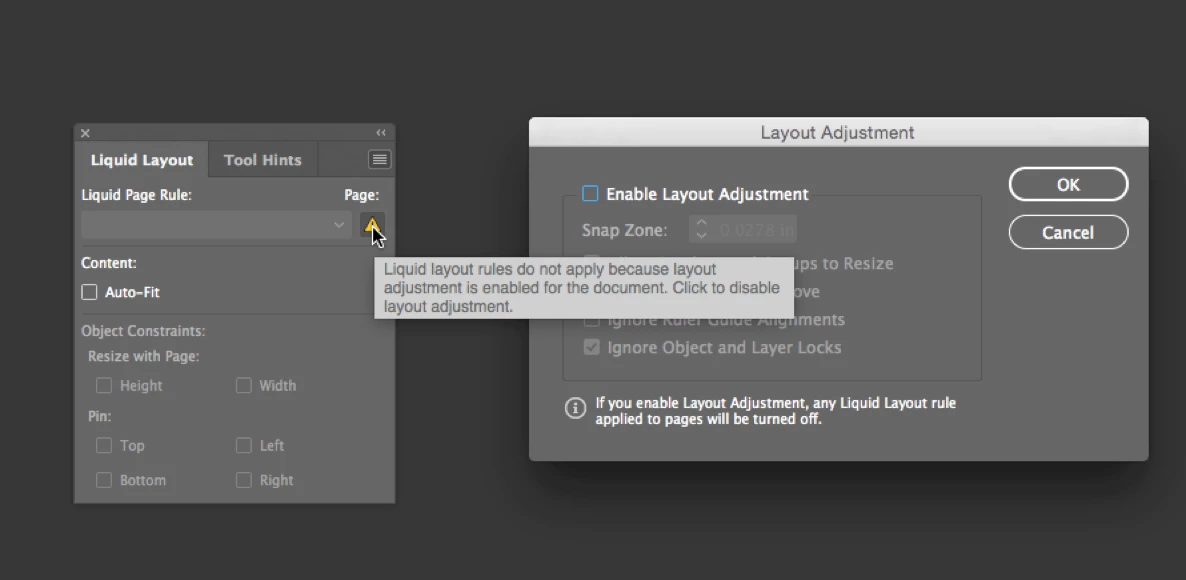
With no documents open, the Liquid Layout panel has a warning that "Liquid Layout rules do not apply because layout adjustment is enabled for the document. [no document open] Click to disable layout adjustment." Although clicking doesn't do anything.

Opening the Layout Adjustment settings manually (from the Liquid Layout panel menu) shows the setting is indeed off. (see image)

Fix: Create a new, blank document. Open the Liquid Layout panel. Ensure Layout Adjustment is off. From that point, it should remain off, and there should be no warning with no documents open that it mistakenly believes it's on.

Changing the Margins with the Preview checkbox checked in the New Document dialog, both new and legacy functions normally.

2 replies

David CardilloAuthorCorrect answer
Inspiring
September 4, 2018

Answer: it happens when Layout Adjustment is enabled — or ID thinks it is (see below).

With no documents open, the Liquid Layout panel has a warning that "Liquid Layout rules do not apply because layout adjustment is enabled for the document. [no document open] Click to disable layout adjustment." Although clicking doesn't do anything.

Opening the Layout Adjustment settings manually (from the Liquid Layout panel menu) shows the setting is indeed off. (see image)

Fix: Create a new, blank document. Open the Liquid Layout panel. Ensure Layout Adjustment is off. From that point, it should remain off, and there should be no warning with no documents open that it mistakenly believes it's on.

Changing the Margins with the Preview checkbox checked in the New Document dialog, both new and legacy functions normally.

AnneMarie Concepcion
Community Expert
Community Expert
September 4, 2018

Bravo! Good sleuthing. ;-)

Bill Silbert
Community Expert
Community Expert
September 4, 2018

Try trashing preferences.

To do so:

The User Library folder in which InDesign’s preferences are stored is hidden by default on most Macintoshes. To access it make sure that InDesign is closed and click on the desktop to launch a Finder Window (Command-N). With this window in column view follow the path User>Home folder (it’s the folder with an icon that looks like a house—it may have the user’s name rather than “Home”) and click on the Home folder. With the Option Key pressed choose Library from the Finder Go Menu. “Library” will now appear within the Home folder. Within the Library folder find the folder called Preferences and within it find the folder called “Adobe InDesign” and the file called “com.adobe.InDesign.plist” and delete both that folder and that file. When InDesign is next launched it will create new preference files and the program will be restored to its defaults.

The advantage of manually deleting preference files in this manner is that after you’ve reset up the program (make sure that no document window is open) to your liking, you can create copies of your personalized “mint” preference files (make sure that you quit the program before copying them—that finalizes your customization) and use them in the future to replace any corrupt versions you may need to delete.

Inspiring
September 4, 2018

Thanks, Bill.

We actually keep a custom preference file backed up for just this reason. Once we've got all of the settings the way they should be, we make a backup ZIP archive. Should the preferences ever need to be deleted, we can always restore them to where they need to be.