dublove
Legend
June 30, 2026
Answered

If the font size and text box height remain constant but the number of lines changes, how can I determine the new appropriate leading?

  • June 30, 2026
  • 6 replies
  • 131 views

Following up on the previous question:
If the font size and text box height remain constant, is there a simple formula for calculating line spacing and the number of lines?


For example:

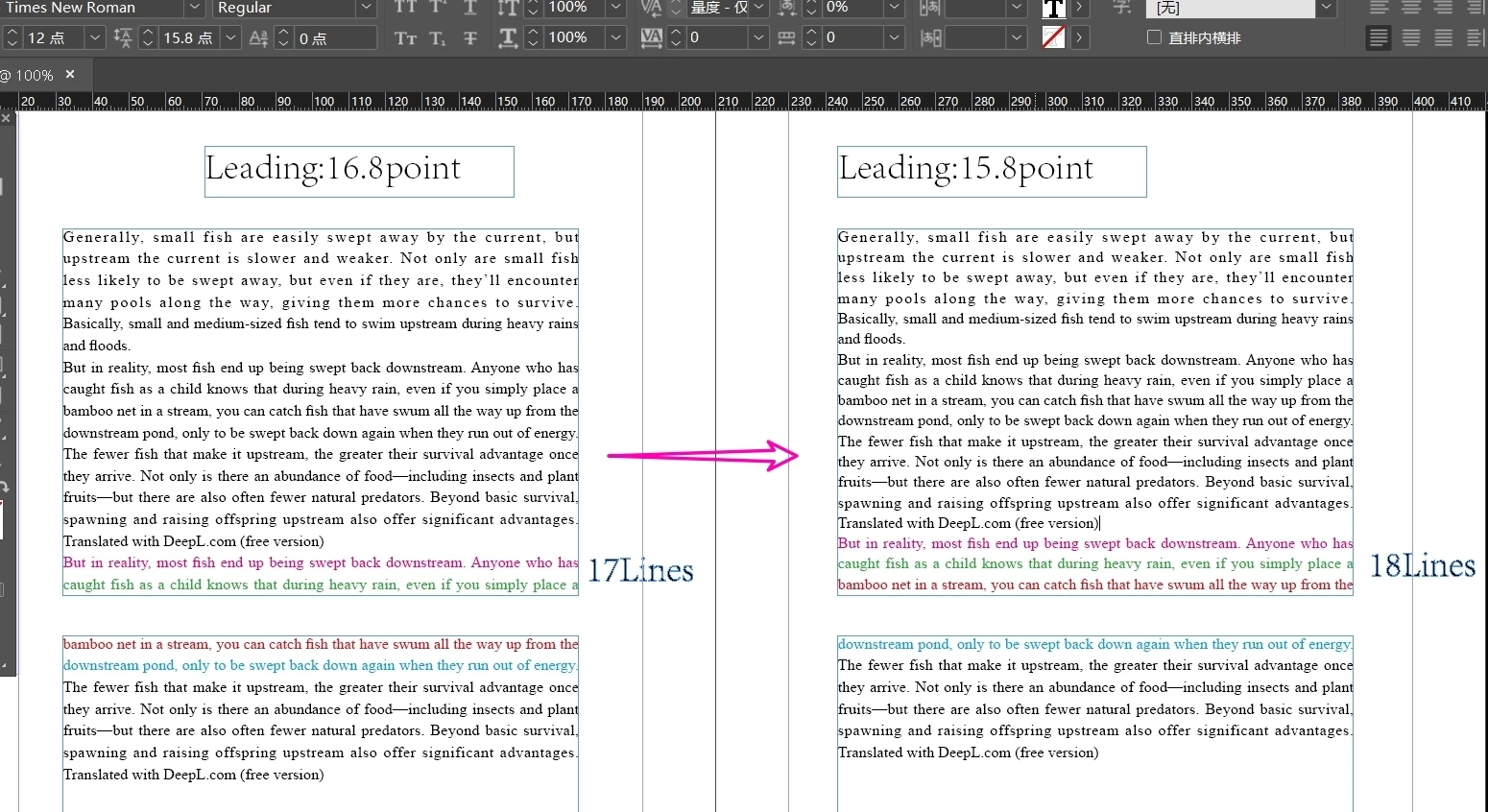
A text box has a fixed height of 100 mm and a font size of 12 points. With 17 lines of text, the appropriate line spacing is 16.8 points.

If the font size and text box height remain constant but one line is added (for a total of 18 lines), how to I calculate the new leading(15.8)?
Is there a simple formula for this?
 

    Correct answer m1b

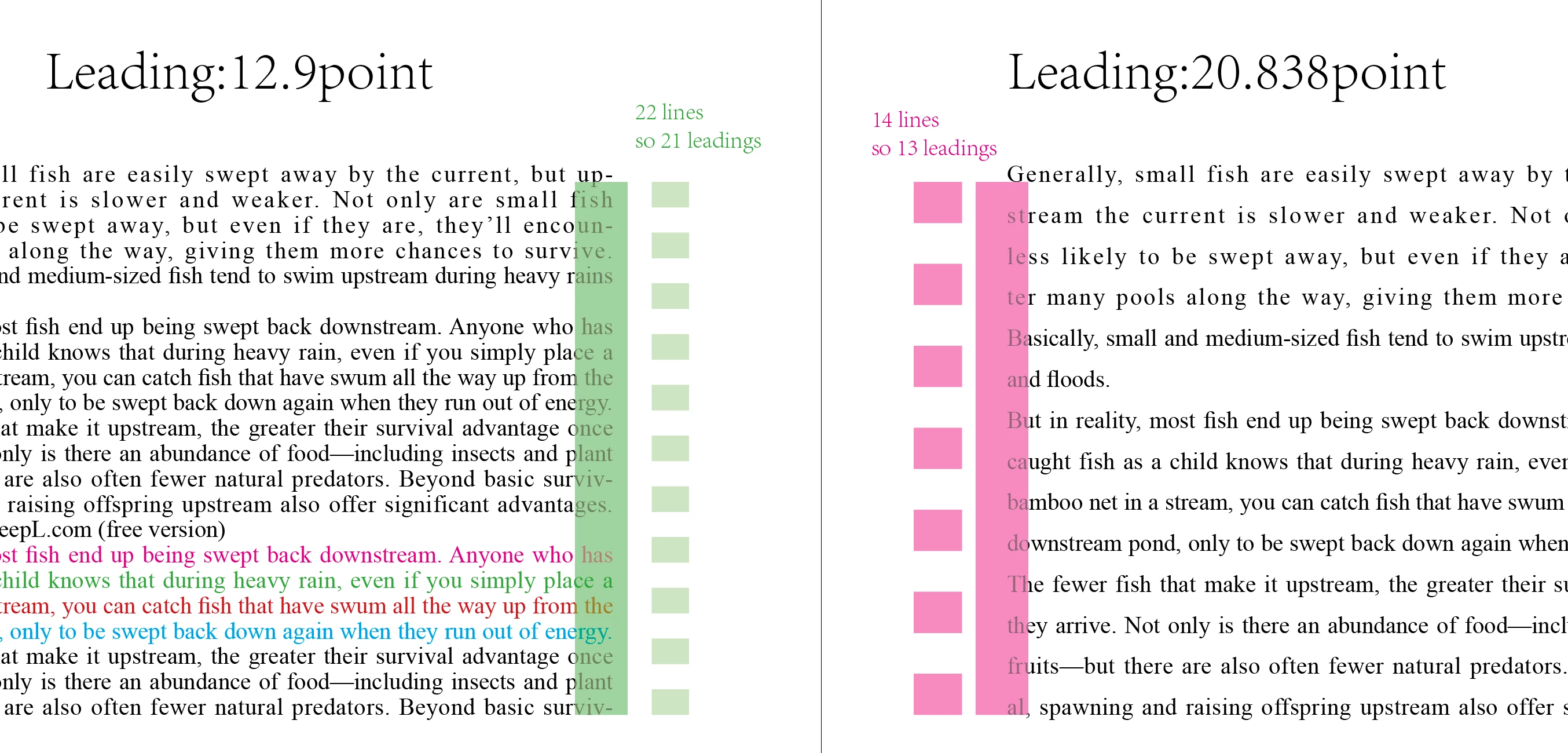
    @dublove Your calculation is just out by one. You don’t calculate the number of lines—you count the number of leadings.

    To calculate the leading for the right-hand text, I do

    21 leadings x 12.9 leading amount = 270.9pt, divided by 13 leadings = 20.8384615385


    See below.

    – Mark

    6 replies

    m1b
    Community Expert
    m1bCommunity ExpertCorrect answer
    Community Expert
    July 6, 2026

    @dublove Your calculation is just out by one. You don’t calculate the number of lines—you count the number of leadings.

    To calculate the leading for the right-hand text, I do

    21 leadings x 12.9 leading amount = 270.9pt, divided by 13 leadings = 20.8384615385


    See below.

    – Mark

    dublove
    dubloveAuthor
    Legend
    July 6, 2026

    Hi ​ m1b.

    Thank you very much.

    You are truly invincible, so awesome.
    Unbelievable, your method is amazing.
    Cleverly skipped a line, currently there is basically no deviation.

    davidwarner11t
    Participating Frequently
    July 6, 2026

    You can calculate it by dividing the text box height (in points) by the number of lines. For 100 mm (≈283.46 pt), 18 lines gives 283.46 ÷ 18 ≈ 15.8 pt leading. Just keep in mind that paragraph spacing and font metrics can cause slight differences.


    dublove
    dubloveAuthor
    Legend
    July 6, 2026

    HI ​@davidwarner11t 

    You're not right either, I've tried.
    The key is how to correctly calculate the height of the text box using leading line count, and font size.

    dublove
    dubloveAuthor
    Legend
    July 4, 2026

    No one knows how to correct the obvious error when the number of rows exceeds four?

    Gord@APL
    Inspiring
    July 6, 2026

    The problem is likely down to the imprecision of the conversion between points and millimetres. The ‘correct’ conversion seems to go to ten decimal places, which might seem excessively precise but, over the length of a page (or even a 100mm text box) that can really mount up.

    That said, I’m not seeing the massive discrepancies you are:

    There’s a point where, due to the imprecision of the conversion, the maths don’t give you the correct number of lines of text - that happened at four additional lines for me - but that’s because the text box being 100mm tall wasn’t quite enough for the conversion. Tweaking the leading down a fraction pulls the right number of lines into that 100mm space.

    So, short answer, unless you’re measuring everything in points rather than a mixture of points for the text and millimetres for objects, there is no catch-all equation.

    dublove
    dubloveAuthor
    Legend
    July 6, 2026

    Hi ​@Gord@APL 

    I tried to change the unit of Leading to the smallest mil and keep it to 3 decimal places.
    At line 17, it is 234 miles.
    At line 14, using the formula: 234 * (17/14)=284.076 miles
    At this point, it is evident that the bottom is no longer aligned.

    It should be revised to 284.076+4mils, which looks more suitable


    The image you sent is also not aligned, indicating that this formula should be corrected as the number of rows changes.


    rob day
    Community Expert
    Community Expert
    June 30, 2026

    Following up on the previous question:


    You still have to also consider the Text Frame Options, First Baseline Offset. That user defined setting affects the selected text frame’s first (and last) baseline position, which could be anything. And, with the Min. setting any text frame’s first baseline position could be customized.


    In all of these examples the last baseline position is changing relative to the ruler guide because of the First Baseline Offset setting:


    The default Ascent:


    x Height:


    Leading:


    Fixed:

    Custom Fixed position (4.2 mm Min):


    dublove
    dubloveAuthor
    Legend
    July 1, 2026

    Hi ​@rob day 

    The baseline offset cannot be changed, those should have been set as a whole beforehand.
    It can be read here, but should not be modified.
    There is a question here: the line spacing of some of my segments may not be all 16.8, some segments may be 16.5, and some may be 17.2. How to determine the most suitable value is 16.8.
    Or, how to read the leading of the last line of the current text box?

    rob day
    Community Expert
    Community Expert
    July 1, 2026

    The baseline offset cannot be changed, those should have been set as a whole beforehand.


    Then what are you setting it to? Every text frame can have its own setting, if you want consistency the Text Frame Baseline Options can be set in an Object Style. The text frame’s First Baseline Offset affects all of the texts’ baseline positions in the frame:


    Henry_Collins
    Participating Frequently
    June 30, 2026

    Yes. If the text frame height stays fixed, you can simply divide the available height by the number of lines to get the baseline spacing (leading). So when you go from 17 to 18 lines, the leading becomes roughly 17/18 × 16.8 ≈ 15.9 pt, which is very close to your 15.8 pt example.

    dublove
    dubloveAuthor
    Legend
    July 1, 2026

    @Henry_Collins 

    It seems that if it is reduced to 16 lines,
    New leading = 16/17 * 16.8

    Gord@APL
    Inspiring
    July 1, 2026

    No, the order of numbers remains the same: old linecount divided by new linecount, multiplied by original leading = new leading.

    So, 17/16 x 16.8 = 17.85pt new leading for the reduced linecount.

    Randy Hagan
    Community Expert
    Community Expert
    June 30, 2026

    Yes.


    Divide the height of the text box in points with the line spacing/leading, then round down for any fractions. You’ll get your practical line count every time.


    Hope this helps,


    Randy