Inspiring
January 11, 2021
Answered

Illustrator to indesign gradient changes color after pasted
  • January 11, 2021
  • 2 replies
  • 2398 views

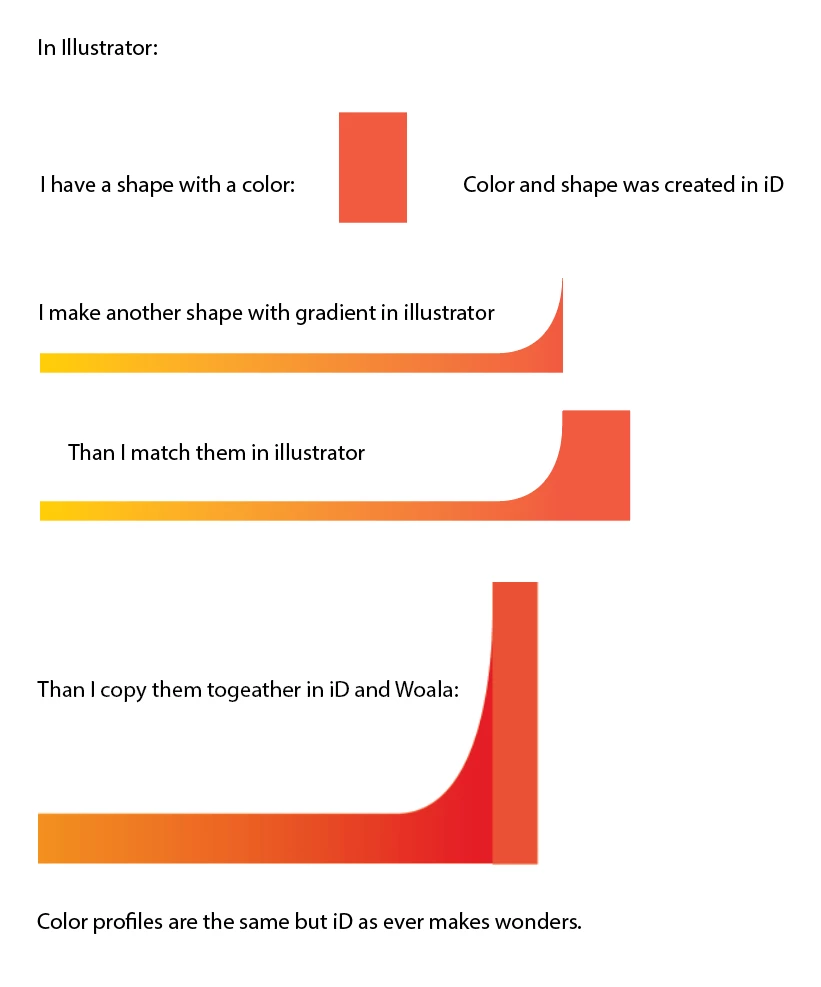
Somebody please tell me why this happens.

This topic has been closed for replies.
Correct answer rob day

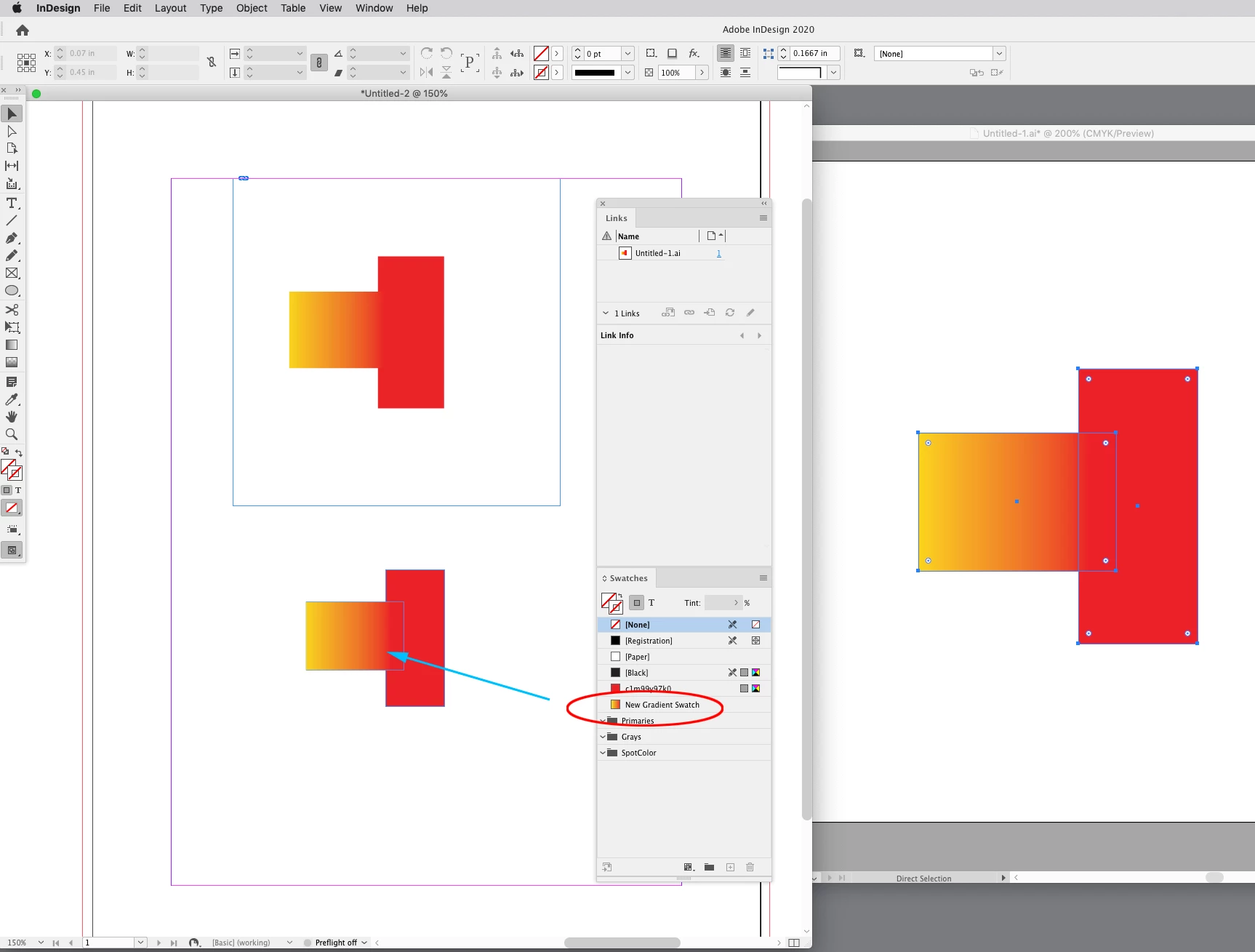
Check the document assigned profiles via Edit>Assign Profiles—the document profiles could be different than the Color Setting’s profiles.


Here I’ve made sure the assignments match and both a Placed and Pasted version match when the AI Document Mode is CMYK. I’ve also unchecked Prefer PDF When Pasting in ID’s Clipboard Prefs, which brings a new Gradient Swatch over from AI:


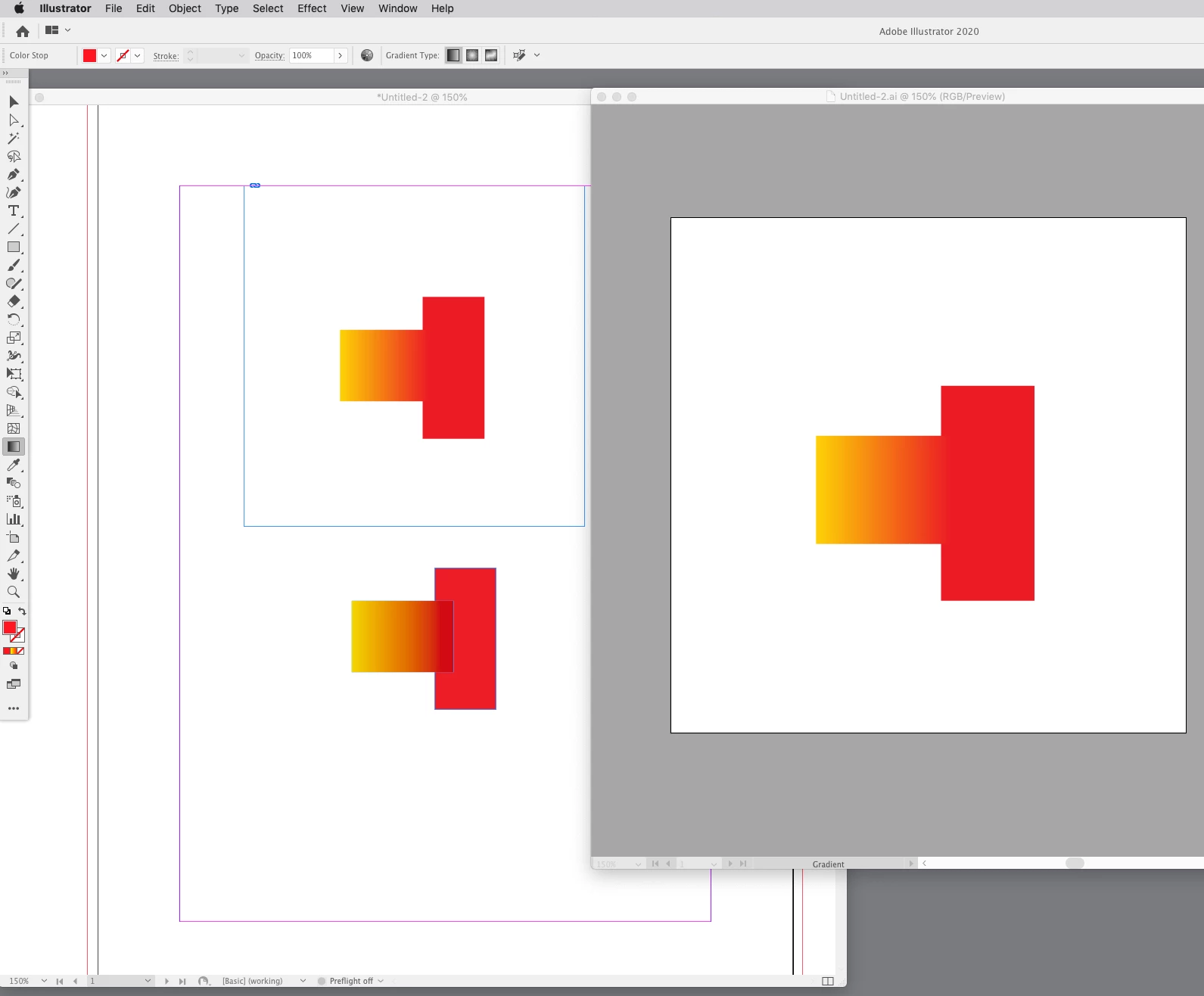
If the AI Document Color Mode is RGB there is a mismatch when pasting but not on a Place (top):
 

2 replies

rob day
Community Expert
Community Expert
January 11, 2021

Try placing rather than pasting. When you are checking that the profiles match, make sure you use Edit>Assign Profiles... in both apps and not the Color Settings Working Spaces–they could be different.


Also, if you are pasting a gradient fill that you want to edit or adjust in InDesign, the AI file’s Document Color Mode has to be CMYK.

Inspiring
January 11, 2021

Everything is as you have mentioned.


and in illustrator the document mode is also in CMYK.

rob day
Community Expert
rob dayCommunity ExpertCorrect answer
Community Expert
January 11, 2021

Check the document assigned profiles via Edit>Assign Profiles—the document profiles could be different than the Color Setting’s profiles.


Here I’ve made sure the assignments match and both a Placed and Pasted version match when the AI Document Mode is CMYK. I’ve also unchecked Prefer PDF When Pasting in ID’s Clipboard Prefs, which brings a new Gradient Swatch over from AI:


If the AI Document Color Mode is RGB there is a mismatch when pasting but not on a Place (top):


Inspiring
January 11, 2021

In the meantime I have found a similar problem:
https://community.adobe.com/t5/illustrator/colours-change-on-pasting-from-illustrator-to-indesign/td-p/9701373?page=1
This was also the solution for me.

Inspiring
January 11, 2021

Sorry this wasn't the deal here. I hoped so much.