


Known Participant
August 31, 2026
Question

Image inserted into Indesign with a different effective PPI

  • August 31, 2026
  • 16 replies
  • 125 views

Hello all

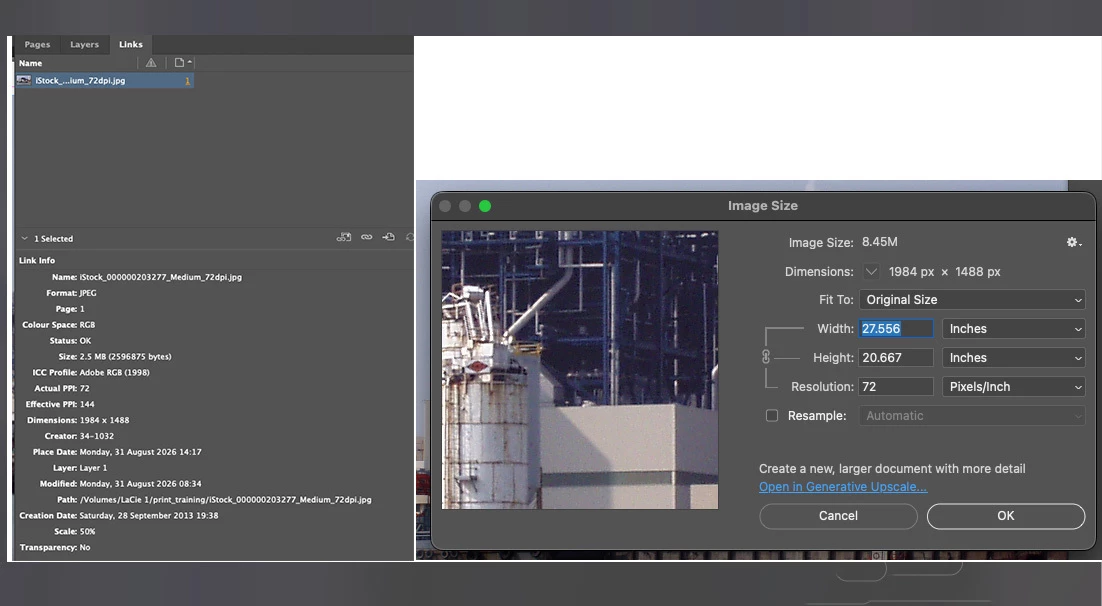
I have an image in PS; 72ppi. See screen grab.

When I insert it into Indesign, the actual PPI is 72 as I would expect, but the effective PPI is 144.
The scale is 50%. Why has it been scaled to 50% and not as 100% as I would expect?

I can easily rescale in Indesign to 100% but wondered why was it inserted at 50%?

Just seems odd to me??

Thanks all
 

    16 replies

    Brad @ Roaring Mouse
    Community Expert
    Community Expert
    September 1, 2026

    Without going into the history of this, as this was extensively covered before, the issue comes from a bit of code that was introduced many versions ago to somewhat “assist” with the placing of images that had a low resolution ppi embedded, like digital camera photos,

    InDesign would normally place images at 100% when simply “dropped” onto the page. This was all fine and dandy back in the day when most image scans were 300ppi, as the images would end up on the page at a reasonable workable size, like 5” x 7”...but when 72ppi digital images came about, dropping these files at 100% made them ridiculously large on the page, so this algorithm scaled them depending on what the embedded resolution was.. hence, a 72ppi image would be dropped at 50% to be a more workable size. Some resolutions would trigger this scale (or other placement %), some didn’t scale at all. 


    Known Participant
    September 1, 2026

    Thanks all for your comments. 
    I take onboard the comments that there is not a requirement to place a JPEG in Indesign.

    While I am online, here is the workflow I work to (I am pretty newish).
    I create my layered design as a PSD. 
    Once all completed, I then save the file as a flattened TIFF, which I then place into Indesign. 
    Have yet to noticed that they do not come in at 100%, but I may be wrong on this.
    So far I have just used JPEGs as a way to get feedback from a client (though I can use a PDF too to get sign off) and naturally use JPEGs to create web assets.

    Thanks again all for your time.

    tonks_the_auror
    Community Expert
    Community Expert
    August 31, 2026

    I tried to replicate this and here’s what happened.

    I created .png and .jpeg versions of the same image @72 ppi in Photoshop.

    I created a new 8.5” x 11” InDesign document.
    File > Place 12.5-inch wide .png, it imports at 100%.
    File > Place 12.5-inch wide .jpg, it imports at 50%.

    File > Place 14-inch wide .png, it imports at 100%.
    File > Place 14-inch wide .jpg, it imports at 100%.

    File > Place 18-inch wide .png, it imports at 100%.
    File > Place 18-inch wide .jpg, it imports at 50%.

    File > Place 25-inch wide .png, it imports at 100%.
    File > Place 25-inch wide .jpg, it imports at 100%.

    I know this isn’t an answer. I have no idea why the scaling affects the same image at some sizes but not others.

    rob day
    Community Expert
    Community Expert
    August 31, 2026

    Hi ​@tonks_the_auror , JPEG problems have been around for awhile. Try setting your 18” JPG resolution to something other than 72ppi—if I set it to 18” at 75ppi, it places at the correct 100% size. I can’t think of any advantage in placing JPEG, there’s this and a number of other reasons not to.

    tonks_the_auror
    Community Expert
    Community Expert
    August 31, 2026

    Thanks for the info, Rob. I rarely if ever place JPEGs into InDesign, I was just testing to see if I could replicate the OP’s experience.

    rob day
    Community Expert
    Community Expert
    August 31, 2026

    Hi ​@Happy_coder , There are known problems with some JPEGs placing at odd scales. Does it happen if you resave the image as Photoshop format (PSD)?

    graphics_4075
    Inspiring
    August 31, 2026

    I’m able to recreate this and have been messing around trying to understand what is going on but it does seem confusingly inconsistent so far. Most JPEGS seem to be affected and most often it is when at least one dimension (W or H) exceeds the page size, which causes InDesign to scale the image.


    I do not understand the scaling though; some are 50%, some are 16.7% or 12.5% or seemingly random numbers. I’m gonna keep messing around and try to learn some more about this however it is not a new issue, I have seen multiple posts before.


    Cheers
    BobLevine
    Community Expert
    Community Expert
    August 31, 2026

    Were these images placed without saving them in Photoshop (or some other photo editor) or were they placed directly from a camera?

    Again, my original question was whether this is a mobile or web layout?

    BobLevine
    Community Expert
    Community Expert
    August 31, 2026

    Is this by chance a mobile or web layout?

    Known Participant
    August 31, 2026

    Hello Bob, I have tried different layouts and the same issues persists. I have inserted original camera images and also resized PSDs and JPEGs. All come in at a different, random scale. Thanks.

    Monika Gause
    Community Expert
    Community Expert
    August 31, 2026

    Did you just drag it into InDesign or did you probably place it into an existing frame? Is there probably an object style applied to it that includes a scaling factor?

    Known Participant
    August 31, 2026

    Hey, thanks for getting back to me promptly.
    I just did a simple place image into a new document. No styles are set up.
    Keeps on coming in at a scale of 50%.

    Can easily fix it but am intrigued as to why this is happening??

    Thanks again

    Monika Gause
    Community Expert
    Community Expert
    August 31, 2026

    So you just clicked to place the image? And not click and drag to draw a frame?


    When was the last time you rebooted the computer? Maybe it needs a nice restart to get its acts together again?