

magnificent_cause16B8
Inspiring
February 21, 2025
Answered

Image numbering scrambled when anchoring picture - now 100+ images

  • February 21, 2025
  • 3 replies
  • 1543 views

Hi everybody out there,

I am getting crazy (just as Indesign does):

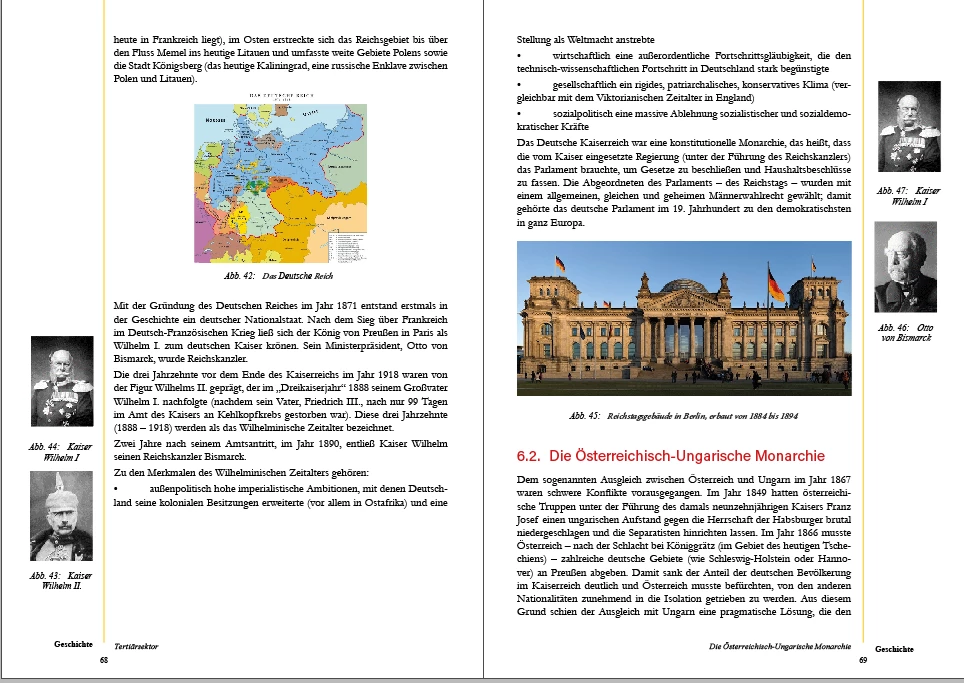
The numbering of the images in InDesign was completely messed up; there was no solution because every time I anchored an image, the numbers got scrambled. Now I wanted to unanchor _one_  image (using the Haesel AllesEntankern script), and all 106 images have become unanchored. The numbering is more or less correct now. But I'm afraid to close the file because when I open it again, everything will definitely be scrambled. I attach a screenshot, so you can better understand what I mean, when I speak about many pictures.

Moreover ... from one chapter 35 images have disappeared (I was just about to replace them). The text is there, but the images, image frames, and captions are not.

Let alone the text changing page when it pleases to do so... (see screenshot).

I save regularly, including in IDML format, but my deadline is approaching, and I'm starting to despair.

If nobody can help me here, I would be ready to pay an expert. Thanks so much in advance.
Correct answer Willi Adelberger

Only now I have fully understood how to change the image order. Thanks again for helping dummies like me.


Ich würde an Deiner Stelle mehr mit Objektformaten arbeiten. Lege für die Bildunterschrift ein Objektformat an, in dem der obere <Offset und das Absatzfomat festgelegt ist. Dann kannst du die Textrahmen immer anschlagen an das Bild und kriegst immer den selben Abstand, ohne dass du immer messen musst. Das geht schneller.

3 replies

Robert at ID-Tasker
Legend
February 21, 2025

An update 😉


1) Numbering of objects - creation order strikes again (marked in green) - when they are on the same page. 


2) Keep options - bad UI - also strikes again - extra empty space on the left - was "2" but after changing to "1" - text fills space on the left: 


Robert at ID-Tasker
Legend
February 21, 2025

@magnificent_cause16B8 


In case of the heads on the left and right - you need to DUPLICATE both at the bottom - currently 43 and 46 - then delete originals and then move duplicates where originals were.


The same needs to be done with the photo on the right - in the middle of the text:


magnificent_cause16B8
Inspiring
February 22, 2025

Duplicating - eliminating - pasting works perfectly, but once I anchor the picture again, the numbering is wrong again 😞


Barb Binder
Community Expert
Community Expert
February 21, 2025

Hi @magnificent_cause16B8:


Or, could you share the same screenshot with View > Screen mode set to Normal and View > Extras > Show Text Frames and View > Extras > Show Text Threads and Type > Show Hidden characters enabled?


The view you shared is hiding all all of the clues to how you set this up.


~Barb

~Barb at Rocky Mountain Training
magnificent_cause16B8
Inspiring
February 22, 2025

You are right, Barb, sorry.

Robert at ID-Tasker
Legend
February 21, 2025

Can you share your file? 


Please click my nickname if you prefer to do it privately.